External Upscaling Setup (DLSS, FSR, XeSS)
To setup the external upscaling solutions you will first need to download and import each plugin in your project
1. Plugins Installation
The following are the minimum versions I tested and validated for the indicated version of the pack. Older versions might work but I recommend always using the latest version for each plugin.
| Pack Version | Nvidia DLSS | AMD FSR | Intel XeSS |
|---|---|---|---|
| 3.0 | 8.1.0 | 4.0.3a | 3.0.1 |
Plugins Availability
All the plugins might not always be available for the every version of Unreal Engine, if a plugin is not available, please check back a few weeks later to see if it was updated or not, I have no control over the release of these third-party plugins.
In case not all plugins are available, the system provides a way of enabling only specific plugins as shown in the following instructions.
The following instructions will help you install each plugin in your project, you can install the plugins of your choice as you will then be able to only activate some specific plugins to be used by the system.
Nvidia DLSS Installation
- Download Link: https://developer.nvidia.com/rtx/dlss/get-started
-
Scroll down to the
DLSS in Unreal Engine 5section and download the version that correspond to your Unreal Engine version.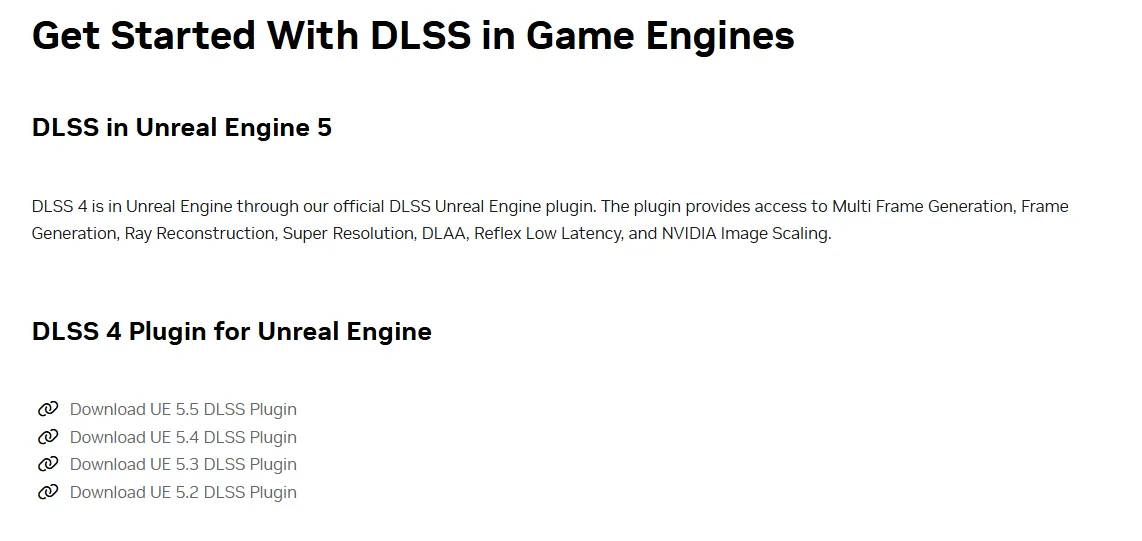
-
Extract the .zip file that you downloaded
-
Among the extracted files, look for the
Pluginsfolder
-
Inside the
Pluginsfolder, copy theDLSSand theStreamlineNGXCommonfolders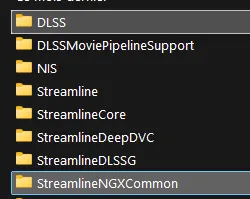
-
Then, go to your project folder & paste the copied folder inside the
Pluginsfolder (create one if it doesn’t exist)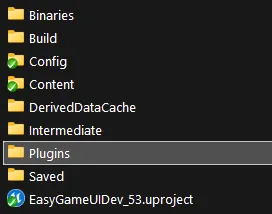
AMD FSR Installation
- Download Link: https://gpuopen.com/learn/ue-fsr/
-
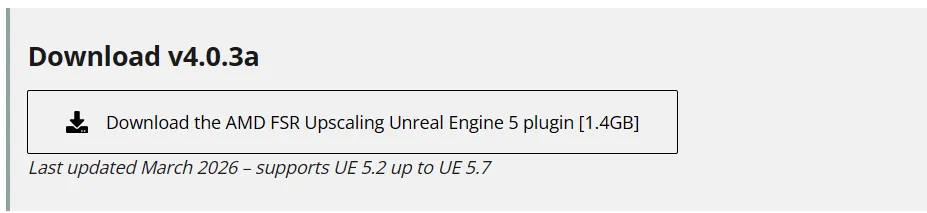
Click on the download button, it will start the download for all available Unreal versions
-
Extract the .zip file that you downloaded
-
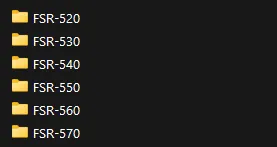
Among the extracted files, look for the folder matching you engine version (530 = 5.3 / 540 = 5.4, etc)
-
Inside the folder of your version, copy the
FSRfolder (only this one)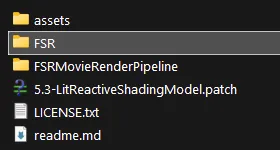
-
Then, go to your project folder & paste the FSR3 folder inside the
Pluginsfolder (create one if it doesn’t exist)
Intel XeSS Installation
- Download Link: https://github.com/GameTechDev/XeSSUnrealPlugin/releases
-
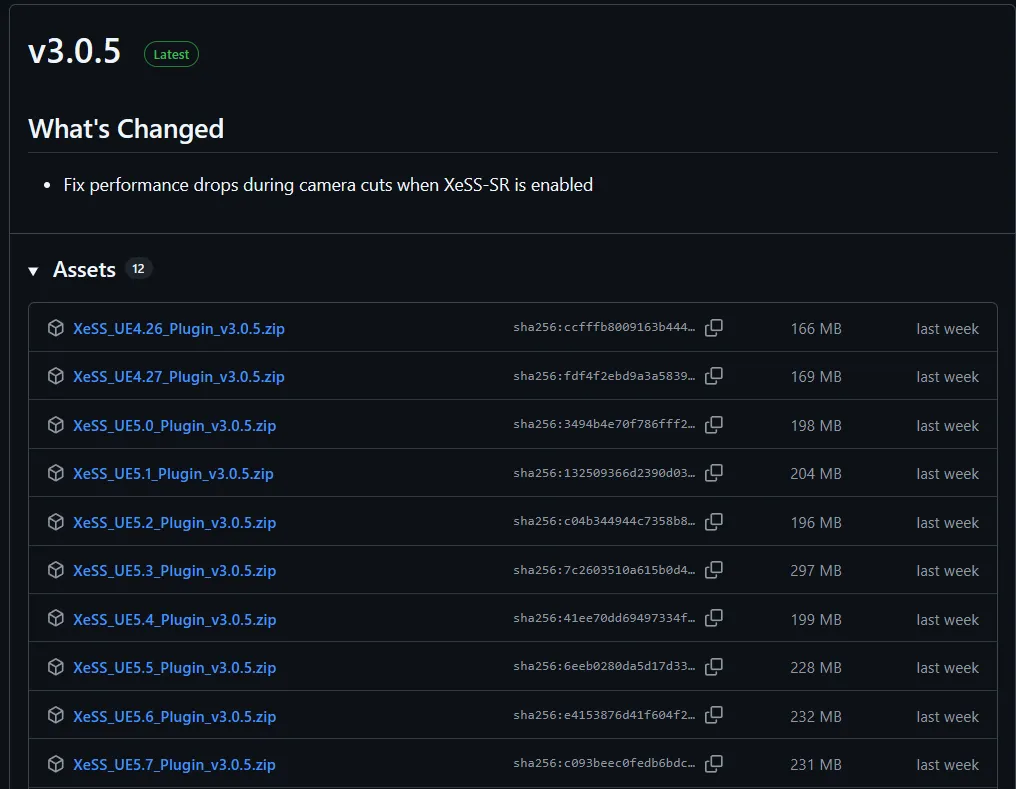
In the latest release, click on the download link for the version that match your Unreal Engine version
-
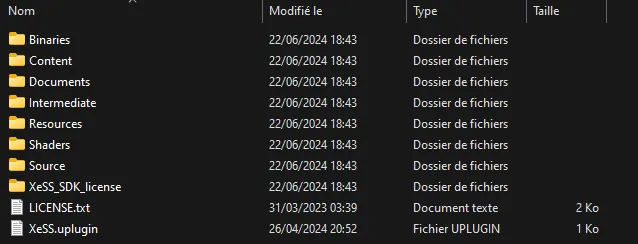
Extract the .zip file that you downloaded
-
Place all the extracted content inside a single folder and copy this new folder
-
Then, go to your project folder & paste the newly created folder inside the
Pluginsfolder (create one if it doesn’t exist)
2. Project Setup
- First, restart your Unreal Project if you did not close it before installing the plugins
-
Then, if you installed the AMD FSR plugin, go to
Edit>Project Settings, typeFrame Generationand make sure that theFrame Generation Enabledsettings is unchecked (false)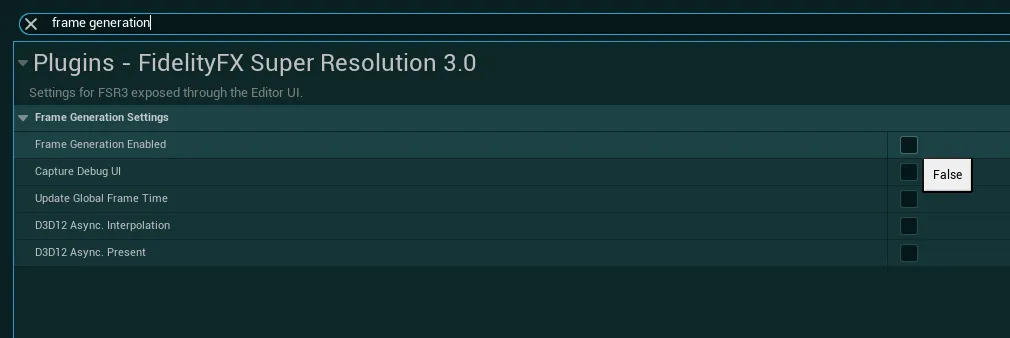
-
Then, go to the
EasyOptionsMenu/EasyGameUI/Core/Utilitiesfolder, open theBPFL_EGUI_EasyFunctionUtilitiesblueprint and open theGet Supported Upscaling Methodsfunction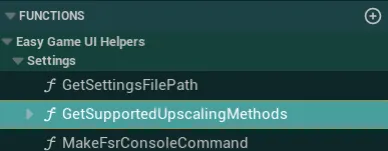
-
In this function, simply connect the nodes for the installed plugins only
For example, if you only installed DLSS, only connect theEnable DLSS Supportnode and leave the others disconnected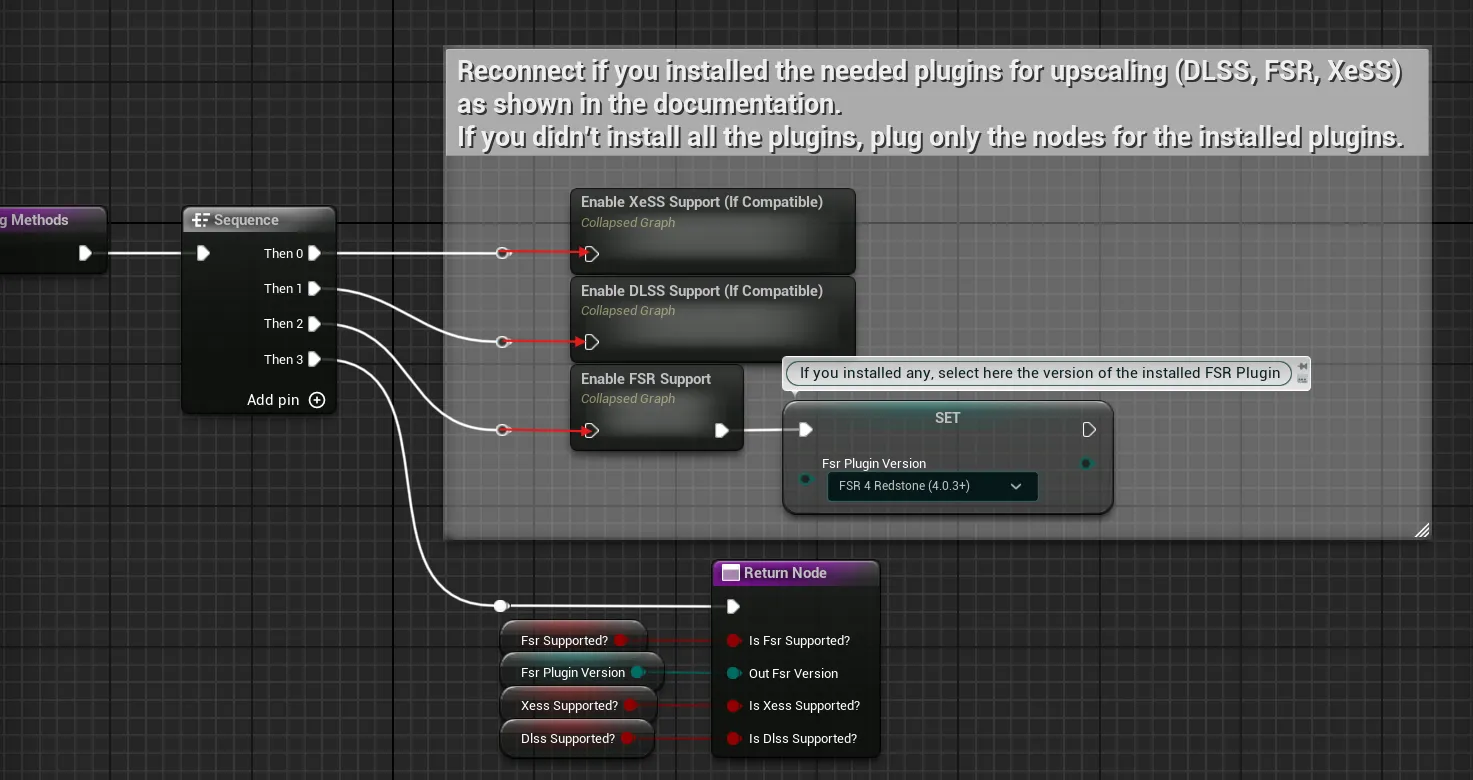
FSR Version Selection
If you are using an older version of the FSR plugin (3.X, 4.0.0), you can select the installed version in the variable
FSR Plugin Version. This is required due to changes made by AMD in the plugin code, which makes those versions non-compatible between each other without explicitely selecting it.Leave it at the default value
FSR 4 Redstoneif you just downloaded the most recent version. -
Compile, save and you are done!
Additional Guides for Upscaling
Considerations for testing
-
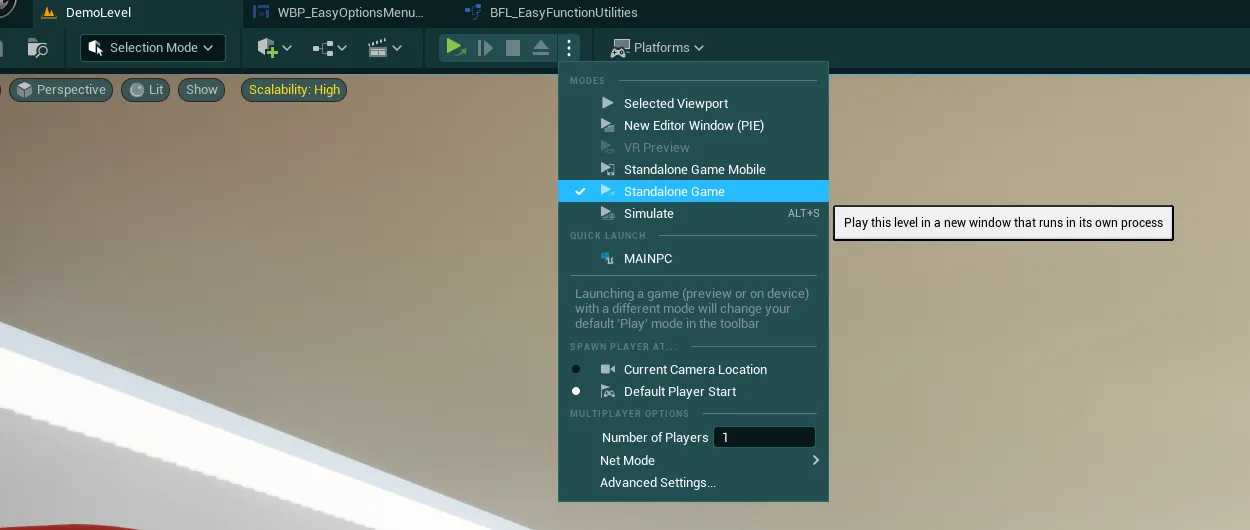
To properly test the upscalings, you will need to play in Standalone Game mode / Quick Launch mode / Packaged Build. Testing in Play In Editor (PIE) will not represent the proper functionnality
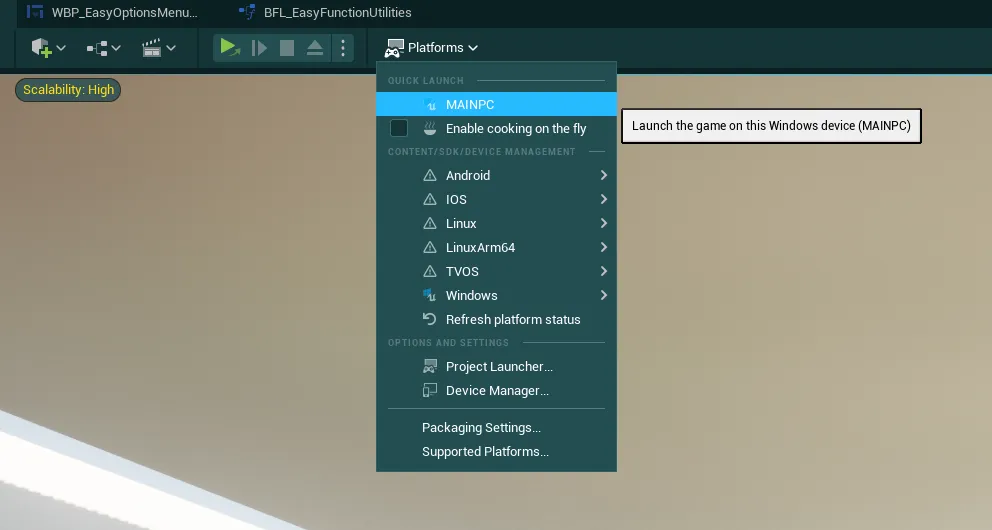
-
If all 3 options don’t appear inside the menu it can be because your hardware is not compatible. Nvidia DLSS only works on Nvidia RTX GPUs. Intel XeSS and AMD FSR should work on most modern GPUs
- Everything should mostly work out-of-the-box but for an optimal implementation or if you notice any weird/inconsistent behavior, please refer to the documentation of each plugin
Fix possible package compilation errors
This issue is most likely to appear with the FSR plugin in UE 5.6+
If you encounter compilation errors (blocking errors, not warnings) during packaging related to any of the upscaling plugins, try to move the plugin installation into the engine folder:
- First, locate where you installed the Unreal Engine version you are using
-
Then, go to the folder
Engine/Plugins/Marketplace. If you don’t have this folder in the Plugins folder, simply create a new folder and name itMarketplace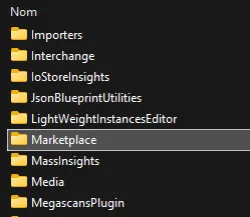
-
Then, from the plugins that you had installed inside your project, move the plugin that is causing errors (FSR, DLSS or XESS) to this Marketplace folder (removing it entirely from the project)
-
Once this is done, reopen your project and make sure that the plugin is still enabled by going into
Edit>Pluginsthen searching for the plugin you moved and checking that it is still enabled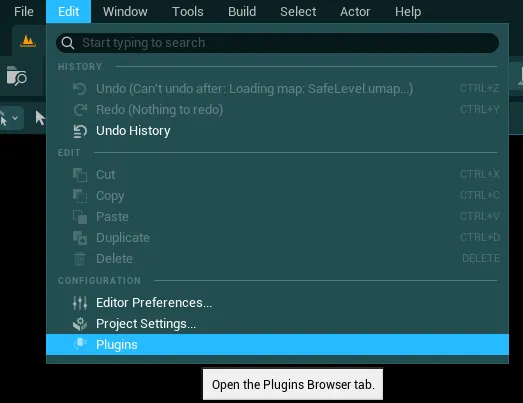

How to change the game default Upscaling/AA Method
The system will use Nvidia DLSS as default upscaling/AA method (if the plugin is available). Check out the following instructions if you wish to change this default
- Go to
EasyOptionsMenu/Core/SettingManagers/VideoSettingsand open the blueprintBP_SettingUpscalingMethod -
In this blueprint, locate the function
Initialize Custom Setting Dataand you should see a variableDefault Requested Upscalerat the begining of it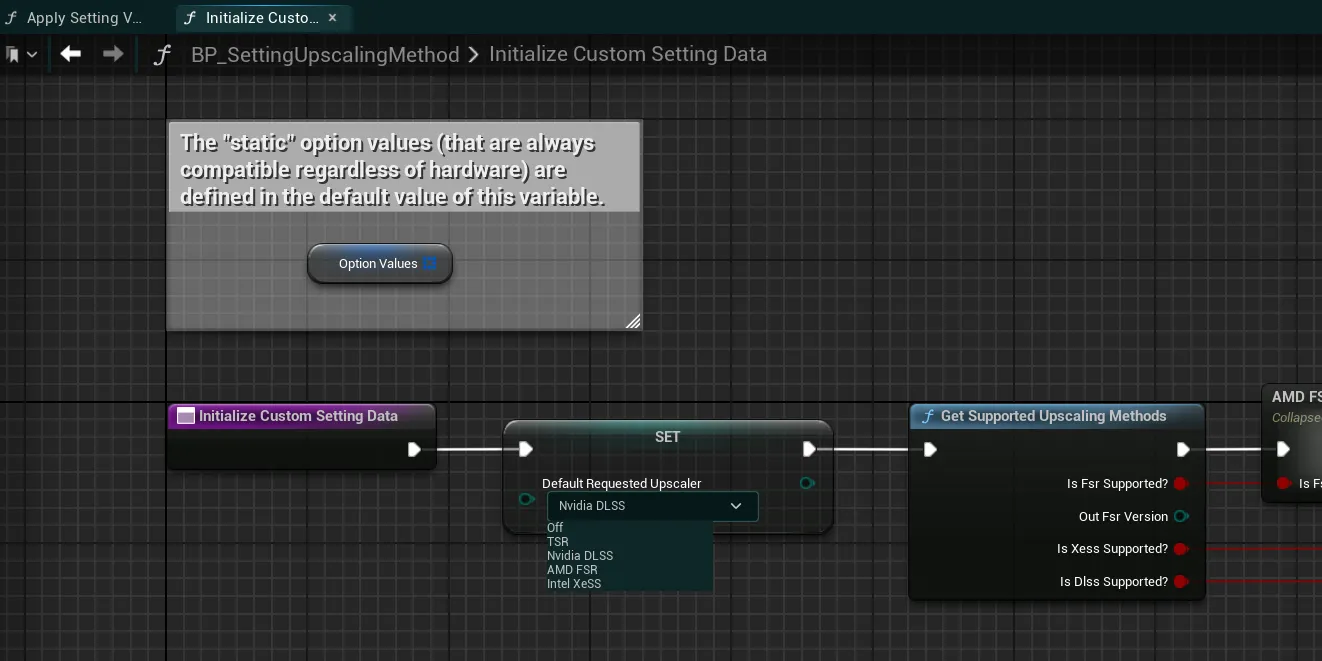
-
In the dropdown of this variable, simply select the system you wish to use as default (note that the related plugin has to be installed, the system may fallback to another upscaler if the selected one is not compatible with the user hardware)
-
Then, simply replicate the same steps in the blueprint
BP_SettingAntiAliasingMethod, this time to select theDefault Requested AA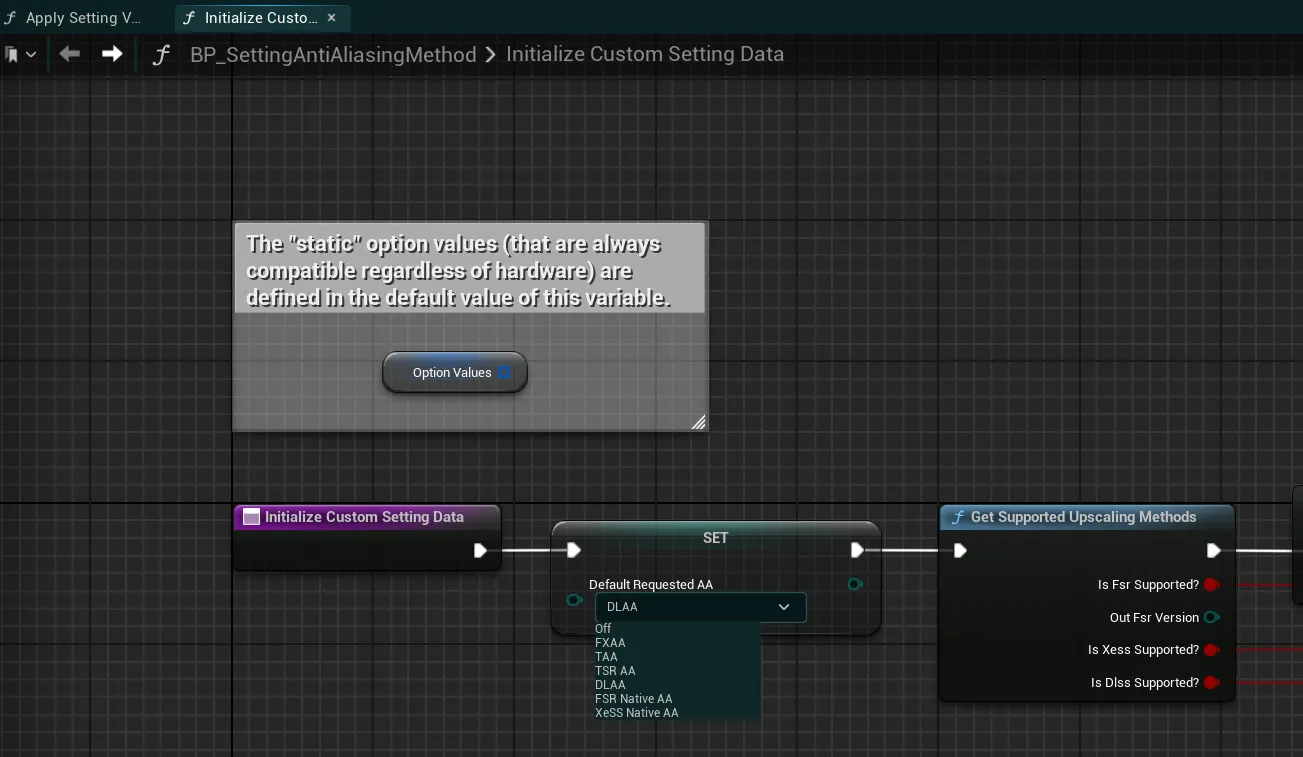
Safely remove the plugins if needed
If for any reasons you want to safely remove the plugins (such as engine upgrade, compatibility issues, etc), please follow these instructions
-
Go to the
EasyOptionsMenu/EasyGameUI/Core/Utilitiesfolder, open theBPFL_EGUI_EasyFunctionUtilitiesblueprint and open theGet Supported Upscaling Methodsfunction -
In this function, simply disconnect any of the collapsed nodes in the comment. Do not disconnect the pin leading to the
Return Node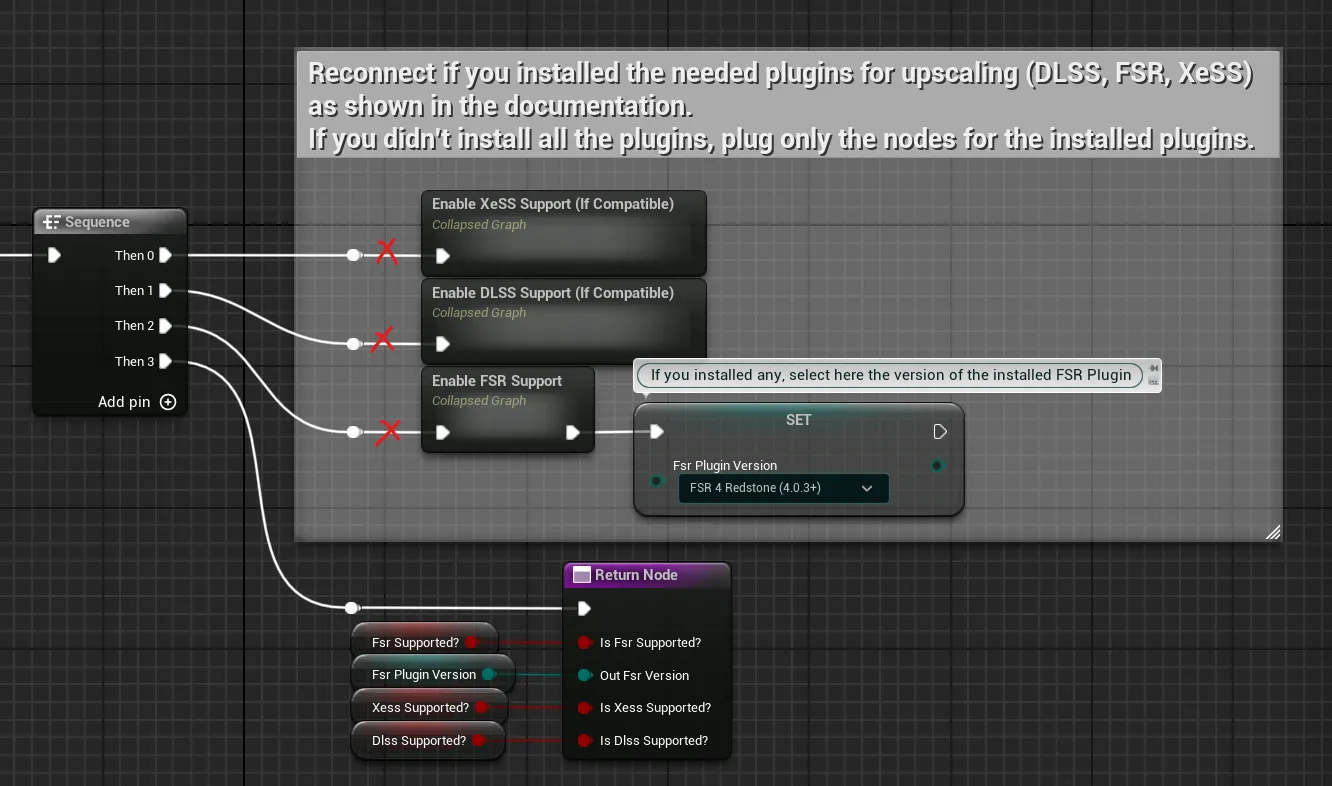
-
Compile and save
- You can now safely remove the plugins by either deleting them inside the
Pluginsfolder in your project folder (close Unreal Engine before that), or by disabling them inside the Plugins window