Gameplay Settings Setup
Out of the box the options menu provides several gameplay settings, some of which will work automatically depending on your project setup and others that require a quick additional setup that is described in this section
Language
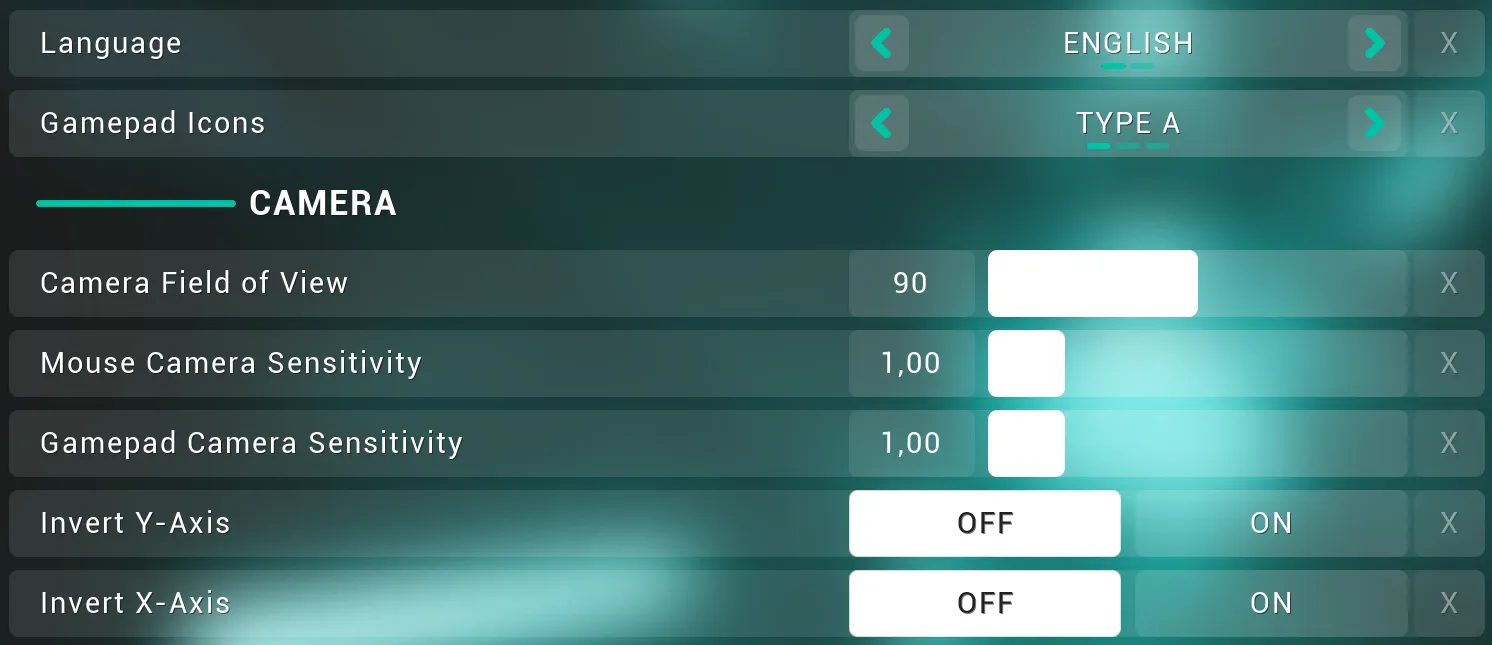
The Language Setting will work automatically with the built-in Localization Dashboard tool provided by Unreal Engine, any language set up in this tool will be displayed in the options menu for the user to choose without any additional setup required.
Gamepad Icons
The Gamepad Icons setting allows the user to select which gamepad brand the input icons should be using, no setup is required for this setting, it will work out of the box.
If you wish to change the default gamepad brand applied to the game, you can do so in your Global Styling Data Asset with the Default Gamepad Keys Brand setting
Camera Field of View
The Field of View setting should work automatically without additional set up, but in some situations it might apply the FOV to an incorrect gameplay camera.
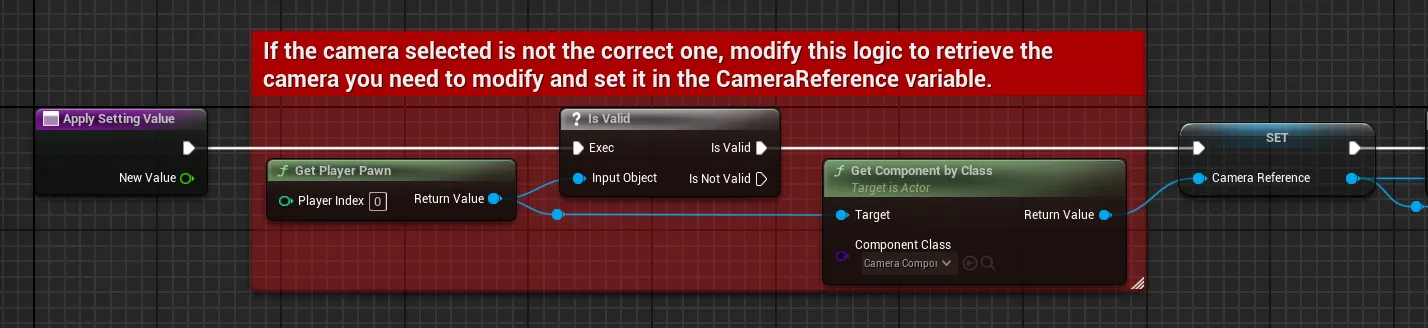
If you notice this issue, open the blueprint BP_SettingCameraFOV in EasyOptionsMenu/Core/SettingManagers/GameplaySettings
Then in the Apply Setting Value function, replace the logic in the red comment with your own logic to retrieve the correct gameplay camera from your character
Sensitivity & Camera Inversion
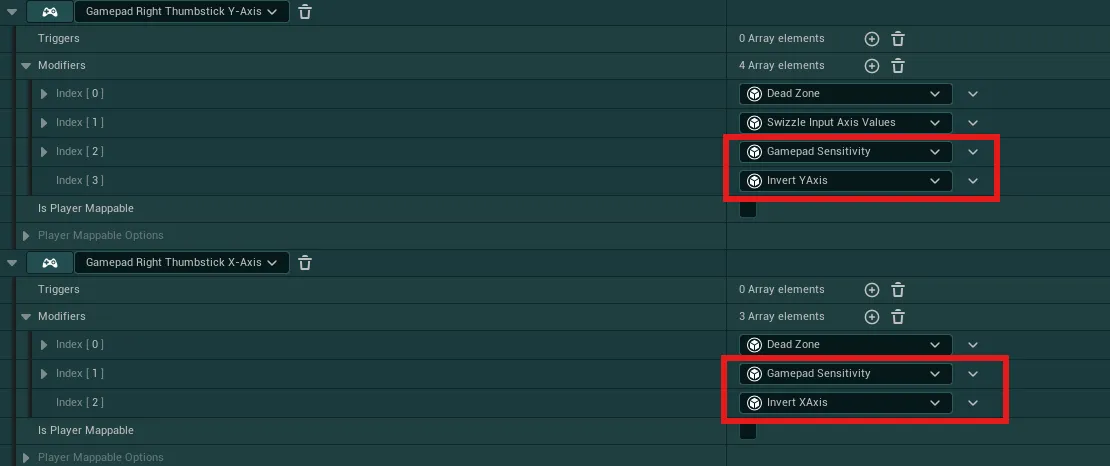
The gameplay options for mouse and gamepad camera use Enhanced Input Modifiers to apply to your input mapping context and modify the inputs with the requested sensitivity and camera inversion settings. You can see an example of this setup in the IMC_EGUI_DemoInputs (EasyOptionsMenu/DemoContent/Inputs)
- To apply those, simply open the Input Mapping Context that contain your camera inputs
-
Then, in your “Look” inputs, add the corresponding
Modifiers:Mouse Sensitivityfor mouse inputs andInvert XAxisorInvert YAxisbased on the mouse axis you have set.If you are using a single
Mouse XY 2D-Axis, then simply add the Mouse Sensitivity modifier and both theInvert XAxis&Invert YAxismodifiers to that input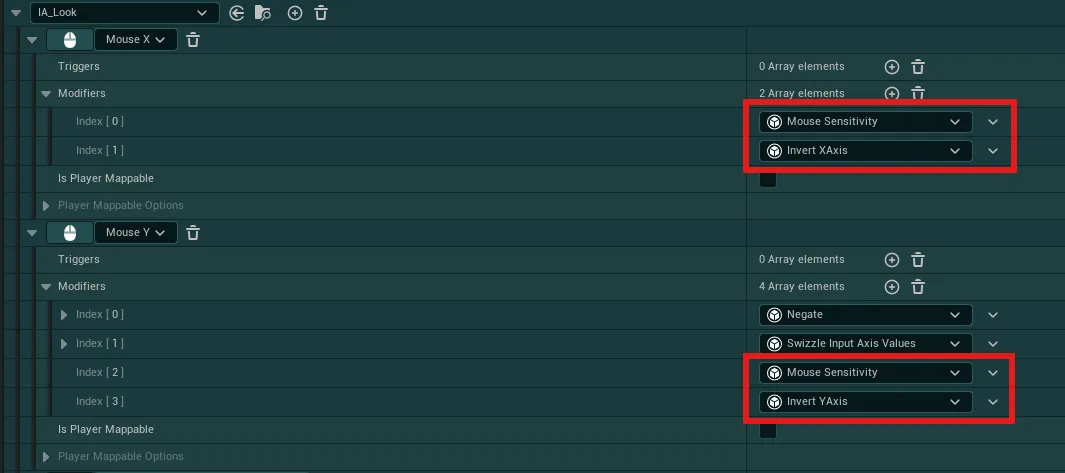
-
Repeat for any gamepad inputs but with the
Gamepad Sensitivityinstead of Mouse Sensitivity. Same instructions apply for theInvert XAxis&Invert YAxis