Global Styling System
The Global Styling Data Asset allow you to quickly customise many visual elements across all the widgets provided with the pack.
To change any of these styles, go to the EasyHudBuilder/Core/GlobalConfig folder. In here, you will find the styling data asset used by default (DA_EHB_DefaultStyling), as well as other presets for demonstration.
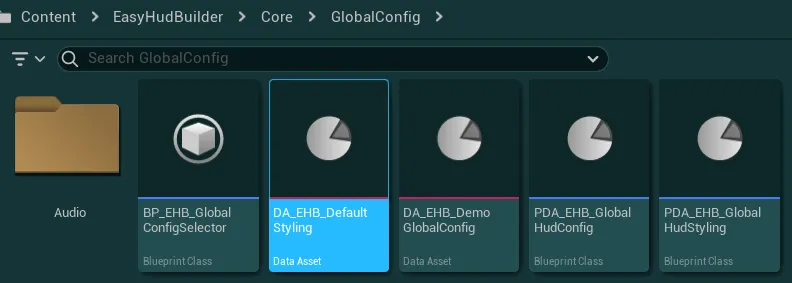
How to select the Styling Data Asset used by the system
- To select which Styling Data Asset is used by the system, open your Global Config Data Asset (or the demo one from the folder
EasyHudBuilder/Core/GlobalConfigif you are using it) -
Then, simply change the data asset in the
Styling Data Assetvariable
-
Recompile any blueprint for the changes to take effect
Once the Styling Data Asset opened, you will be presented with many options to control the various styling elements, they are split in several sections that I will detail just below.
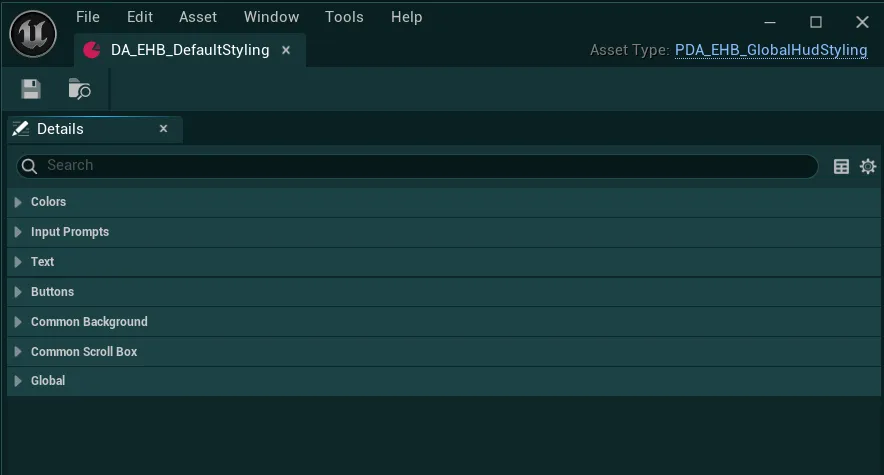
Note
For the changes to be applied and visible on the widgets in editor, you may need to trigger a compilation on any widget or blueprint of the pack
Colors Category
Colors

-
Accent ColorColor used to highlight some parts of the UI such as the dividers, the buttons, the dirty indicator
Input Prompts Category
Input Prompts

-
Input Prompt Icon ColorColor applied to all the input prompts using the Input Prompts Widgets
-
Input Prompt Overlay MaterialOverlay material that can be used to stylize the input prompts
You can check out the
M_InputPrompts_DemoOverlayfor an example of overlay material
-
Input Prompt Overlay Material Parameter NameParameter name of the base texture defined inside the overlay material
Text Category
Text
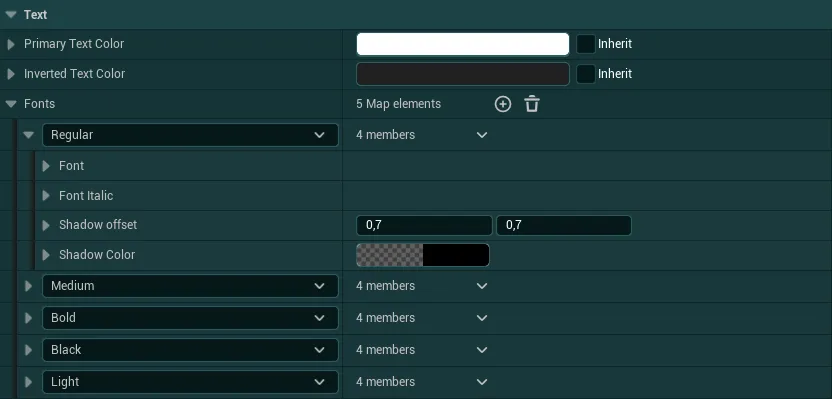
-
Primary Text ColorColor used by default for the Common Text (all texts inside the pack)
-
Inverted Text ColorColor used when needed against backgrounds that could use the same color as the primary text color (The buttons for instance)
The color can be inverted by using the function
Switch Text Coloron any Common Text widget
-
FontsAll the settings for fonts using 5 presets: Regular, Medium, Bold, Black and Light. For each preset, you can select a font as well as an italic variant, and control the shadow used by the font.
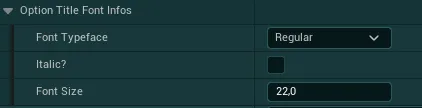
The config of all the widgets using a Common Text will have an option to control which font is used as well as its size
Buttons Category
Buttons
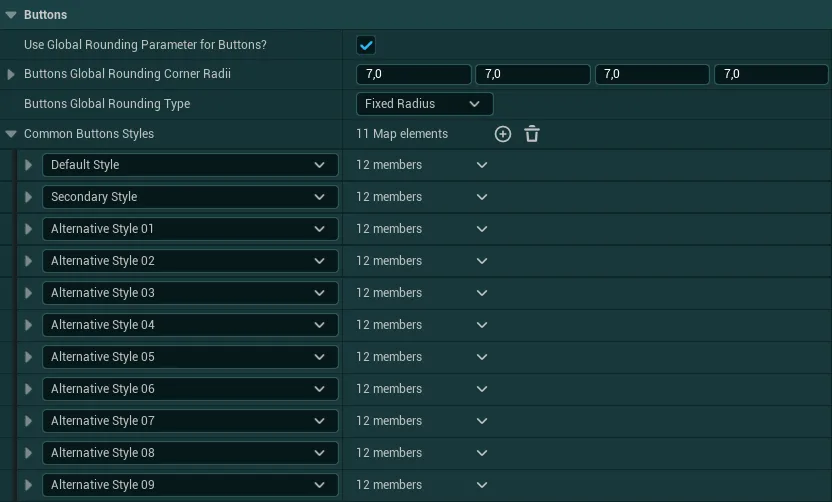
-
Use Global Rounding Parameter For Buttons?If True, all the button styles will be overwritten to use the global radius and rounding type values defined in the styling
If False, each button style will be entirely responsible for setting its own styling including rounding parameters
-
Buttons Globa lRounding Corner RadiiCorner Rounding applied to all buttons if the global rounding parameter is enabled
-
Buttons Global Rounding TypeRounding Type applied to all buttons if
Use Global Rounding Parameter For Buttons?is True
-
Common Button StylesList of standard buttons styles used by the Common Button widget based on which style is selected in the widget
The config of all the Common Button widgets will have an option to control which style is used by the button

Common Background Category
Common Background
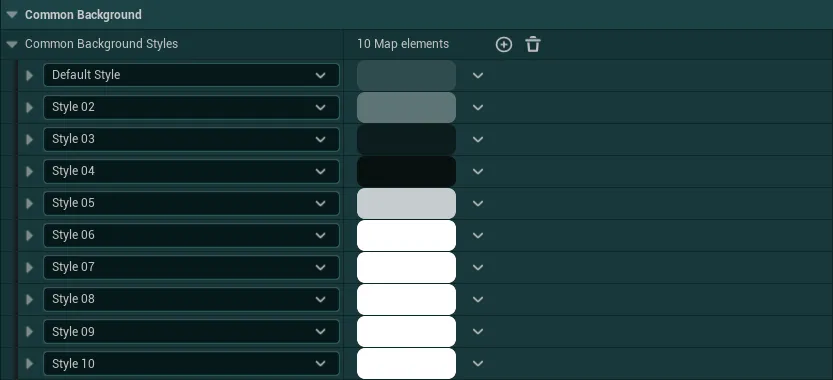
The single Common Background Styles variable contain a list of standard border styles used by the Common Background widget based on which style is selected in the widget.
The Normal Style selector is the style visible by default and Active Style Selector can be visible by calling the function Set Background Active on any Common Background widget
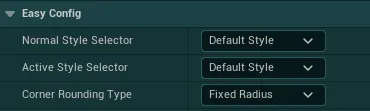
The Corner Rounding Type define which type of rounding should be used for the specific background, regardless of what is set inside the style
Common Scrollbox Category
Common Scrollbox
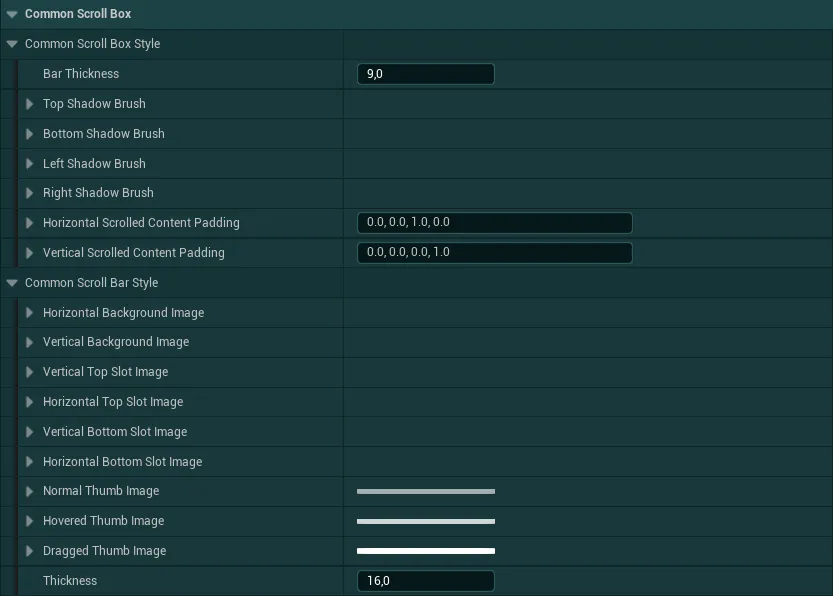
Both of these settings are used to apply a style to the Common Scroll Box widget
-
Common Scroll Box StyleStandard style definition for a Scroll Box in Unreal
-
Common Scroll Bar StyleStandard style definition for the Scroll Bar
Note: The scrollbar “thumb” (the selectable part) always uses the accent color regardless of the styling color in here
Global Category
Global
-
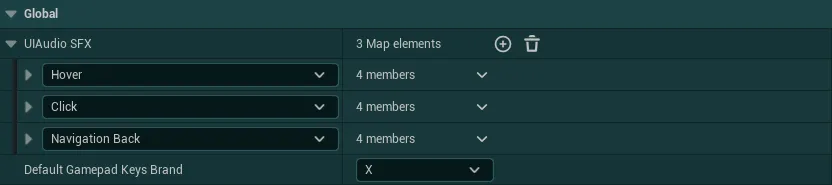
UI Audio SFXSet of SFX effects that will be played in Common Widgets of the system (mostly buttons, settings, etc.)
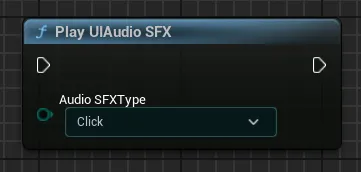
Those SFX can also be called from anywhere with the global function
Play UI Audio SFX
-
Default Gamepad Keys BrandSelect the default value between the three types of gamepad keys available. The gamepad keys brand can then be modified during gameplay inside the options menu
X= Xbox Gamepad
P= Playstation Gamepad
S= Nintendo Switch Gamepad