How to Use the Built In Modules
The system provides many built in modules that can be used for various common huds, you will find below the functions that they have and how to use them. You can find all those widgets inside the folder EasyHudBuilder/Core/HudModulesWidgets
If you wish to modify an existing widget, I would recommend duplicating the widget and replacing its reference with the Assistant Tool. Any built-in function will automatically work with that duplicated widget thanks to the use of blueprint interfaces.
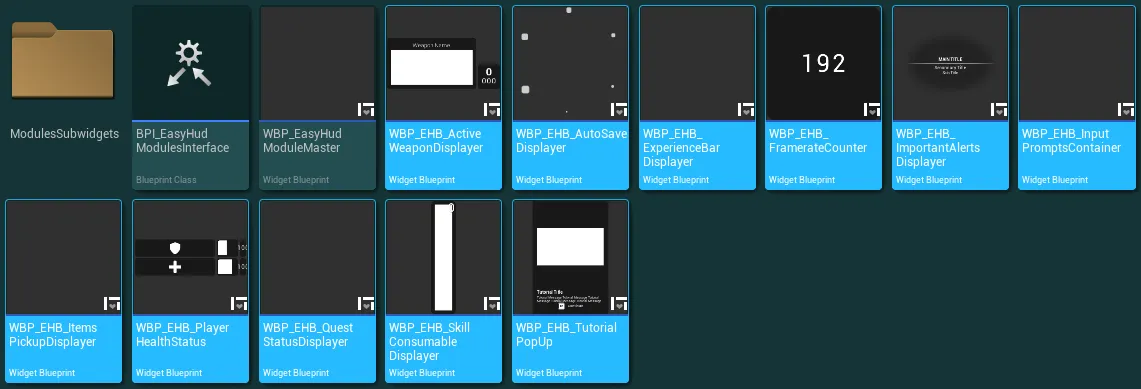
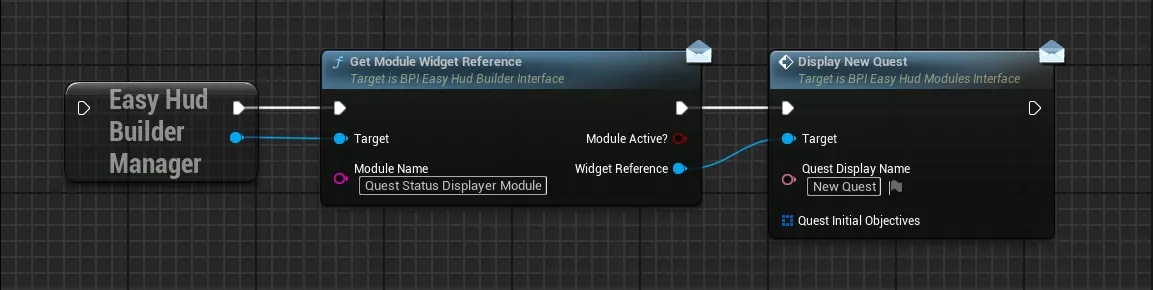
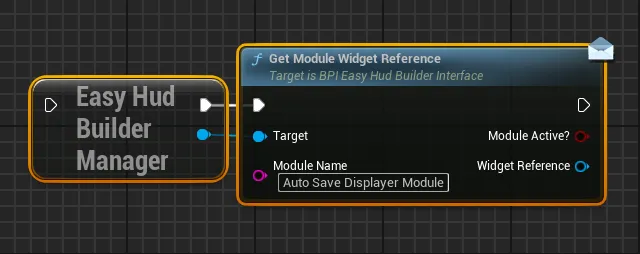
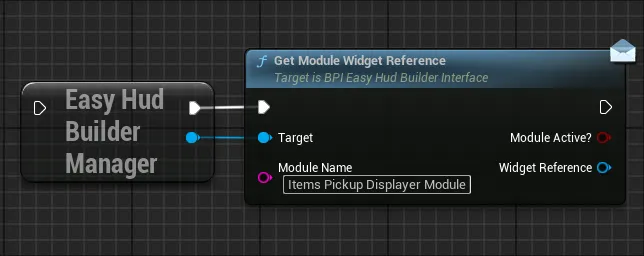
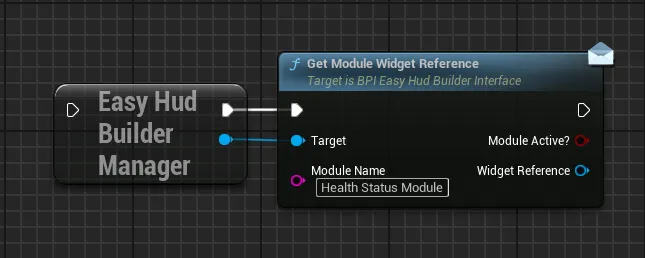
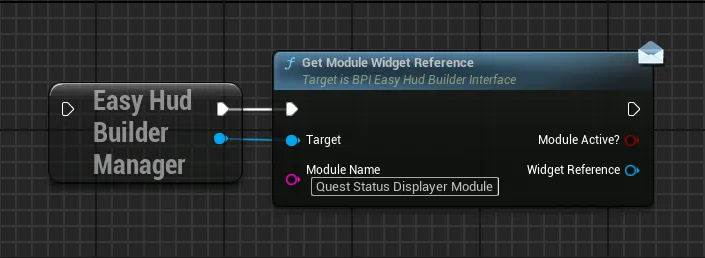
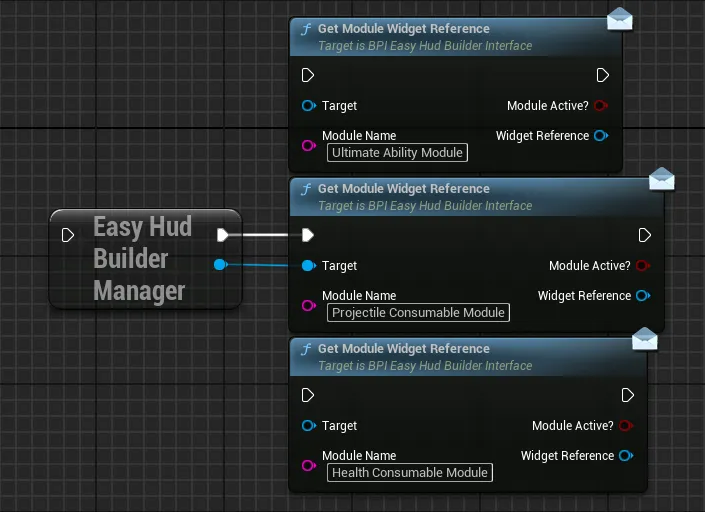
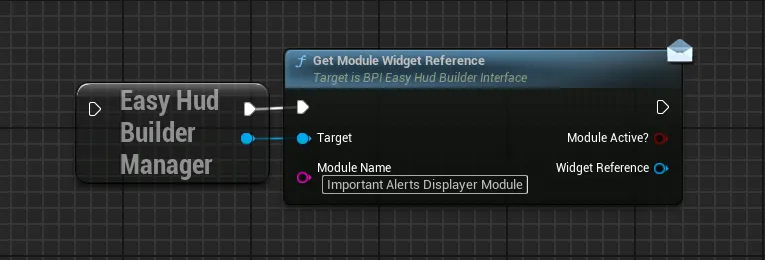
In order to use the built in modules in your gameplay, you only need to add them to your contexts (by default, they are set up on the demo context with the default data asset). And then retrieve their reference from their Module Name, at which point you can call any of the functions described below for each.
For example here we are retrieving the Quest Status Displayer module and calling the function to display a new quest:
Modules Definition:
Active Weapon Displayer
Active Weapon Displayer
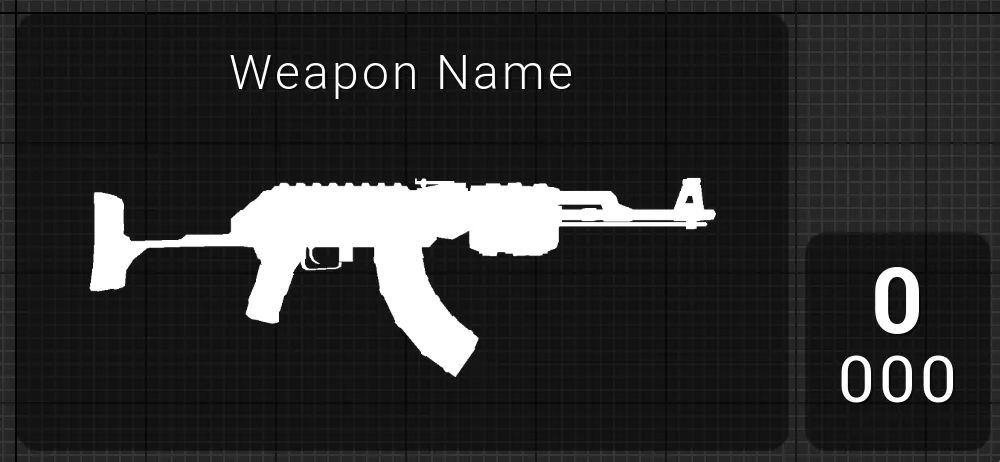
This module allow to display a weapon with an image, a name (facultative) and its current/max ammunitions
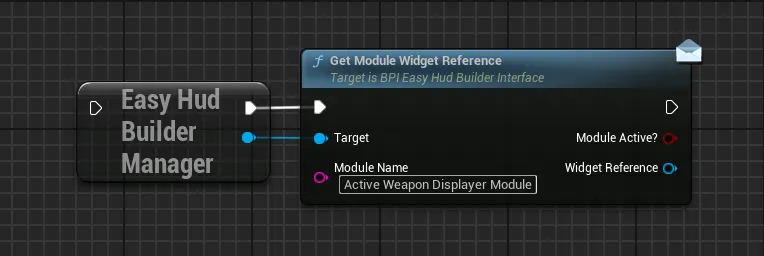
Functions:
Display New Active Weapon
Initialize or refresh the displayed weapon with new values
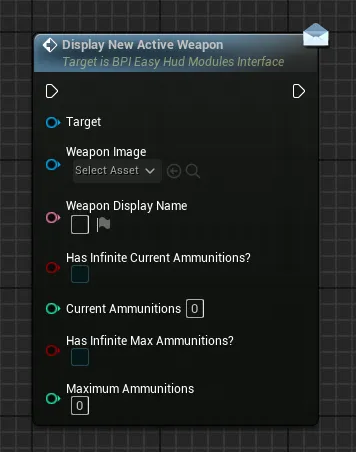
Weapon ImageA texture to display for the weapon, the ideal ratio of the image is around 1:2 (700px : 350px for example)Weapon Display NameFacultative name to display above the weapon imageHas Infinite Current AmmunitionIf true, the current ammunitions will be displayed as infiniteCurrent AmmunitionValue of current ammunition if not infiniteHas Infinite Max AmmunitionIf true, the max ammunitions will be displayed as infiniteCurrent AmmunitionValue of max ammunitions if not infinite
Update Current Ammunitions
Update the displayed current ammunitions (top value)
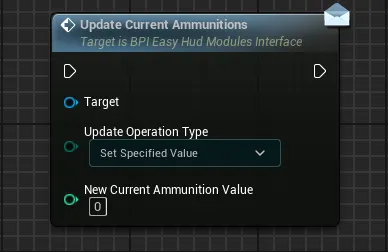
Update Operation TypeDefine how the new specified ammunition value is redefined compared to its current valueSet Specified ValueOverwrite the current ammunition value with the specified valueAdd Specified Value To CurrentAdd the specified value to the current ammunition valueRemove Specified Value From CurrentRemove the specified value from the current ammunition value (the final value will never be negative)
New Current Ammunition ValueThe specified value to consider while doing the operation
Update Maximum Ammunitions
Update the displayed maximum ammunitions (bottom value)
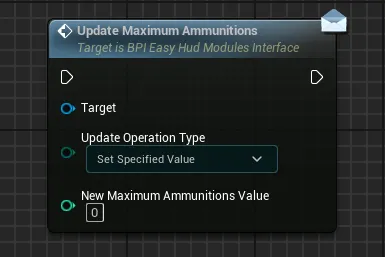
Update Operation TypeDefine how the new specified maximum ammunition value is redefined compared to its current valueSet Specified ValueOverwrite the current maximum ammunition value with the specified valueAdd Specified Value To CurrentAdd the specified value to the current maximum ammunition valueRemove Specified Value From CurrentRemove the specified value from the current maximum ammunition value (the final value will never be negative)
New Maximum Ammunition ValueThe specified value to consider while doing the operation
Update Infinite Ammunitions
Update the displayed infinite ammunitions if needed, allow to toggle on/off infinite ammunitions for the current or maximum
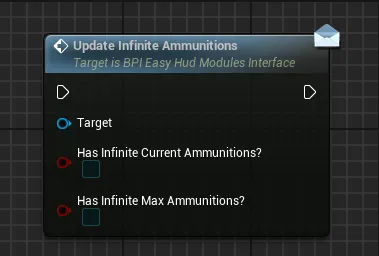
Has Infinite Current AmmunitionIf true, the current ammunitions will be displayed as infiniteHas Infinite Max AmmunitionIf true, the max ammunitions will be displayed as infinite
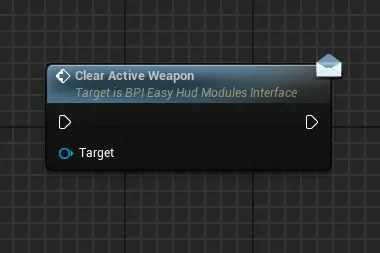
Clear Active Weapon
Clear and hide the currently displayed weapon if there are any
Auto Save Displayer
Auto Save Displayer
This module allow to display a simple auto save throbber when needed
Functions:
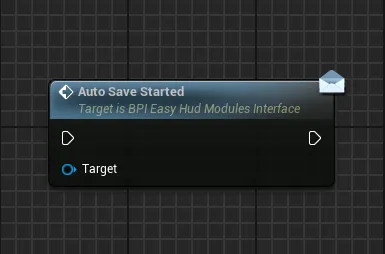
Auto Save Started
Start to display the auto save throbber for an indefinite amount of time
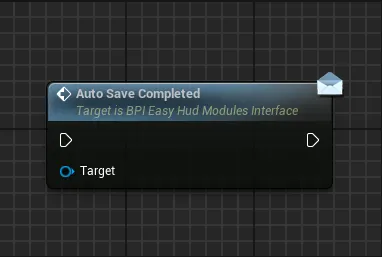
Auto Save Completed
Stop and hide the auto save throbber
Experience Bar Displayer
Experience Bar Displayer
This module allow to display a main experience progression bar and/or secondary skills progression bars
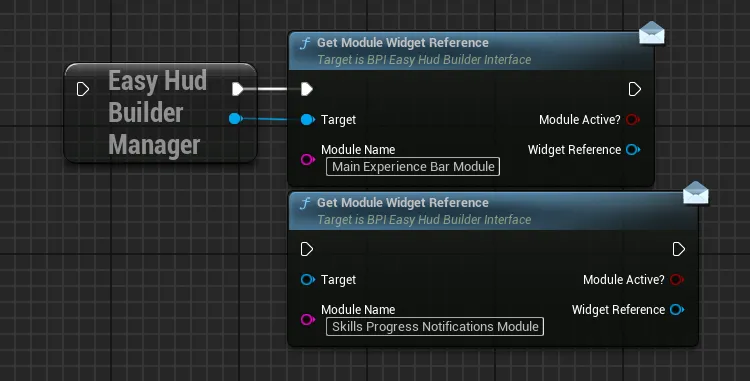
The default layout uses two different modules to split the main progression from the skills progression, you can also use a single module to display both if you wish

Functions:
Display New Experience Progress Bar
This function handle all the logic to display experience bars, calling this function again on the same module will create a queue to display all the needed progress bar animations one at a time
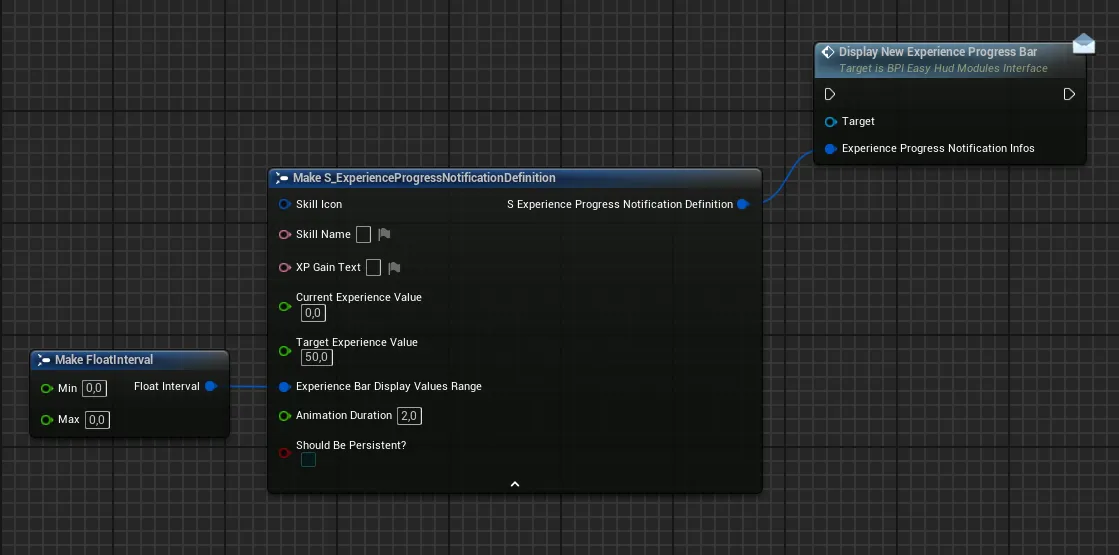
Skill IconIcon to display for the skill, the icon should be squareSkill NameName of the skill/Action that triggered the xp progression, displayed above the progress barXp Gain TextText to display below the progress bar to inform what kind of gain this action has caused (should usually be the value of xp gained, but can be anything you wish)Current Experience ValueInitial value of the progress bar, from which the animation will be executed, should be contained inside the display rangeTarget Experience ValueFinal value of the progress bar that will be reached at the end of the animation, should be contained inside the display rangeExperience Bar Display Values RangeXP range of the progress bar, these values should contain both the current and target values (example: Range 0→100, current 10, target 50)Animation DurationDuration of the xp gain animation, after which the progress bar will be fade outShould Be PersistentIf true, the experience bar will remain on screen after all the animations in queue are completed (only the icon will be visible, not the progress bar)
Clear Experience Progress Notifications
Function to clear all the currently active non-persistent experience notifications and notifications in queue as well as any currently active persistent notification.
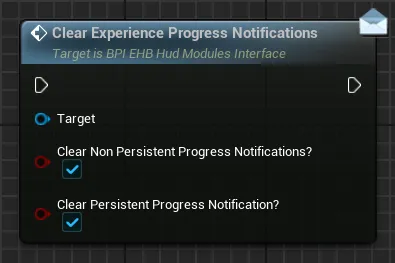
Clear Non Persistent Progress Notifications?If True, any non-persistent progress notification will be clearedClear Persistent Progress Notification?If True, any active persistent progress notification on this module will be cleared
Input Prompts Container
Input Prompts Container
This module allow to display multiple input prompts to inform the player of any actions he can do and which keybinds are associated with those actions. Thanks to the built-in Input Prompt system, those inputs will automatically detect key rebinding and device change (gamepad, keyboard, mouse)
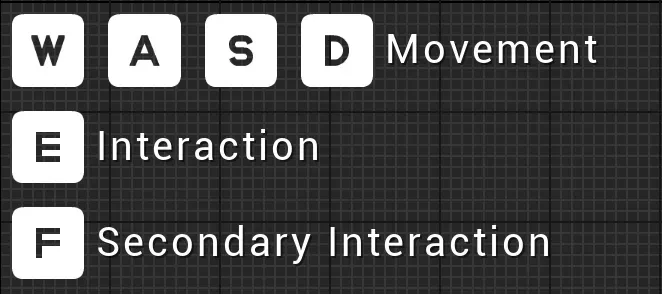
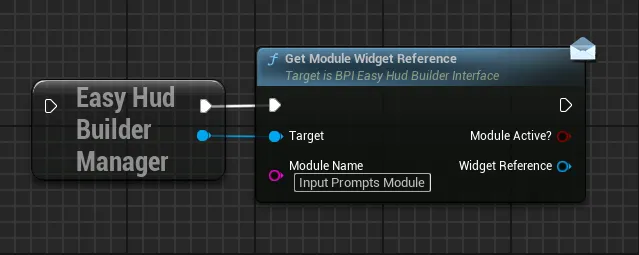
Functions:
Display New Single Input Prompt
Display an input prompt with all its associated details (text, input, styling), useful for action that only use one input per device like a simple interaction
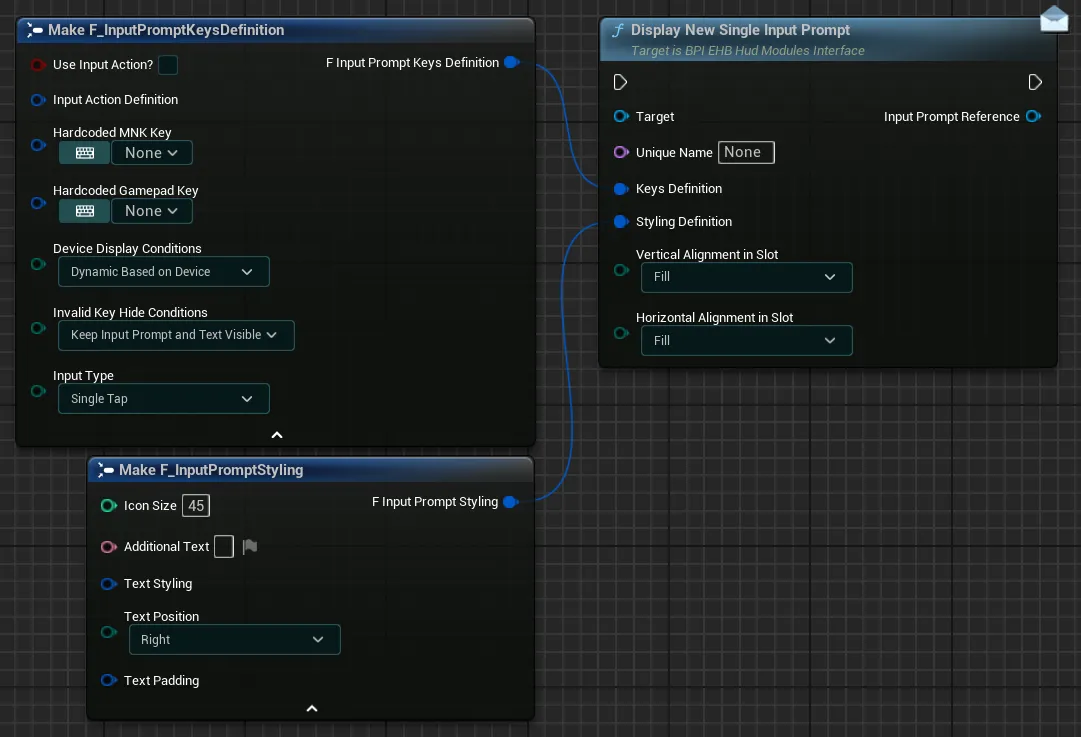
-
Unique NameUnique Name for the input prompt, this name can be used to clear this specific input prompt later on -
Keys DefinitionSet of variables defining which key need to be displayed (expand for more)Use Input Action?If you want to use an input action to display an input, tick this checkbox. Leave it unticked if you want to hard-code the keys-
Input Action DefinitionIf you ticked the previous checkbox, you now need to fill in the details about the input action that you want to display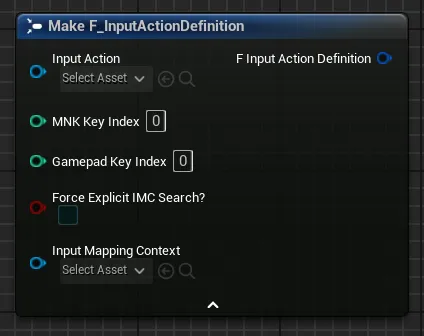
Select the Input Action in the dropdown and the Input Mapping Context from which you want to gather the keybinds
If the selected Input Action has more than 1 key per device in the mapping context, then you need to identify which key index you wish to display.
In the example below, there are 4 indexes for keyboard keys and 2 indexes for gamepad keys. If you want to display “D” and “Thumbstick X-Axis”, you need to enter the indexes 3 and 1 in the respective fields.
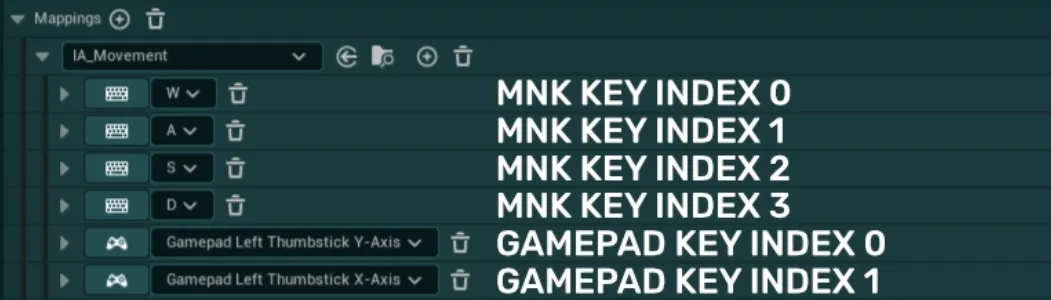
-
Hardcoded MNK Key&Hardcoded Gamepad KeyIf you did not tick the previous checkbox, you can now enter the hard-coded keys that you want to display using the two dropdowns and typing the name of the key
You don’t need to enter both keys. You can just enter one of the two if you want to display a key for a single device
-
Device Display ConditionsThis variable has three options that control the display of the keys:Dynamic Based on Devicewill allow the input prompt to display both gamepad and mnk keys based of the device usedOnly Mouse & Keyboard Keyswill only allow mnk keys to be displayed, regardless of the device usedOnly Gamepad Keyswill only allow gamepad keys to be displayed, regardless of the device used
-
Invalid Key Hide ConditionsThis variable control how the input prompt should react if a key is invalid (either not the correct device, or key not found, etc.)Keep Input Prompt and Text VisibleThe Input Prompt and Text will stay visible when using another device or if the key is invalidHide Input Prompt OnlyThe Input Prompt will be hidden but the Text may still be visible when using another device or if the key is invalidHide Input Prompt and TextThe Input Prompt and Text will be hidden when using another device or if the key is invalid
For example: If you set the input prompt to display only Gamepad Keys, setting this variable as "Hide Input Prompt Only" allows you to hide the input when the player uses a keyboard instead of gamepad
-
Input TypeThis variable allow to select which input type the key should display between three options:Single TapA basic single tap key for most use casesHoldA key that must be held for a specified amount of timeButton MashA key that must be repeatedly pressed for a specified amount of time
-
Styling DefinitionSet of variables defining the styling of the input prompt (expand for more)Icon SizeThis setting define the size of the displayed input prompt icon in pixelsAdditional TextOptional text to display near the key. You can leave it empty if no text needs to be displayedText StylingSet of options to control the text font, transform policy and justificationText PositionOption to control the position of the text relative to the key icon. Only the right alignment and left alignment can be selectedText PaddingOptional padding to add around the text
-
Vertical Alignment In Slot&Horizontal Alignment In SlotControl the alignement of the input prompts widget inside the container
Display New Multi Input Prompt
Display multiple input prompts at once with all the associated details (text, inputs, styling), useful for actions that have multiple inputs attached like movement
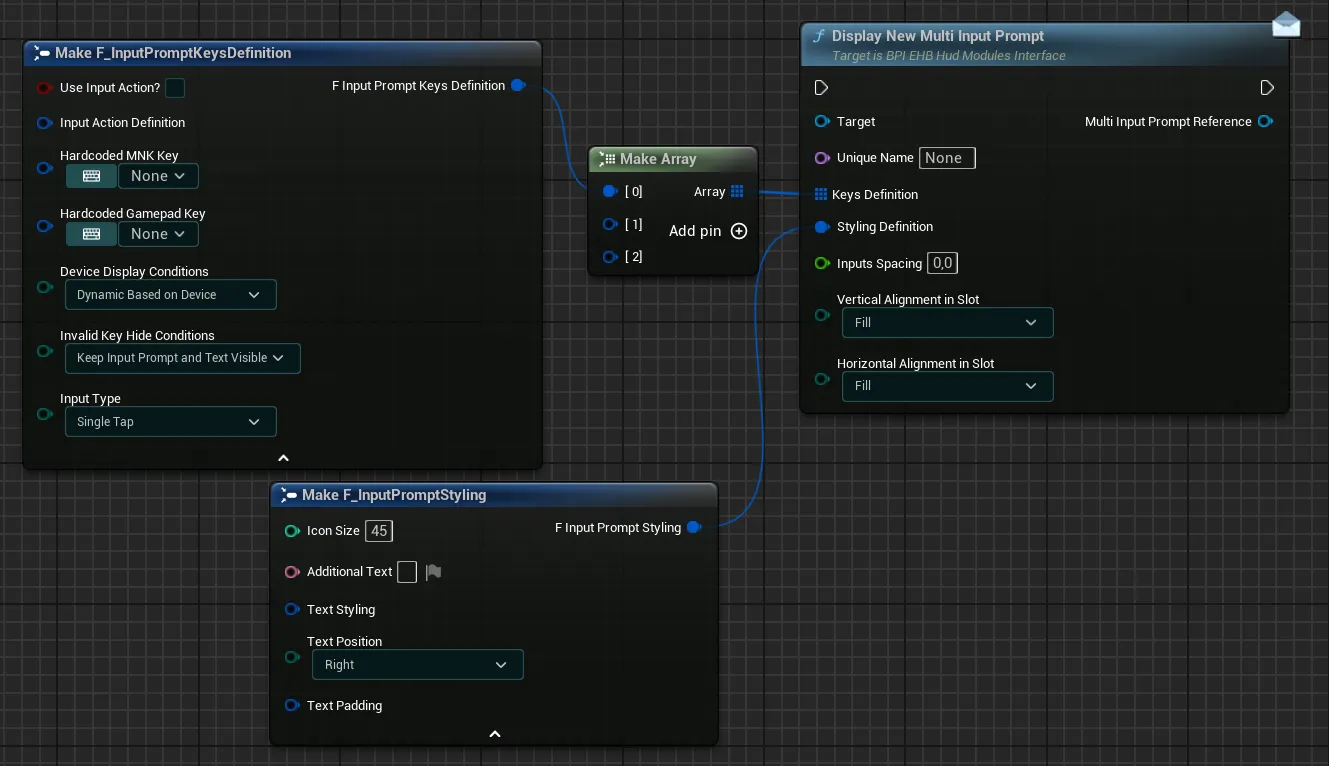
Unique NameUnique Name for the input prompt, this name can be used to clear this specific input prompt later on-
Keys DefinitionArray of structures defining which keys need to be displayed (expand for more)For each key you can configure the following variables, you can have as many different keys as you wish to be displayed by this single widget
Use Input Action?If you want to use an input action to display an input, tick this checkbox. Leave it unticked if you want to hard-code the keys-
Input Action DefinitionIf you ticked the previous checkbox, you now need to fill in the details about the input action that you want to displaySelect the Input Action in the dropdown and the Input Mapping Context from which you want to gather the keybinds
If the selected Input Action has more than 1 key per device in the mapping context, then you need to identify which key index you wish to display.
In the example below, there are 4 indexes for keyboard keys and 2 indexes for gamepad keys. If you want to display “D” and “Thumbstick X-Axis”, you need to enter the indexes 3 and 1 in the respective fields.
-
Hardcoded MNK Key&Hardcoded Gamepad KeyIf you did not tick the previous checkbox, you can now enter the hard-coded keys that you want to display using the two dropdowns and typing the name of the key
You don’t need to enter both keys. You can just enter one of the two if you want to display a key for a single device
-
Device Display ConditionsThis variable has three options that control the display of the keys:Dynamic Based on Devicewill allow the input prompt to display both gamepad and mnk keys based of the device usedOnly Mouse & Keyboard Keyswill only allow mnk keys to be displayed, regardless of the device usedOnly Gamepad Keyswill only allow gamepad keys to be displayed, regardless of the device used
-
Invalid Key Hide ConditionsThis variable control how the input prompt should react if a key is invalid (either not the correct device, or key not found, etc.)Keep Input Prompt and Text VisibleThe Input Prompt and Text will stay visible when using another device or if the key is invalidHide Input Prompt OnlyThe Input Prompt will be hidden but the Text may still be visible when using another device or if the key is invalidHide Input Prompt and TextThe Input Prompt and Text will be hidden when using another device or if the key is invalid
For example: If you set the input prompt to display only Gamepad Keys, setting this variable as "Hide Input Prompt Only" allows you to hide the input when the player uses a keyboard instead of gamepad
-
Input TypeThis variable allow to select which input type the key should display between three options:Single TapA basic single tap key for most use casesHoldA key that must be held for a specified amount of timeButton MashA key that must be repeatedly pressed for a specified amount of time
-
Styling DefinitionSet of variables defining the styling of the input prompt (expand for more)Icon SizeThis setting define the size of the displayed input prompts icon in pixelsAdditional TextOptional text to display near the key (displayed at the left or right of all the defined keys). You can leave it empty if no text needs to be displayedText StylingSet of options to control the text font, transform policy and justificationText PositionOption to control the position of the text relative to the key icon. Only the right alignment and left alignment can be selectedText PaddingOptional padding to add around the text
-
Inputs SpacingA value in pixel that define how spaced out all icons are relative to one another Vertical Alignment In Slot&Horizontal Alignment In SlotControl the alignement of the input prompts widget inside the container
Clear Specific Input Prompt
Clear the input prompts defined by the Unique Name if any exists in the module
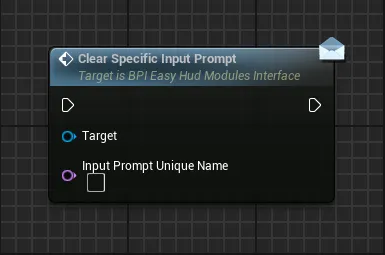
Input Prompt Unique NameUnique Name of an input prompt created in this module
Clear All Input Prompts
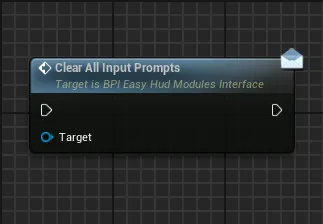
Clear all the input prompts in the module
Items Pickup Displayer
Items Pickup Displayer
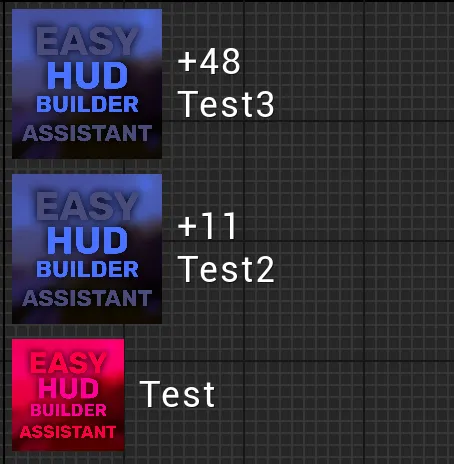
This module allow to display items pickup notifications of various size, shapes and content
Functions:
Display New Item Pick Up
This function handle all the logic to display an item pickup notification, calling this function again on the same module will create a queue to display all the needed notification. By default, up to 5 notification can be displayed at the same time, that value can be changed inside the module widget (WBP_EHB_ItemsPickupDisplayer)
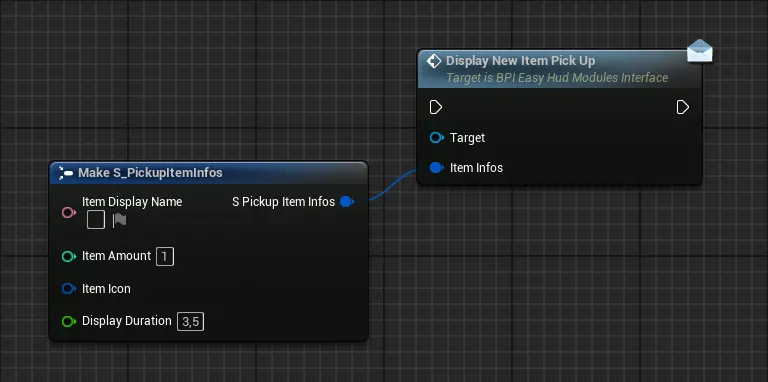
Item Display NameName of the item being picked upItem AmountAmount gained with that pick up, if the amount is 1 or lower, the amount won’t be displayed at all. If it’s greater than 1, the amount will be displayed above the display nameItem IconIcon of the item, should be square for the best results, you can apply any style you wish to itDisplay DurationDuration of the notification before being cleared
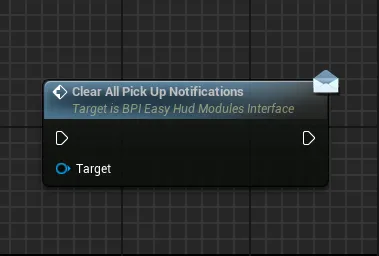
Clear All Pick Up Notifications
Clear all the currently displayed notifications and the notification queue if there are any elements left in it
Player Health Status
Player Health Status
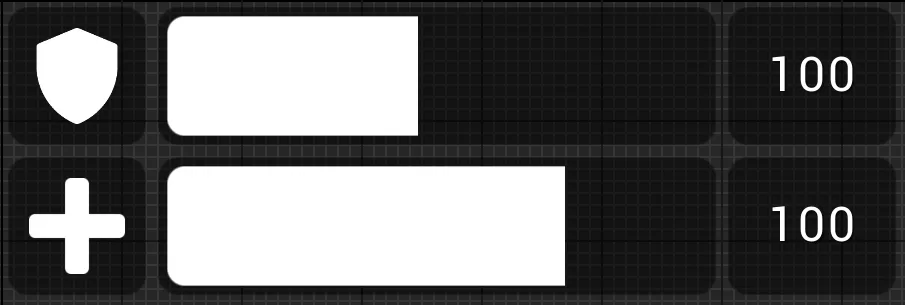
This module allow to display an health bar and a shield bar based on needs
Functions:
Display Health Bar
Initialize the health bar with a visibility toggle and the current/maximum values to be displayed
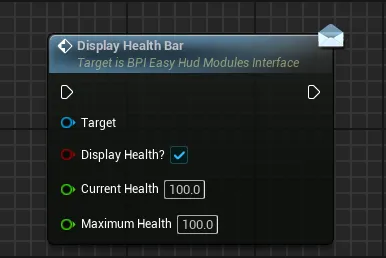
Display Health?If true, the health bar will be displayedCurrent HealthCurrent health value to be displayed by the number and the health barMaximum HealthMaximum health used to define how the health bar is displayed
Display Shield Bar
Initialize the shield bar with a visibility toggle and the current/maximum values to be displayed
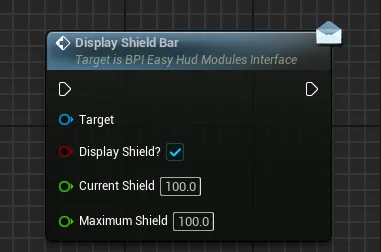
Display Shield?If true, the shield bar will be displayedCurrent ShieldCurrent shield value to be displayed by the number and the shield barMaximum ShieldMaximum shield used to define how the shield bar is displayed
Update Health Amount
Update the displayed health amount and the max health amount if needed
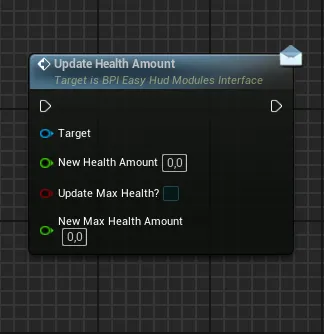
New Health AmountUpdated current health value to be displayedUpdate Max Health?If True, the max health will also be udpated with the specified valueNew Max Health AmountUpdated max health value to be displayed if an update is requested
Update Shield Amount
Update the displayed shield amount and the max shield amount if needed
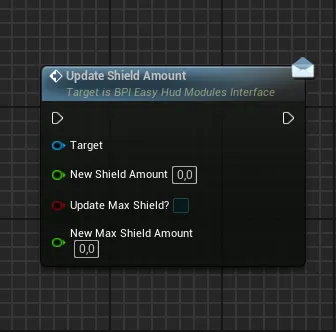
New Shield AmountUpdated current shield value to be displayedUpdate Max Shield?If True, the max shield will also be udpated with the specified valueNew Max Shield AmountUpdated max shield value to be displayed if an update is requested
Quest Status Displayer
Quest Status Displayer
This module allow to display a quest with multiple objectives that can be updated based on the current progress of any quest
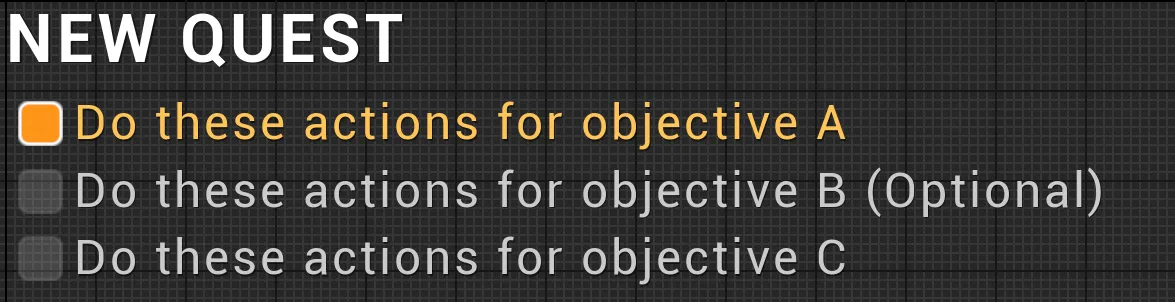
Functions:
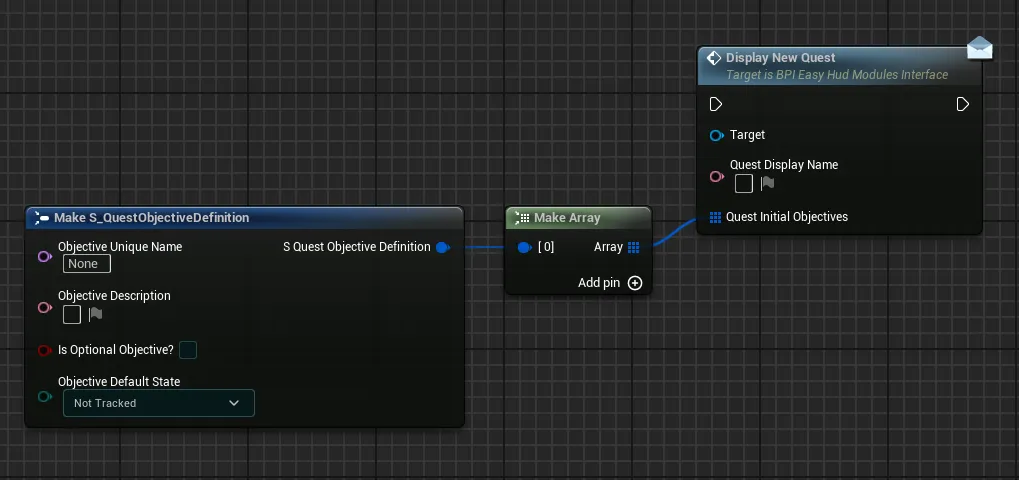
Display New Quest
Initialize a new quest with an associated name and an initial set of objectives
-
Quest Display NameDisplay name of the quest, shown above all objectives -
Quest Initial ObjectivesList of objectives to display, each has several parameters (those parameters can be changed after with the other functions)Objective Unique NameUnique Name for the objective, this name is used on other functions to update this specific objectiveObjective DescriptionText shown to describe the objectiveIs Optional Objective?If True, an additional text will tell the user that this objective is optional-
Objective Default StateDefault state that the objective will display, from 4 different states:Not TrackedShown as a default color for an objective that isn’t currently tracked

TrackedShown with an orange highlight to indicate an objective that is being actively tracked

FailedShown with a red highlight to indicate a failed objective

SucceededShown with a green highlight to indicate an objective successfully completed

Update Quest Objectives List
Fully refresh the current objectives of the quest, either by only adding new objectives or by replacing current objectives entirely
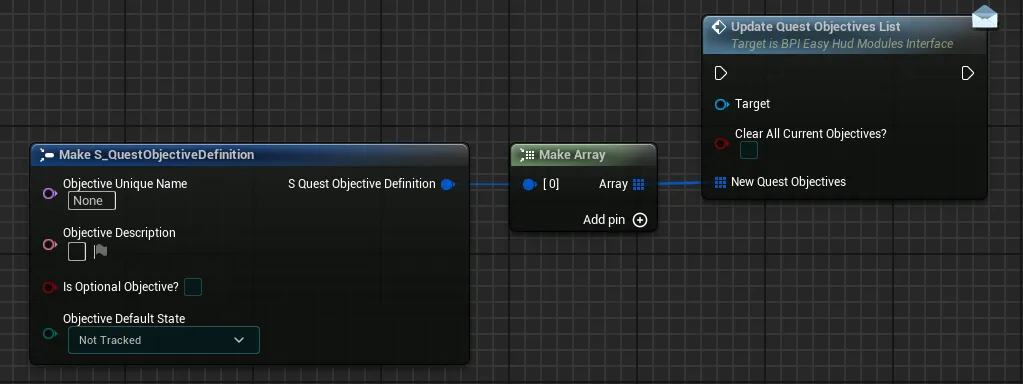
Clear All Current Objectives If True, all curent objectives will be removed before the new quest objectives are displayed, regardless of their state. If False, the new quest objectives will be displayed after those currently active objectives
New Quest Objectives List of new objectives to display, with the exact same parameters as for the initialization function “Display New Quest”
Update Quest Objective State
Update the state of a single objective in the quest, with the possibility to clear it after duration (if completed for example)
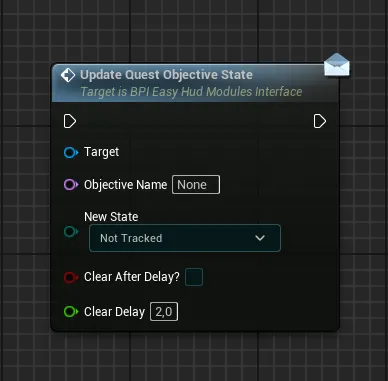
Objective Unique NameUnique Name of the objective that need to be updatedObjective Default StateNew state that the objective will display, from the 4 different states:Not Tracked/Tracked/Failed/SucceededClear After Delay?If True, the objective will updated its state and then be cleared after the specified delayClear DelayDelay after which the objective will be cleared if needed
Update Quest Objective Description
Update the description text of a single objective in the quest
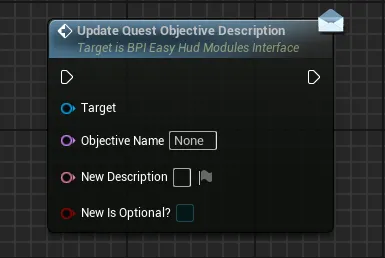
Objective Unique NameUnique Name of the objective that need to be updatedNew DescriptionNew description of the objectiveNew Is Optional?New optional state of the objective, if True, the objective will be marked as optional, if False, the optional tag will be removed from the objective
Clear Current Quest Objectives
Clear the currently defined quest objectives
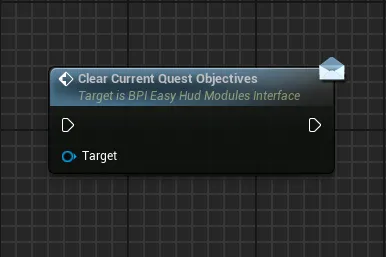
Clear Current Quest
Clear the current quest after a delay, with the possibility to prevent the clear if all objectives haven’t been completed
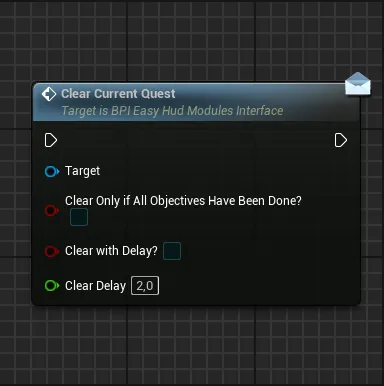
Clear Only If All Objectives Have Been Done?If True, the clear will be ignored in case any objective of the quest is not marked as Failed/Completed or has not been manually cleared. If False, the quest will get cleared regardless of the state of its objectivesClear With DelayIf True, the quest will not be cleared immediately but will instead be cleared at the end of the specified delay Note: Even if the clear is delayed, the check for objectives completion, defined by the previous setting, is done when the function is calledClear DelayDuration of the delay before clearing the quest if needed
Skill Consumable Displayer
Skill Consumable Displayer
This module allow to display a skill or consumable that can be used by the player
The default layout uses three different modules to display one ability and two consumable slots, you can change that to your likings and needs
Functions:
Initialize Skill Slot
Initialize the state of a skill or item slot that has consumables (like projectiles, heal items, etc)
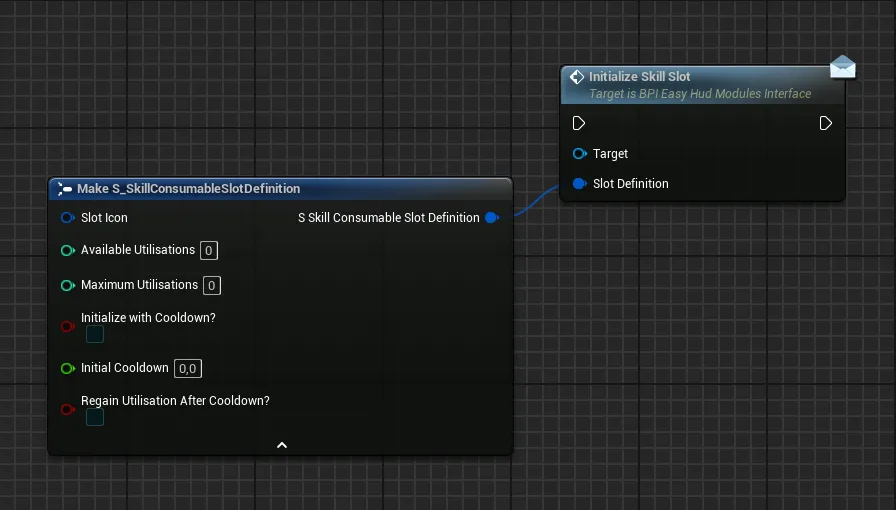
Slot IconImage representing the skill/item in the UI, the texture should be square for the best resultsAvailable UtilisationsDefine how many utilisations are currently available for this this skill/itemMaximum UtilisationsThe maximum number of times the skill/item can be stacked, needed when automatically regaining utilisations over timeInitialize with Cooldown?If true, the slot starts with a cooldown, useful for abilities that must charge up before their first useInitial CooldownDuration in seconds of the regeneration cooldown if neededRegain Utilisation After Cooldown?If true, the skill will automatically regain 1 utilisation after each cooldown cycle (defined by the initial cooldown)
Update Skill Slot Current Utilisation
Update the current utilisation count of a skill/item during gameplay and allow to trigger cooldowns if needed
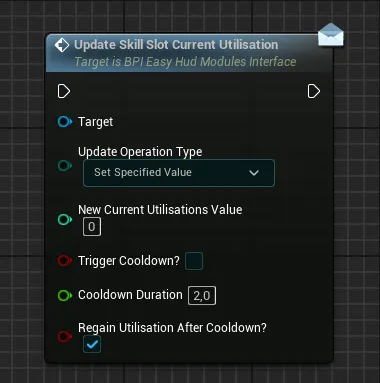
Update Operation TypeDefine how the new specified current utilisation value is redefined compared to its current valueSet Specified ValueOverwrite the current utilisation value with the specified valueAdd Specified Value To CurrentAdd the specified value to the current utilisation valueRemove Specified Value From CurrentRemove the specified value from the current utilisation value (the final value will never be negative)
New Current Utilisations ValueThe specified value to consider while doing the operationTrigger Cooldown?If true, a visual cooldown of the specified duration will start after the value updateCooldown DurationThe duration of the cooldown (in seconds) if requestedRegain Utilisation After Cooldown?If true, one utilisation will be restored when the cooldown ends, this will loop until the max utilisation of the slot is reached
Update Skill Slot Max Utilisation
Update the maximum utilisation count of a skill/item slot
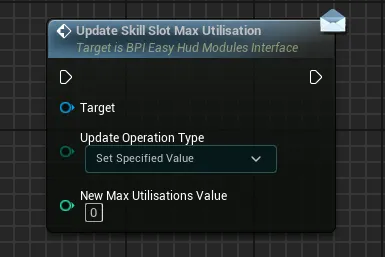
Update Operation TypeDefine how the new specified max utilisation value is redefined compared to its current max valueSet Specified ValueOverwrite the current max utilisation value with the specified valueAdd Specified Value To CurrentAdd the specified value to the current max utilisation valueRemove Specified Value From CurrentRemove the specified value from the current max utilisation value (the final value will never be negative)
New Max Utilisations ValueThe specified value to consider while doing the operation
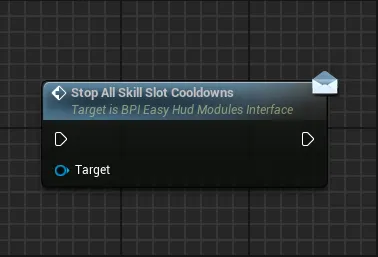
Stop All Skill Slot Cooldowns
Stop any cooldown that is active on the slot
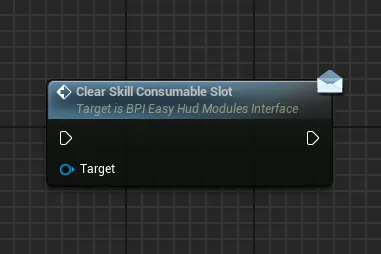
Clear Skill Consumable Slot
Clear the slot and hide it, any attached input prompt is also cleared
Display New Single Input Prompt
If you wish you can also call the function Display New Single Input Prompt to show an optionnal input prompt right below the skill/item slot. It can be useful to show which input may trigger the skill/item in the slot
The function and parameters are the same as for the Input Prompts Container module: Display New Single Input Prompt
Clear All Input Prompts
Clear any input prompt attached to the slot
Tutorial Pop Up
Tutorial Pop Up
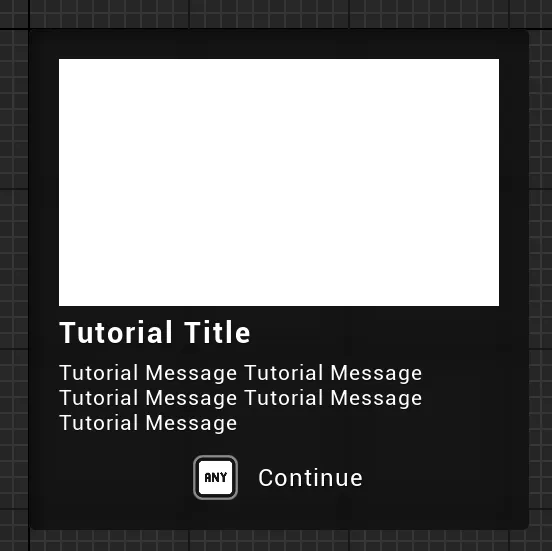
This module allow to display a tutorial pop up, can be used as a side pop up or fullscreen pop up
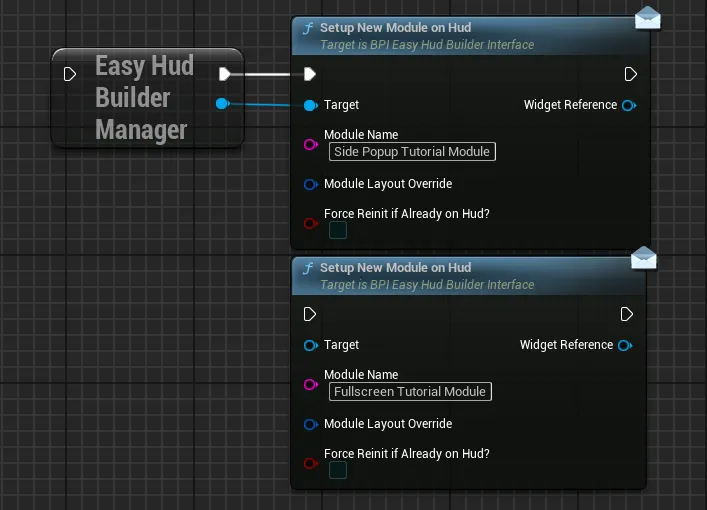
The default layout uses two different modules to display fullscreen tutorials and side tutorials, since tutorials don’t need to be displayed often, they are not included in any contexts but can be added manually based on needs with the following functions
Functions:
Display New Tutorial
This function handle all the logic to display tutorials, calling this function again on the same module will create a queue to display all the needed tutorials one at a time (either controlled by duration or manual inputs)
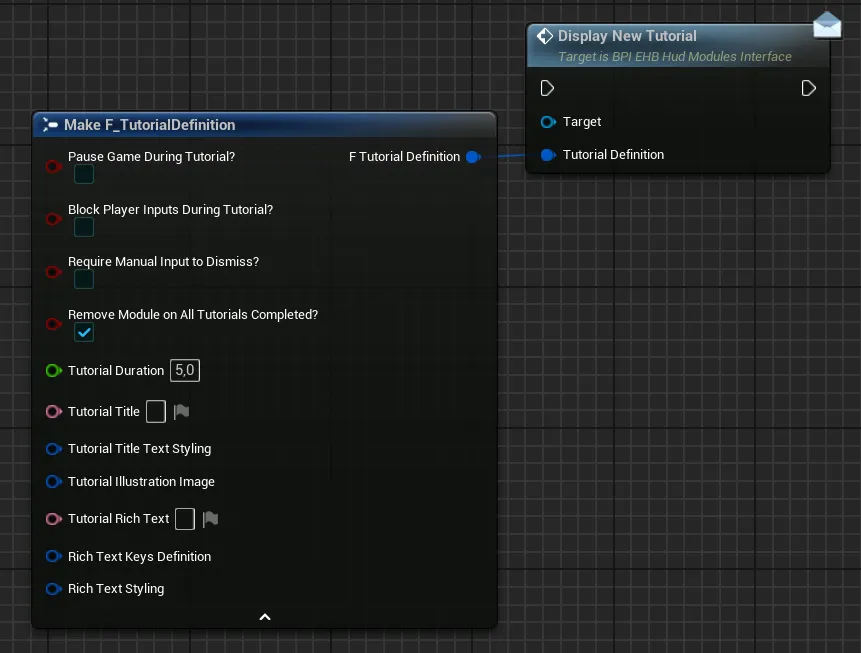
Pause Game During Tutorial?If True, the game will be paused while the tutorial is active. Note that if the game is paused, the manual input will always be requiredBlock Player Inputs During Tutorial?If True, all player inputs will be disabled while the tutorial is activeRequire Manual Input to Dismiss?If True, the tutorial will only disappear after the player hold the continue button for some time, required if pausing the gameRemove Module on All Tutorials Completed?If True, the system will automatically remove the entire tutorial module after all the tutorials in queue are completed. This means that the module will need to be added again on Hud to display new tutorials (However, the reference of the widget will remain the same)Tutorial DurationDefine how long (in seconds) the tutorial should stay on screen (if not requiring manual dismissal)Tutorial TitleThe title text of the tutorial popupTutorial Title Text StylingStyling information of the title text (size, font weight, alignment, etc)Tutorial Illustration ImageOptional image used to visually support the tutorial text, should be at a 16:9 format-
Tutorial Rich TextThe main tutorial text explaining the mechanic, UI, etc.This rich text has built in support to display inputs, to do so simply add a corresponding
{index}inside your text:{0}will display the first key,{1}will display the second key and so on (based on the keys defined by theRich Text Keys Definitionvariable). You can obviously write a simple text without any inputs to display -
Rich Text Keys DefinitionSet of variables defining which optionnal keys need to be displayed (expand for more)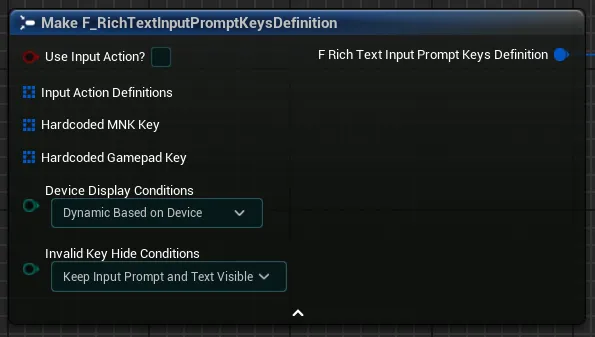
Use Input Action?If you want to use an input action to display an input, tick this checkbox. Leave it unticked if you want to hard-code the keys-
Input Action DefinitionsArray of input actions definition containing one input action, its corresponding input mapping context (in which we will search the requested key) as well as the index of that key if there are multiple keys for that action. This setup is pretty much the same as for the input prompts container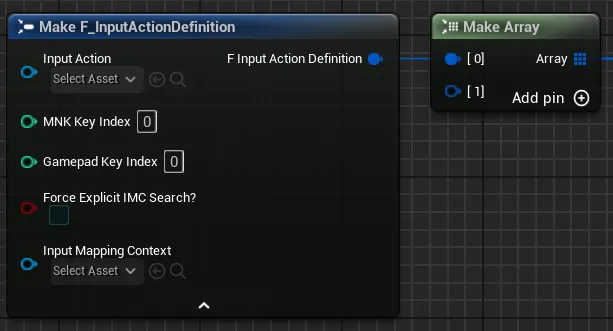
-
Hardcoded MNK Key&Hardcoded Gamepad KeyIf you did not tick the previous checkbox, you can now enter the hard-coded keys that you want to display inside the two arrays.You don’t need to enter both set of keys. You can just enter one of the two if you want to display keys for a single device
-
Device Display ConditionsThis variable has three options that control the display of the keys:Dynamic Based on Devicewill allow the input prompt to display both gamepad and mnk keys based of the device usedOnly Mouse & Keyboard Keyswill only allow mnk keys to be displayed, regardless of the device usedOnly Gamepad Keyswill only allow gamepad keys to be displayed, regardless of the device used
-
Invalid Key Hide ConditionsThis variable control how the input prompt should react if a key is invalid (either not the correct device, or key not found, etc.)Keep Input Prompt and Text VisibleThe Input Prompt and Text will stay visible when using another device or if the key is invalidHide Input Prompt OnlyThe Input Prompt will be hidden but the Text may still be visible when using another device or if the key is invalidHide Input Prompt and TextThe Input Prompt and Text will be hidden when using another device or if the key is invalid
For example: If you set the input prompt to display only Gamepad Keys, setting this variable as "Hide Input Prompt Only" allows you to hide the input when the player uses a keyboard instead of gamepad
-
Rich Text StylingSet of variables defining the styling of the rich text (expand for more)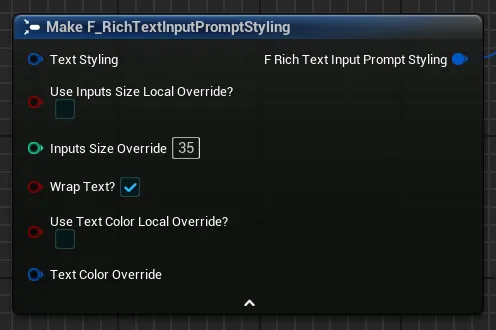
Text StylingSet of options to control the text font, transform policy and justificationUse Inputs Size Local Override?If True, the inputs will use the defined size override instead of the text font sizeInput Size OverrideThis setting define the size of the displayed input prompt icon in pixels (if overriding)Wrap Text?If True, the text will be allowed to wrap in its container if neededUse Text Color Local Override?If True, the text will use the defined text colorText Color OverrideText color to use if overriding the default color
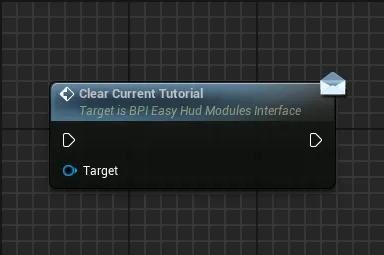
Clear Current Tutorial
Clear the currently active tutorial and start displaying the next tutorial in queue if there are any
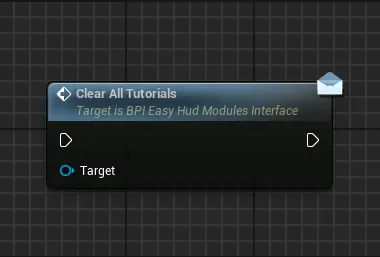
Clear All Tutorials
Clear any currently active tutorials and tutorials in queue
Important Alerts Displayer
Important Alerts Displayer
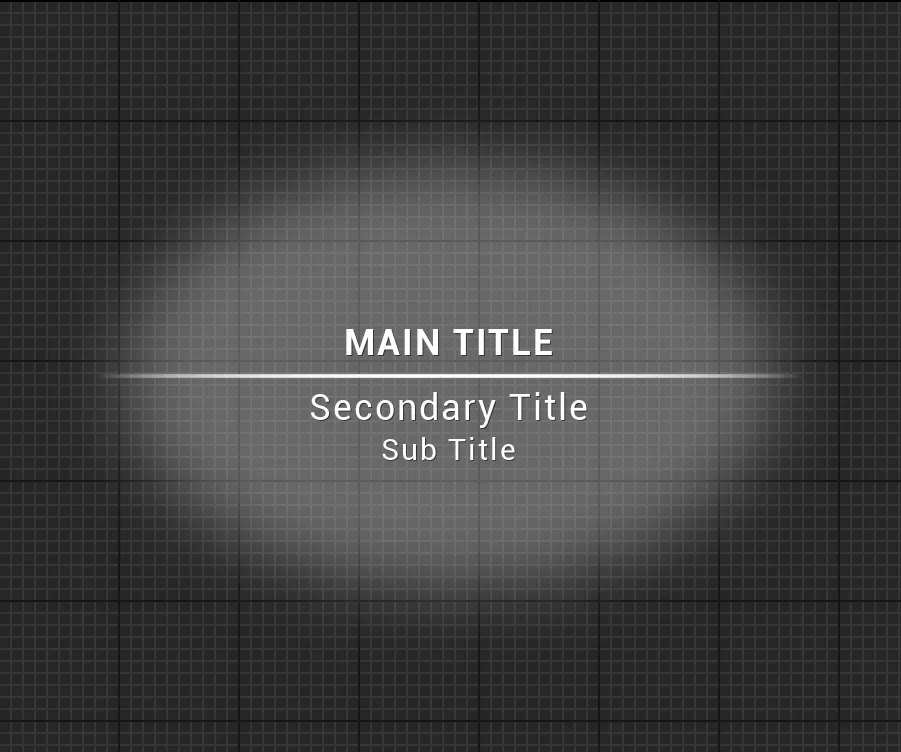
This module allow to display any important alert to the player, new area discovered, new gear unlocked, etc
Functions:
Display New Important Alert
This function handle all the logic to display important alerts, calling this function again on the same module will create a queue to display all the needed alerts one at a time based on their priority
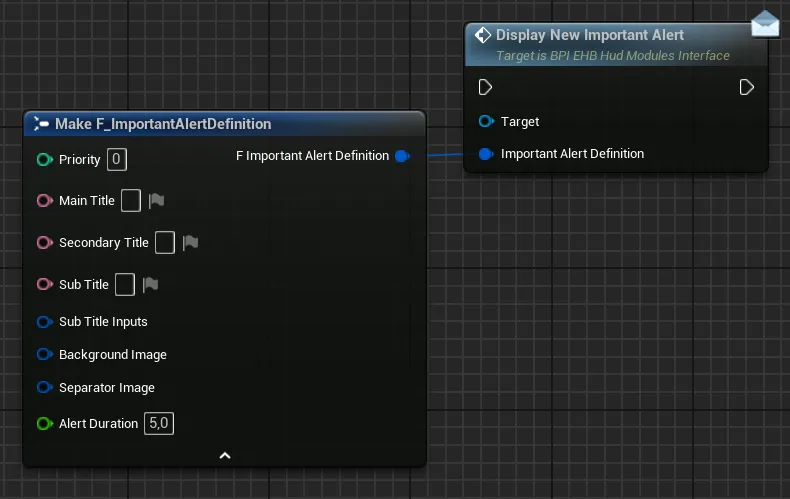
PriorityDefine how important this alert is in queue, higher priority alerts will be placed as first in queue and be played right after the current alert is completed. If priority is the same on multiple alerts, then the oldest will be first and the newly added alert will be the last of that priority groupMain TitleMain Title of the alertSecondary TitleSecondary title of the alert-
Sub TitleAny third text you may wish to display under the secondary titleThis sub title text has built in support to display inputs, to do so simply add a corresponding
{index}inside your text:{0}will display the first key,{1}will display the second key and so on (based on the keys defined by theSub title Inputsvariable). You can obviously write a simple text without any inputs to display -
Sub title InputsSet of variables defining which optionnal keys need to be displayed (expand for more)Use Input Action?If you want to use an input action to display an input, tick this checkbox. Leave it unticked if you want to hard-code the keys-
Input Action DefinitionsArray of input actions definition containing one input action, its corresponding input mapping context (in which we will search the requested key) as well as the index of that key if there are multiple keys for that action. This setup is pretty much the same as for the input prompts container -
Hardcoded MNK Key&Hardcoded Gamepad KeyIf you did not tick the previous checkbox, you can now enter the hard-coded keys that you want to display inside the two arrays.You don’t need to enter both set of keys. You can just enter one of the two if you want to display keys for a single device
-
Device Display ConditionsThis variable has three options that control the display of the keys:Dynamic Based on Devicewill allow the input prompt to display both gamepad and mnk keys based of the device usedOnly Mouse & Keyboard Keyswill only allow mnk keys to be displayed, regardless of the device usedOnly Gamepad Keyswill only allow gamepad keys to be displayed, regardless of the device used
-
Invalid Key Hide ConditionsThis variable control how the input prompt should react if a key is invalid (either not the correct device, or key not found, etc.)Keep Input Prompt and Text VisibleThe Input Prompt and Text will stay visible when using another device or if the key is invalidHide Input Prompt OnlyThe Input Prompt will be hidden but the Text may still be visible when using another device or if the key is invalidHide Input Prompt and TextThe Input Prompt and Text will be hidden when using another device or if the key is invalid
For example: If you set the input prompt to display only Gamepad Keys, setting this variable as "Hide Input Prompt Only" allows you to hide the input when the player uses a keyboard instead of gamepad
-
Background ImageImage to display on the background of the texts Separator ImageImage to display as a separator between the Main Title and Secondary TitlesAlert DurationDuration of the alert notification before fading out
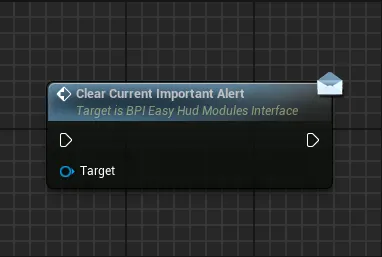
Clear Current Important Alert
Immediately clear the current important alert and start displaying the next alert in queue if there are any
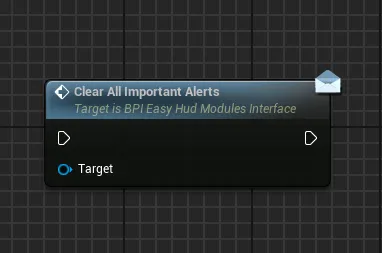
Clear All Important Alerts
Clear the current important alert and all the alerts that may be in queue
Framerate Counter
Framerate Counter
This module allow to display a simple framerate counter
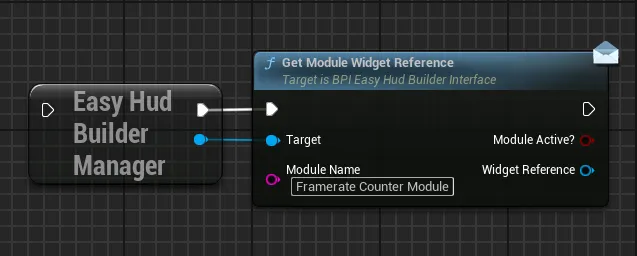
Functions:
Display Framerate Counter
Start to display the framerate counter with the requested refresh interval
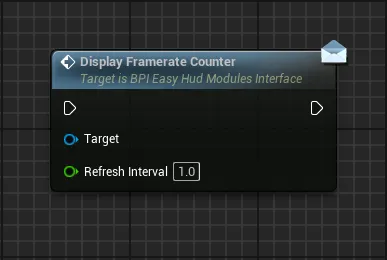
Refresh IntervalInterval in seconds between each refresh of the counter
Clear Framerate Counter
Stop and hide the framerate counter