Quick Start Guide with the Hud Building Toolkit
1. Core Concepts
To get started with the Hud Building Toolkit, let’s start by understanding the 2 core concepts of the system: Contexts and Modules
-
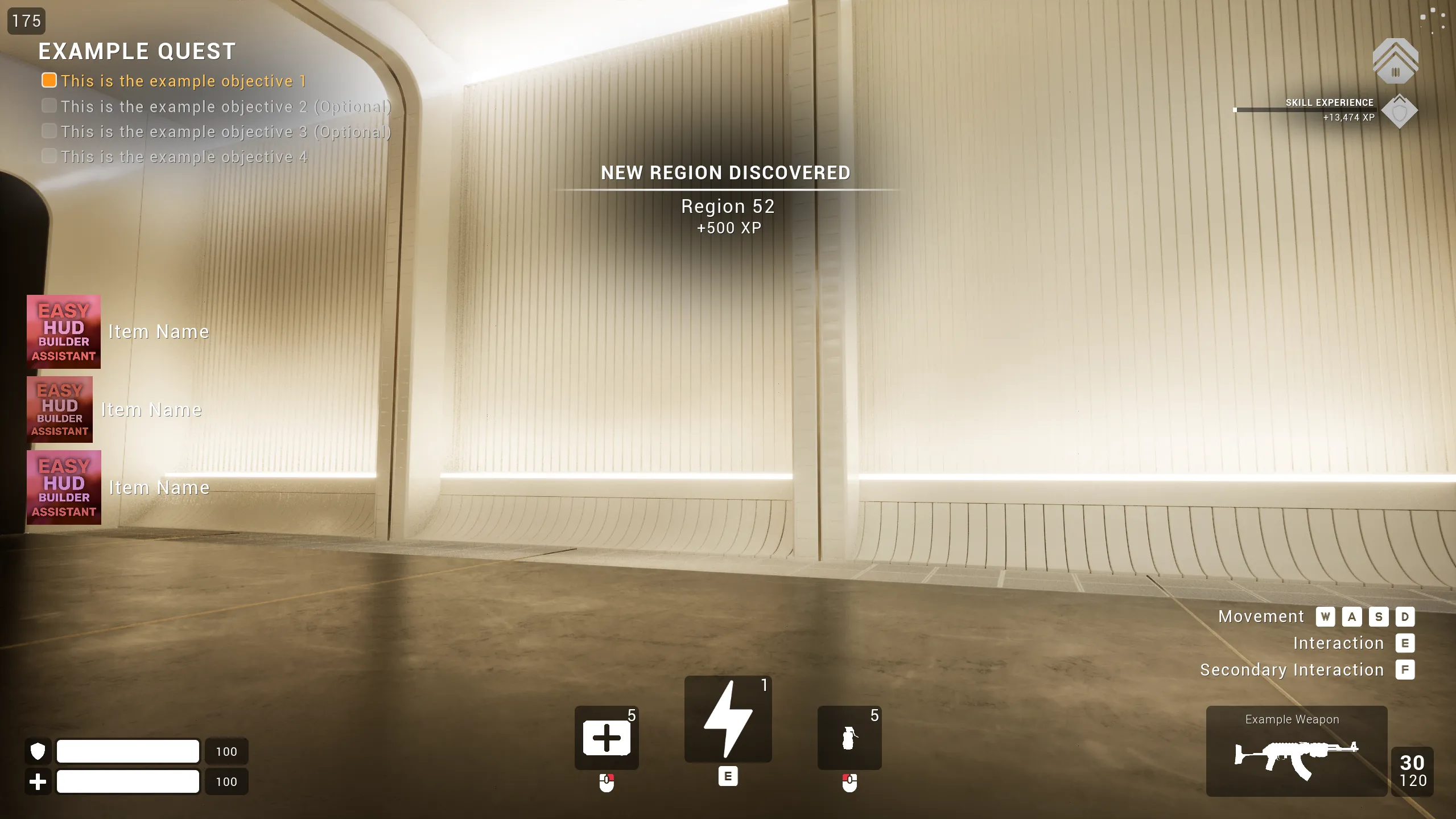
ContextsThe Context-based system allows different HUD layouts to be shown depending on gameplay state (combat, exploration, driving, etc). Contexts can be modified to contain any module and allow for a very easy switch between groups of widgets.Example of context with all the built in modules shown:
-
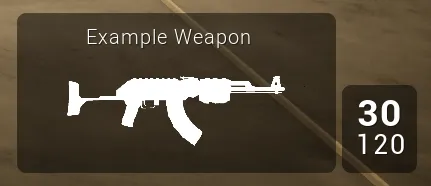
ModulesModules describe Widgets that can be displayed on the HUD based on the active context (health bars, weapon displays, quest indicators, etc)Example of a single module displaying the currently equipped weapon:
Note on modules initialization
By default the built in modules do not display anything even if they are shown by a context, this is by-design and simply because all the modules require a minimum initialization step from your own gameplay systems.
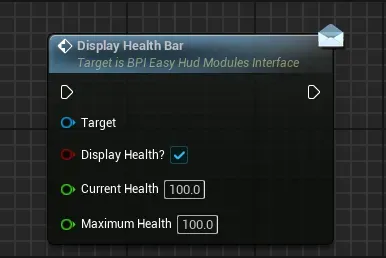
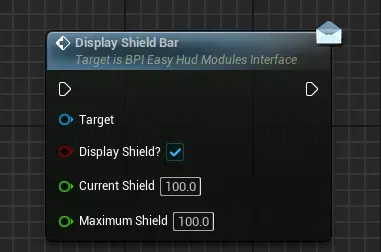
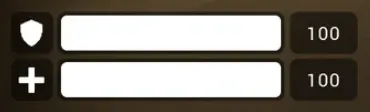
For example, the Player Health Status will only display something once you have called a function on it to define which health bar must be visible and how many HPs the player has. This will be described much more in depth in a following section of the documentation
Function Call 1 to display health bar
Function Call 2 to display shield bar
Final Initialized State
2. Creating your own Modules Definition asset
To get started building your own HUD, let’s create the data asset that will contain all your modules datas (names, contexts, layout, etc)
-
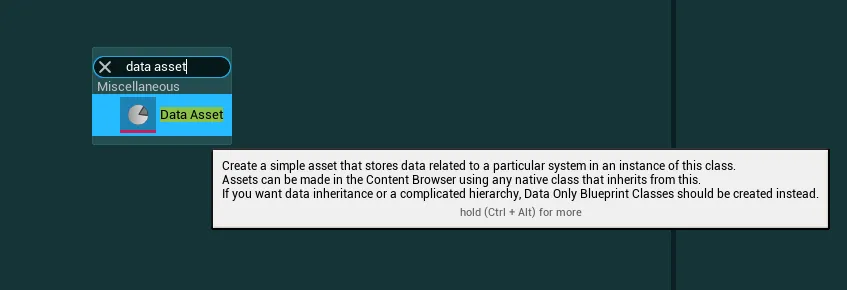
Go to any folder in your project and create a new data asset
-
In the class picker, search for
PDA Hud Modules Definitionand select it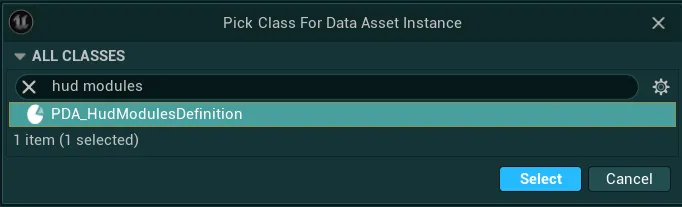
-
Give it a name of your choice and you now have a new data asset to work with
By default it is populated with the built in modules, you can delete them directly inside the data asset if you want to start fully from scratch
-
For the system to work with that data asset, open your Global Config Data Asset and locate the variable
Hud Modules Definition Data Asset
Then in the variable, simply set the data asset you just created as value
3. Introduction to the Easy Hud Builder Assistant tool
Now that we saw those core concepts and created your data asset, let’s do quick introduction to the Hud Builder Assistant tool, this tool will be essential in easily handling the contexts and modules for your HUD
-
To open it, go to the folder
EasyHudBuilder/Core, right click on theEUW_EasyHudBuilderAssistantand selectRun Editor Utility Widget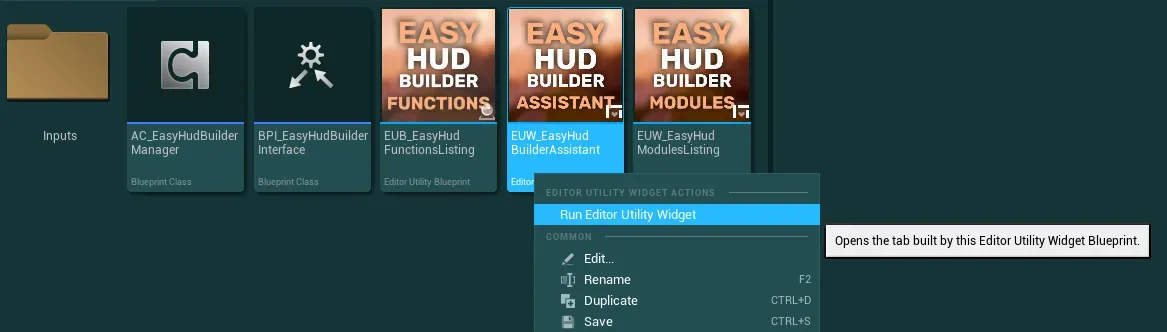
-
With the new window opened, make sure to set it fullscreen to have the best experience, then press continue
-
You will immediately be presented with the following screen that shows all the modules from the Demo Context (except if you changed the Default Hud Context in the config or cleared the modules data asset)
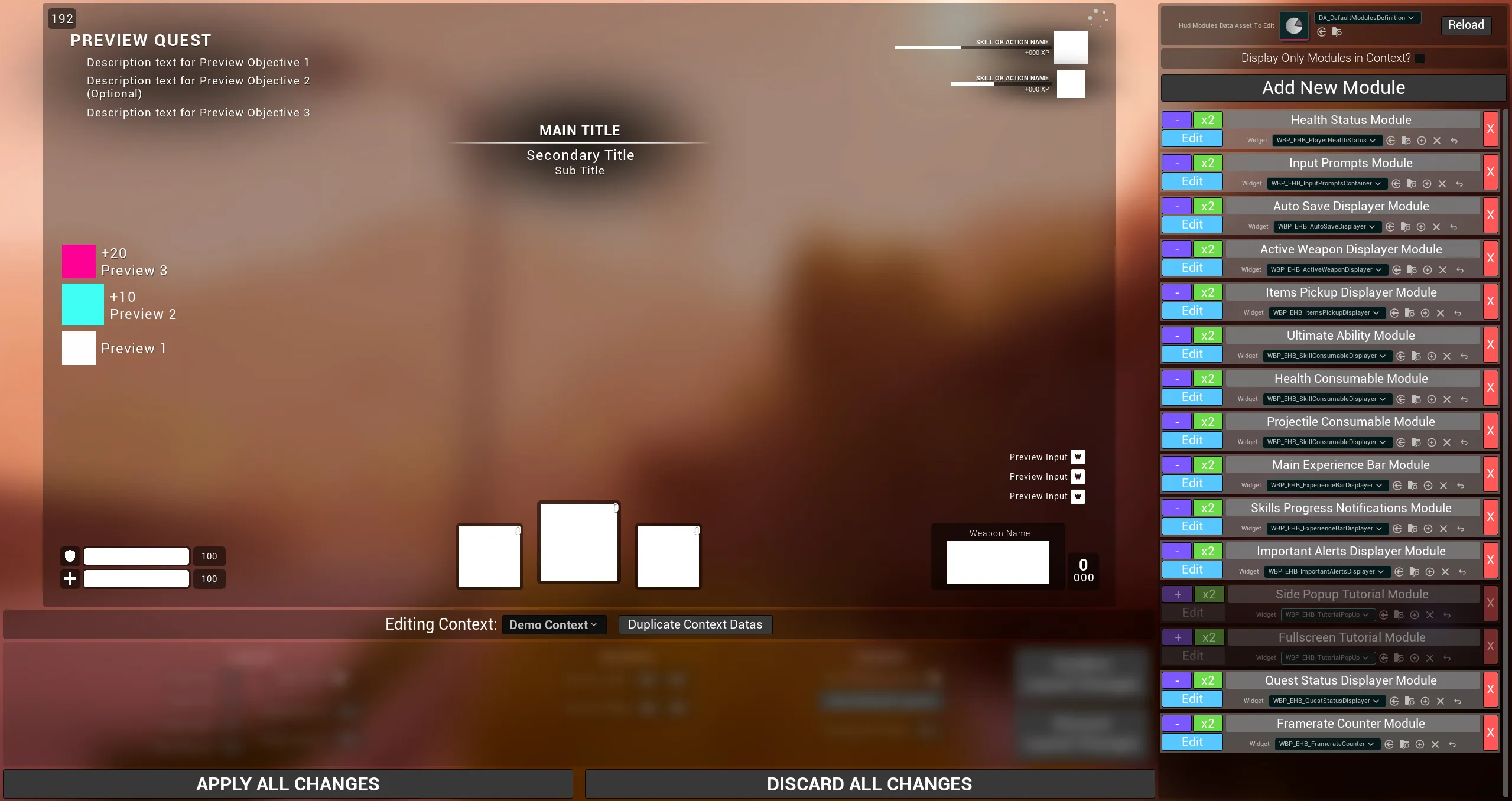
I will be describing this tool much more in depth in a next section of the documentation, let’s just talk about the basics for now:
- On the right you will find everything related to modules with a list of built in modules and several controls such as a widget selector, name field, etc
- On the left you will find a preview of the currently selected context and various controls to change the layout of modules during edition
This tool is where you will be able to select which Modules goes in which Contexts (if any), change their layout (location, size, zorder) and select the widget they use
-
Let’s do a quick test example to give you a first idea of how the tool work:
-
First, on the top right, make sure that your custom Modules Data Asset is selected (the one you created just before)

-
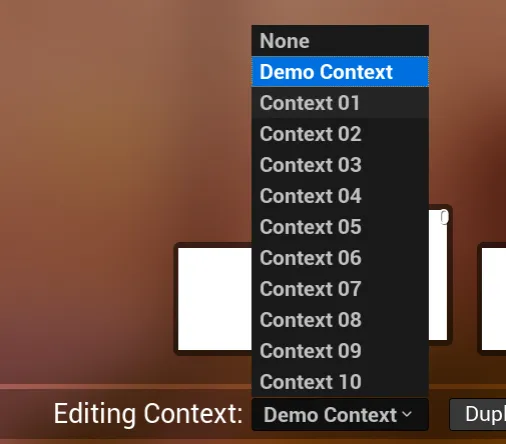
Then, let’s select the Context 01 from the list of contexts (just below the preview area)
-
Once done, you will now have a blank canvas and all the modules greyed-out on the right, this means they are not currently selected in the Context
-
Let’s reuse the Health Status Module as an example, click on the purple
+button on it in the list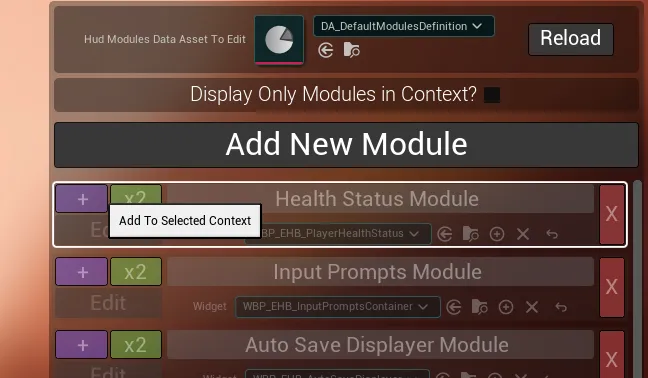
-
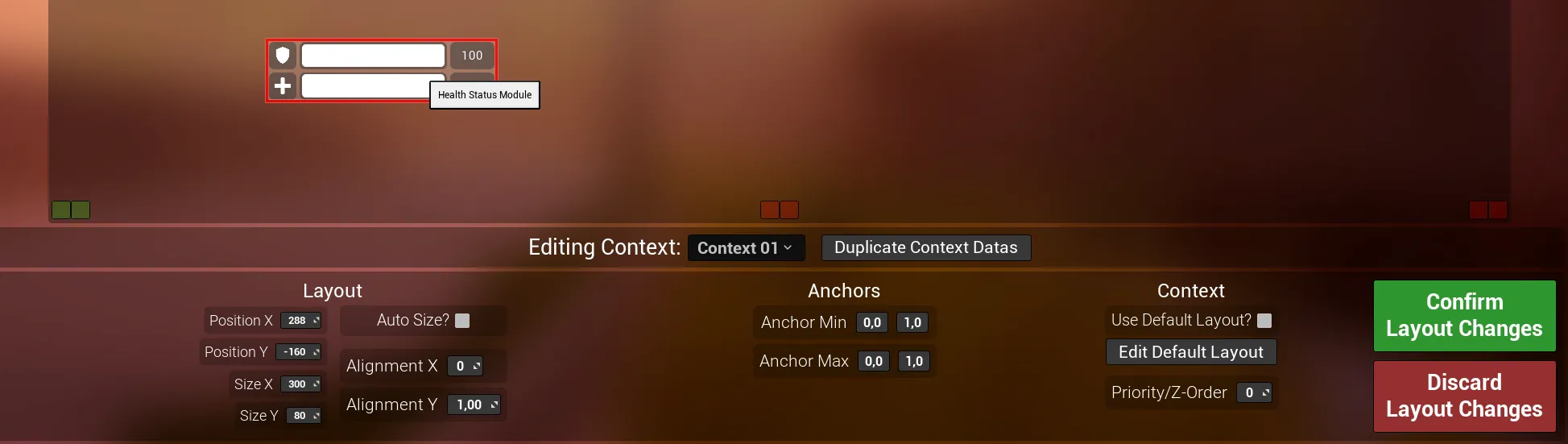
Once done, you should then be able to see the module on your preview canvas, click on it and try dragging it around
-
Once you moved it a bit, click on the
Confirm Layout Changesbutton - Then press on the
Apply All Changesbutton, this button will validate the changes and add them to your Modules Data Asset to be reused during gameplay
-
-
You now have successfully set up your own Hud Context, let’s try it out in action!
4. Using the Hud System during gameplay
To wrap up this quick start guide, I will show you how you can enable your Hud Context you’ve just set up and how to initialize the Health Bar
- To do so, open any of your gameplay levels (a gameplay level where you already have a functioning HUD with the component set up in the hud manager setup guide of the documentation)
-
Then, open the Level Blueprint for the selected level
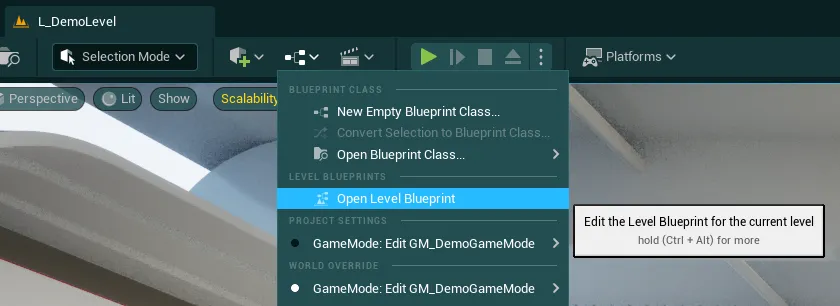
Note
I will be using the level blueprint for this demonstration but this logic should be in your game code, ideally the level blueprint shouldn't be used for gameplay related systems like this
-
Let’s add a begin play event and call the function
Get Easy Hud Builder Manager, this manager will give us control over the entire system through many utility functions, I would suggest making a variable to make the rest cleaner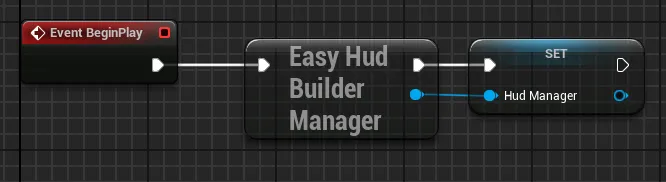
-
We first need to wait for the manager to be fully initialized, for that, simply check if it is already initialized with the function
Is Hud Manager Initialized?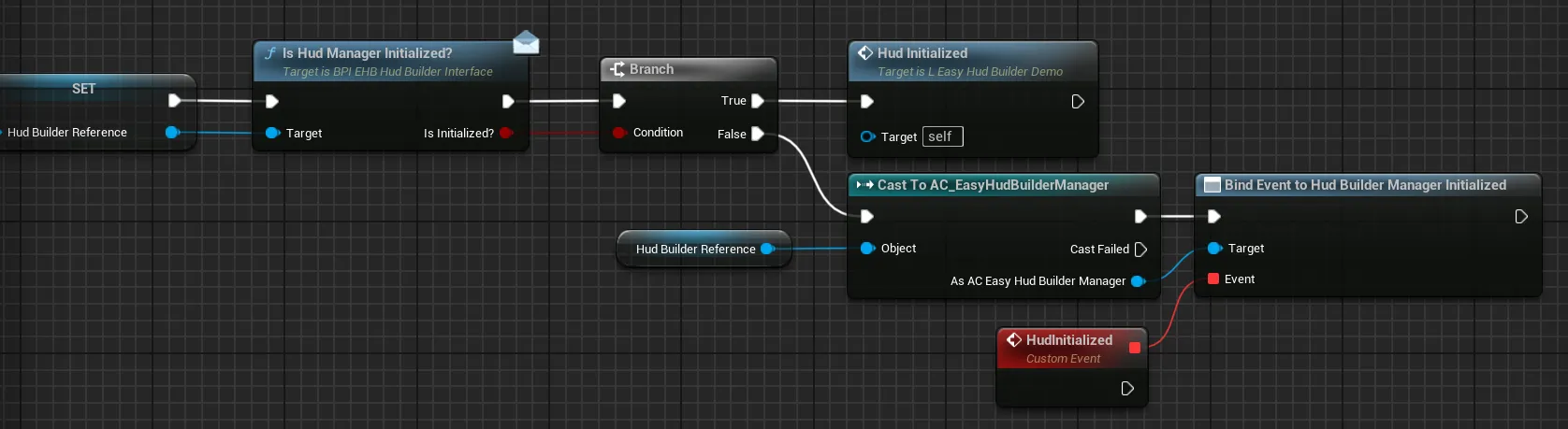
If True, we can simply proceed with our normal execution. If False, you can add a
Cast To AC_EasyHudBuilderManagerto bind to theHud Builder Manager Initializedevent -
Now that we know the Hud is ready, we just need to switch to our newly set up context with a simple call to the function
Switch To New Hud Context, set the Requested Context to Context 01 (or the context that you used to test earlier)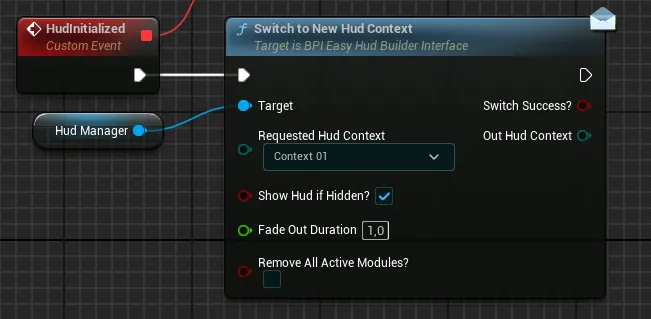
If you do not want to always have to reselect your context at begin play, you can also select it as
Default Contextfrom the Global Config -
Then, we simply need to make sure our health bar is initialized with the data we want, to do so, let’s first call the function
Get Module Widget Referencewith the name of our moduleHealth Status Module(same name as displayed in the tool earlier)And then we simply call the
Display Health Barfunction. This initialization logic will apply to all the built in modules, they won’t display anything by default until your system explicitely told the module to initialize with some data you provide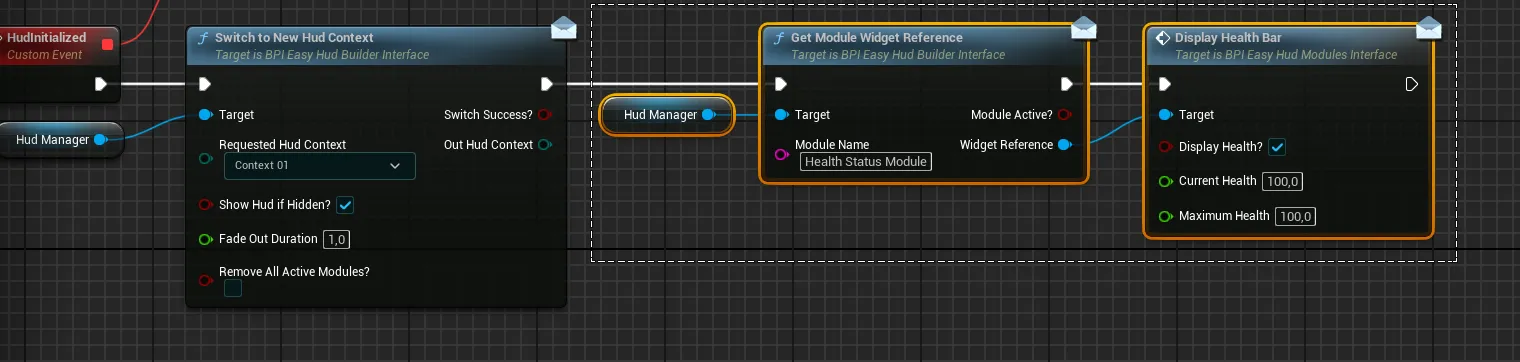
-
You can now play in your level and should be able to see your health bar in the spot where you placed it!
If you want a more in-depth showcase of all the built in modules and various systems presented here, check out the level L_EHB_HudBuilderDemoLevel
This wraps up the quick start guide, you should have a better understand of how the whole system works, you can now go more in-depth with the following documentation sections: