How to Create your own Modules
To create your own modules and be able to use any widget with the system, you will only need to create a widget child of the WBP_EHB_HudBuilderModuleMaster.
The process will vary if you wish to convert an existing widget or create a new one, check out the following instructions depending on your situation
Creating a new blank widget blueprint
A. Creating a new blank widget blueprint
-
To get started, create a new widget in any folder
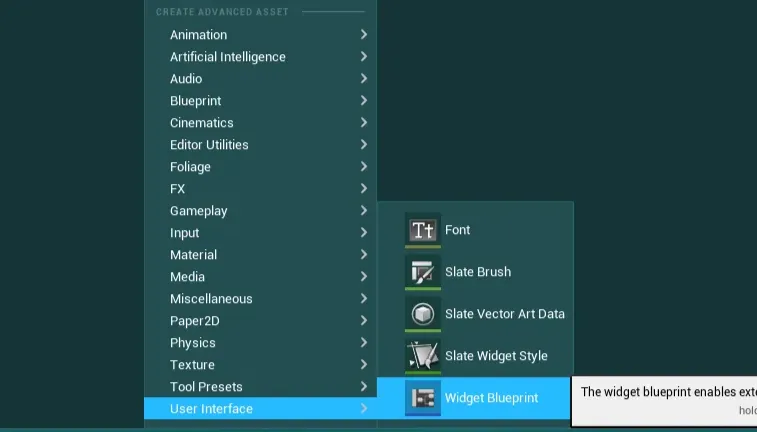
-
In the class picker, search and select the
WBP_EHB_HudBuilderModuleMasterclass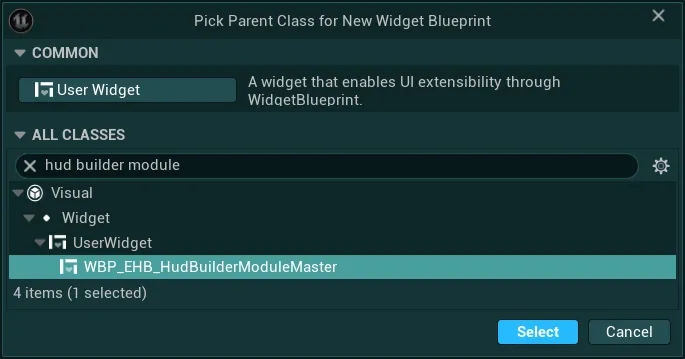
-
Once the widget is created, you can check out the next section to configure and use the module widget
Using an existing widget blueprint
B. Using an existing widget blueprint
When using an existing widget, I would recommend making a duplicate of it to have a backup in case you wish to go back.
-
Open the widget you want to use, then go to the
Class Settingsand locate theParent Classsetting
-
If that parent is a simple “User Widget” (Default engine widget class), then simply search for
WBP_EHB_HudBuilderModuleMasterand reparent it, once that is done you can check out the next section to configure and use it.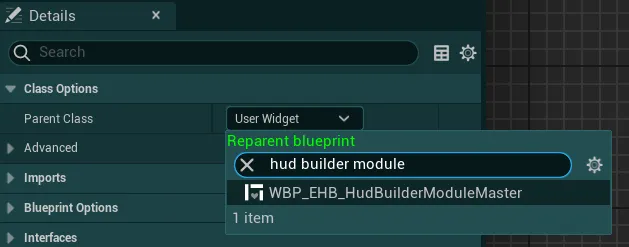
-
However, if that widget already has a different parent (not the default engine widget class), you will need to find the parent and do the same reparenting process on the parent (only on the parent). A simple solution can also be to migrate the logic of that widget inside a new blank module (the creation of a blank module is shown in the previous section “Creating a new blank widget blueprint”)
How to configure and use the custom module widget
-
With your widget ready, under
Class Defaults>Easy Config, you can change several base parameters for the module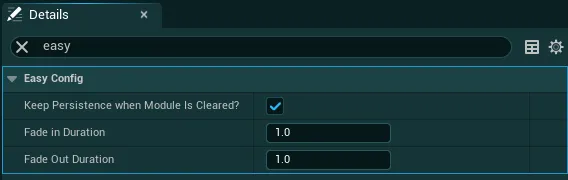
-
Keep Persistence When Module Is Cleared?-
TrueThe module widget will be kept persistent even when cleared: It is set as collapsed (hidden), timers, delays and functions can still work in the background and the widget won't be reset when added again to the hud. This is useful when you need to keep the same informations displayed when switching contexts for example. Otherwise the information would be lost and need to be re-set manually -
FalseThe module widget will be removed from the hud entirely, stopping any events, timers or delays running on it. It will also reset its state and retrigger construction when added back to the hud
-
-
Fade In Duration&Fade Out DurationControl the base duration of the fade in and fade out animations of the moduleYou can also override the animations directly by overriding the function
Get Module Fade Widget Animation:
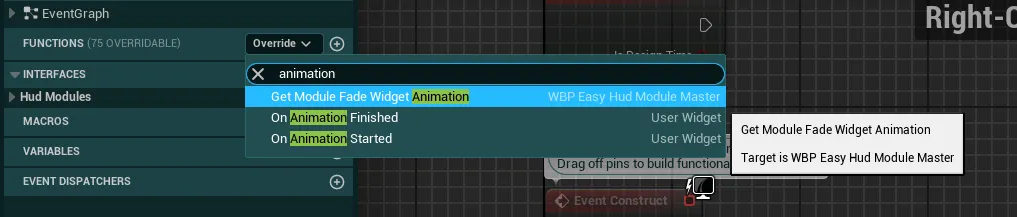
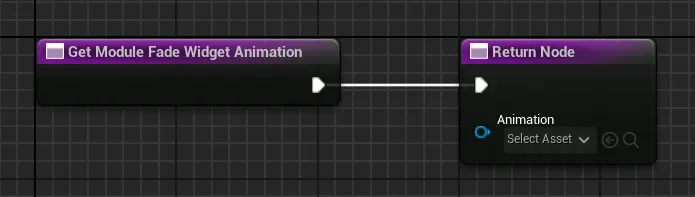
In there, you can specify a new animation that will be used when fading in/out (the animation should support both with the fade in being played "forward" and fade out played "reverse")
-
-
Once you are done, simply add the widget to a module definition from the Assistant tool as described earlier
-
Then, you can build your widget like any other with all the functionnalities you need. If you wish, you can implement any of the functions from the blueprint interface, add new ones directly in the
BPI_EHB_HudModulesInterfaceor directly hard coded in the widget if you prefer.You can check out every single available function from the tool
EUB_EasyHudFunctionsListing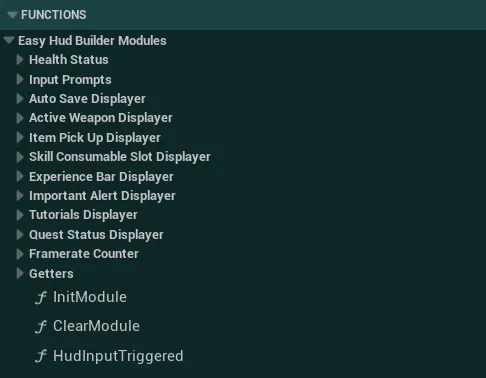
-
You can also override several functions from the parent widget to execute any code on init/clear or displaying a preview inside the assistant tool
Execute any code on Module Initialization or Module Clear
-
To get started simply override the following events based on your needs:
Init Module/Clear Module
-
Then, make sure to call the parent function by right-clicking on the function and selecting
Add Call to Parent Function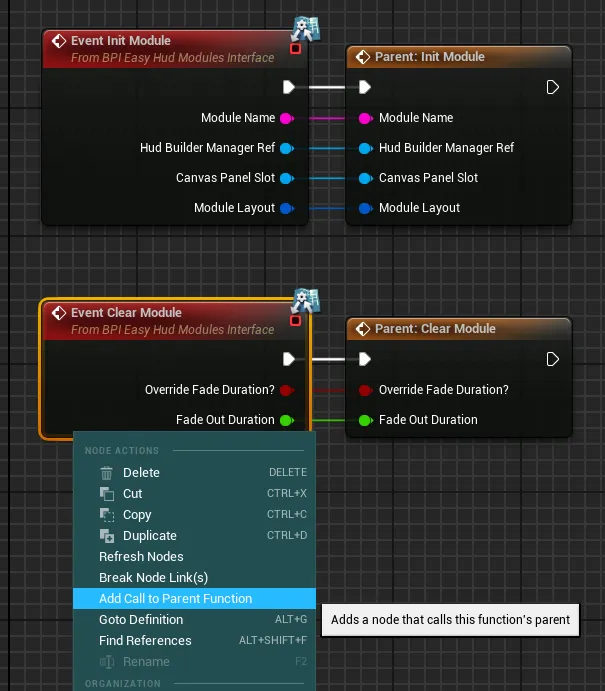
-
You can then execute any code after the parent node.
The
Init Moduleevent will be triggered every time the module is added to the hud (manually or from a context). Be mindful, this is not the same as the Construct event that won’t always get triggered when adding the module to the hudThe
Clear Moduleevent will be triggered every time the module is removed from the hud
Display a preview inside the Hud Builder Assistant Tool
If your module doesn’t have any visible content by default, you may want to display a “fake” preview of the widget to better visualize it inside the Hud Builder Assistant Tool
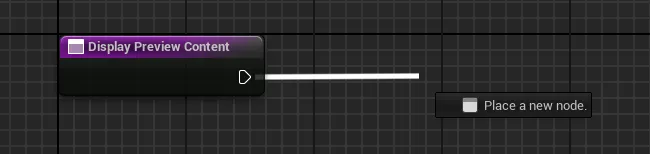
To do so, simply override the
Display Preview Contentfunction
You can then execute any code you need to display a preview. That code will only ever be executed when running the Hud Builder Assistant
-
-
Finally, use the
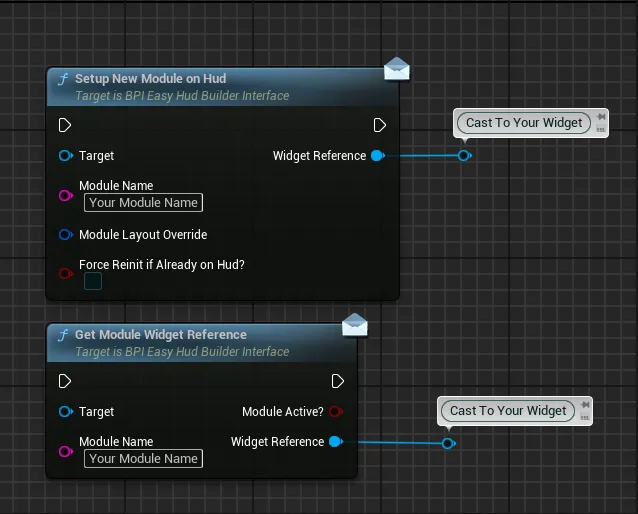
Setup New Module on HudorGet Module Widget Referencewith the name of your module to retrieve their reference and call any functions on it.If you need to access variables or hard coded functions/events (not from the BPI), you can take the Widget Reference output and simply use a Cast with your widget class