In-Depth Utilities Tools Presentation
The system provides several tools that you can use to build your hud, you can find all of these tools described in details in this guide
Hud Builder Assistant
Note
If you have not followed the quick start guide I would strongly recommend checking it out to better understand this utility.
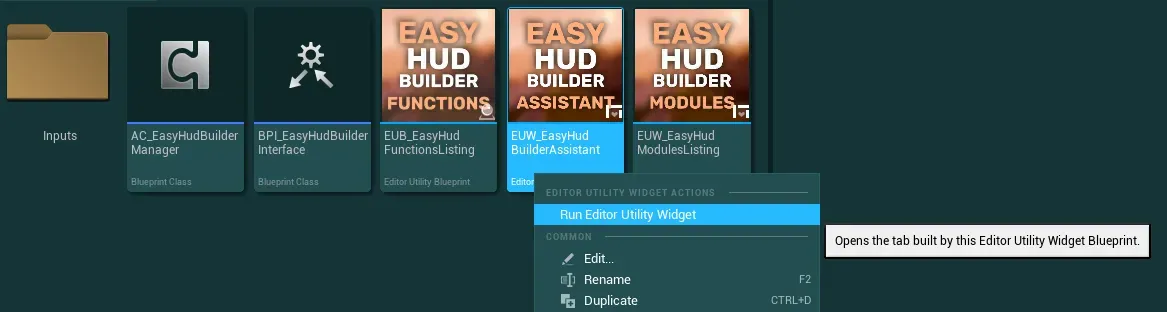
To open the main Hud Builder Assistant tool, go to the folder EasyHudBuilder/Core, right click on the EasyHudBuilderAssistant tool and select Run Editor Utility Widget
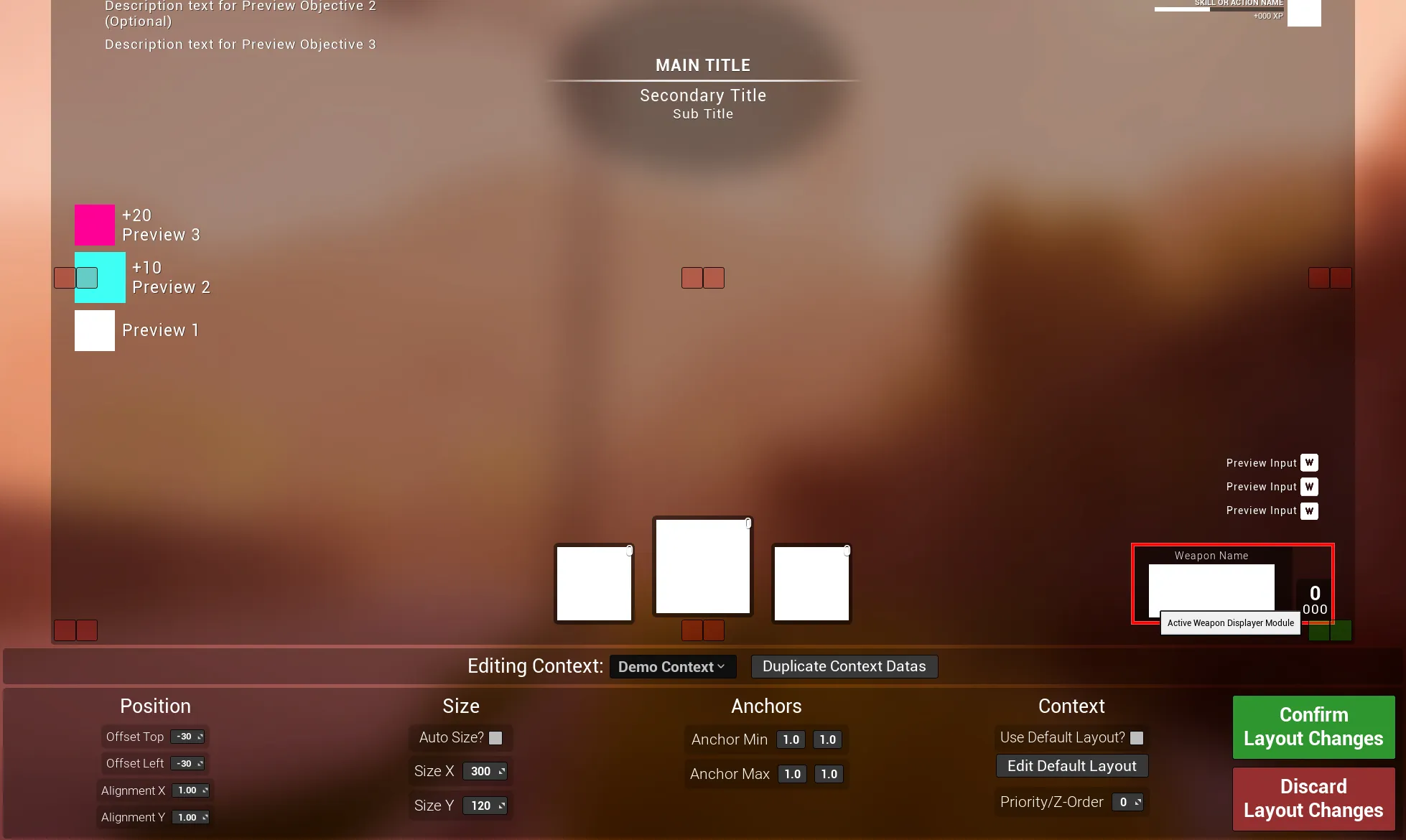
You will be presented with the following editor that you already saw earlier, let’s break it down in more details
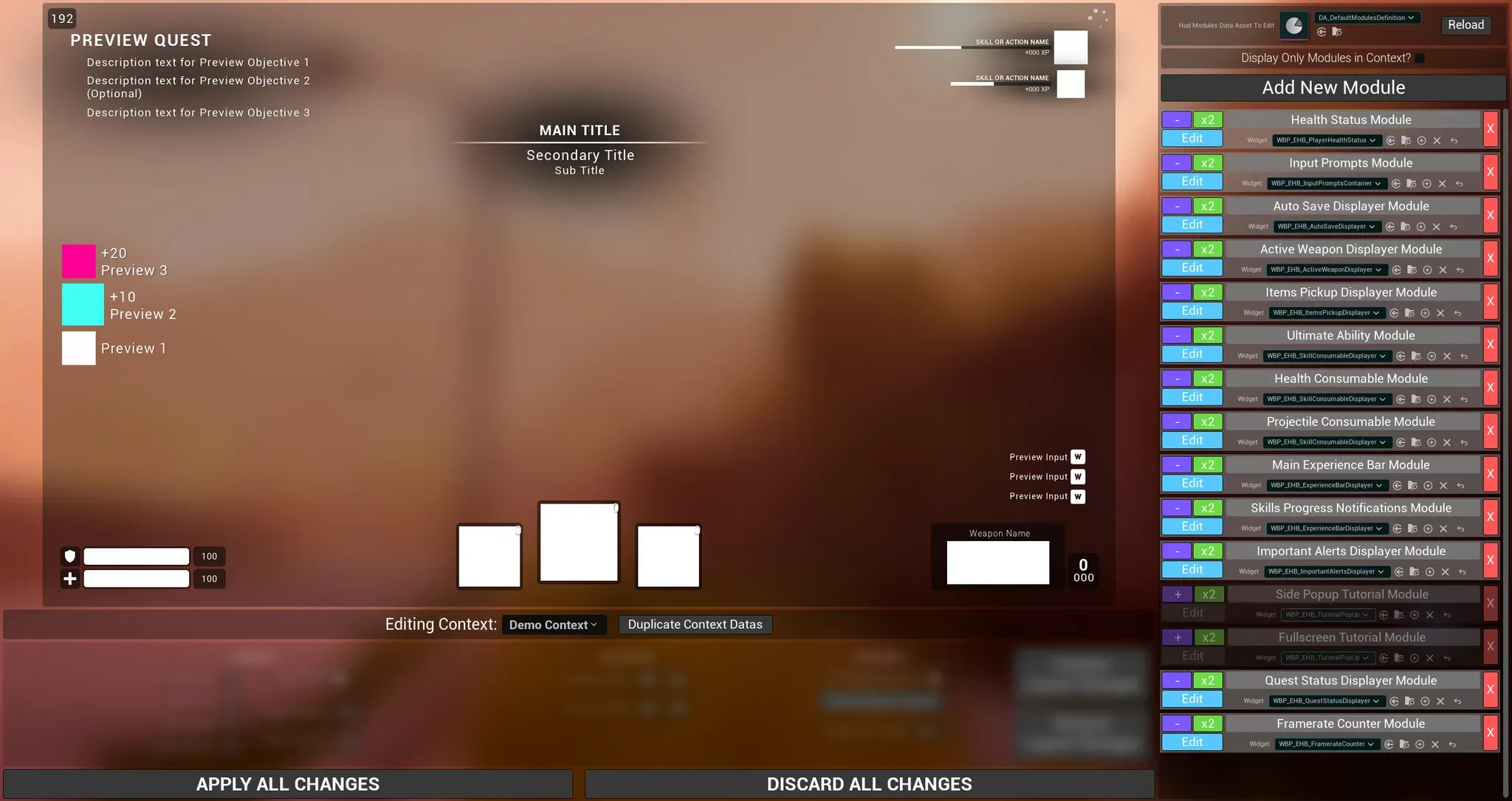
On the right panel you will find everything related to modules with a list of built in modules (expand to see more)
-
The first setting is the reference to the data asset that will store all the modules datas, this is where you can select the data asset you created You can also reload the data asset if you need it, any modifications not applied will be lost when reloading

-
The following setting allow you to filter out the list of modules to display only the modules in the editing context

-
To add a new module definition to the list, you can use the
Add New Modulebutton
-
And finally, each module definition has several settings, they can have two appearences if they are in the editing context or not

- The purple button
+or-allow you to add or remove any module from the current context (except theNonecontext of course) - The green
x2button allow you to duplicate the module definition with all its settings - The blue
Editbutton allow you to edit the layout of the module (the module needs to be in the context to be edited) - The module display name can be modified with the text box
-
The widget associated with the module can be defined with the class selector right below the name. Multiple modules can have the same widget class
I strongly recommend to not modify any of the built in module names or widget in the data asset (unless replacing the widget by a copy/duplicate). If you do, the demo content might no longer work properly.
-
Finally, the big red button will delete the module entirely from the data asset
- The purple button
On the left panel you will find three main parts (expand to see more)
- The large rectangle is the canvas hud displayer, where you will be able to preview all the widgets and contexts
-
Right below it, you can find a selector for the context to edit alongside a button to duplicate any context data

How to edit the Contexts List
The list of contexts is defined by an enumerator. If you wish to add, remove or rename the contexts, check out the following steps:
- Go to
EasyHudBuilder/Datas/and open the enumE_HudContexts. In there you will find the default list of contexts, do not delete or modify the first two entries of the enum - You can freely modify the rest of the list or add new entries, I would however not recommend deleting any of the existing entries to prevent any issues
-
Once you made your modifications, make sure to close the Easy Hud Builder Assistant widget, then save all the changes

-
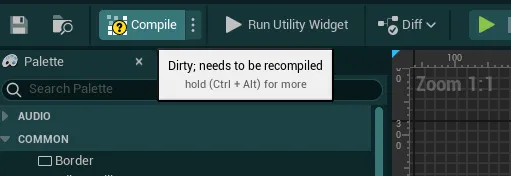
Open the Hud Builder Assistant widget (open for edition, not to use the tool) and press the “Compile” button
-
You can now reopen the tool and see the modified contexts in the dropdown
If you notice any inconsistent behaviors in any of the systems, restarting the engine should fix all of these
Note
If you notice that the widgets are not displayed properly when selecting a context, you can try to open the
WBP_EHB_HudBuilderModuleMaster(EasyHudBuilder/Core/HudModulesWidgets) and recompile it. Then re-open the Assistant toolIf the issue persist, restart the engine.
- Go to
-
The last panel contains all the layout settings that you can tweak when editing the layout of a module. Those are the same controls that you can find in UE widget editor

Apply All ChangesSave inside the data asset any modification made to the modulesDiscard All ChangesReload the data that are currently inside the Data Asset to Edit, discarding any unsaved changes made since then
With this introduction done, we can describe a bit more the edition of a module: Each module has multiple layout possible, a default one and one per-context, the Editing Context defines which layout you are editing
- If
None→ editing a module will edit its default layout values. Those values will be used when manually adding the widget - not as part of a context -
If
[Any other context]→ editing a module contained in that context will edit the layout values of that module when displayed with the selected contextYou can also choose to use the default layout values even when displaying from the context by setting the
Use Default Layout?variable to true when editing the module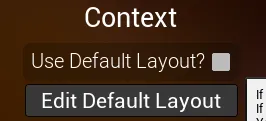
When editing a module, the module will be highlighted by a red outline, you will then be able to set any layout options or drag/resize it around directly with the controls on the module itself
You will also see a set of squares appearing, those squares can help you quickly set the Anchors of the module (the same Anchors settings that can be found in the layout settings panel). The first square of each set will define the Anchor Min, the second square will define the Anchor Max. You can also manually input the anchors if you need more precise values.
Additional Tools
In the same EasyHudBuilder/Core folder you will also find two additional tools that can help you when working with the system
EUB_EasyHudFunctionsListing
A simple editor blueprint that you can open by double clicking on it
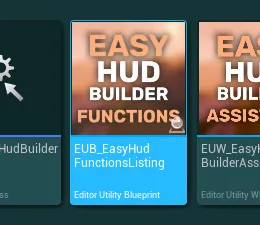
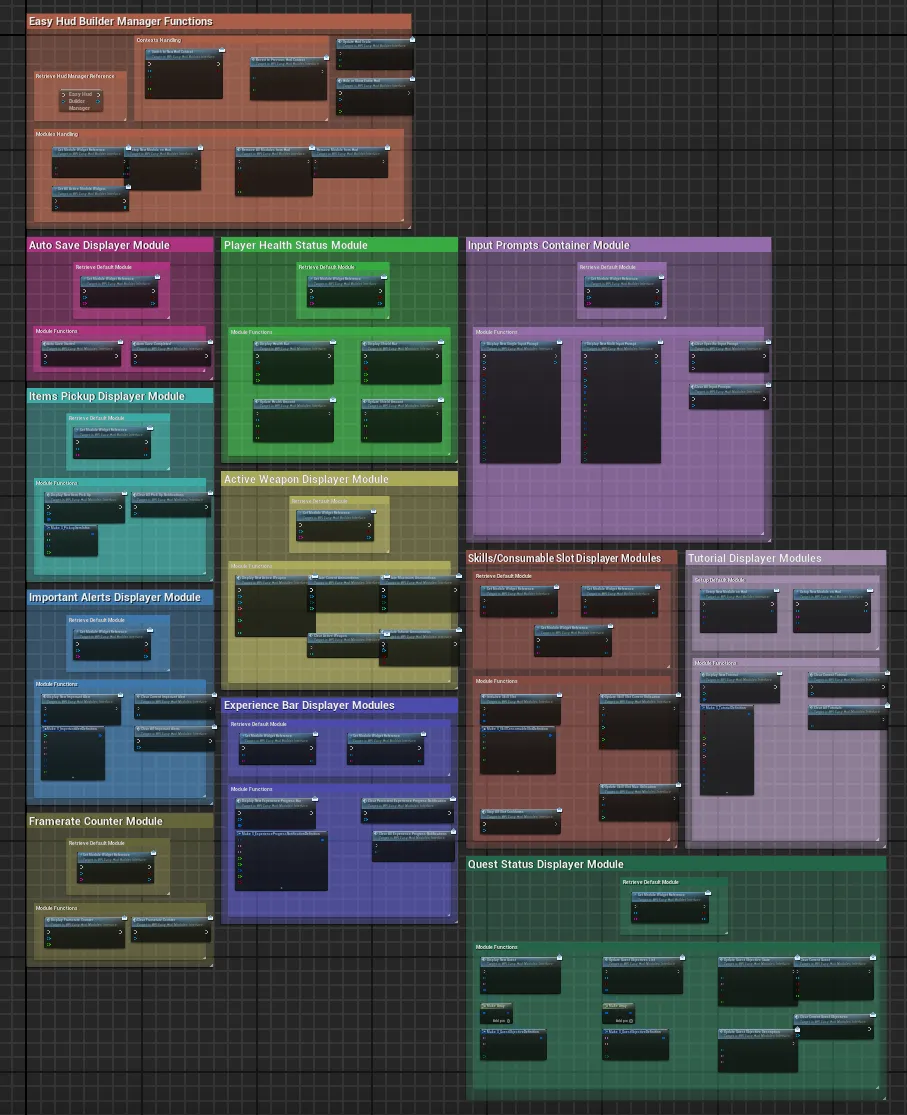
This blueprint contain every single function that you can call on the Hud Builder Manager or any of the built in modules
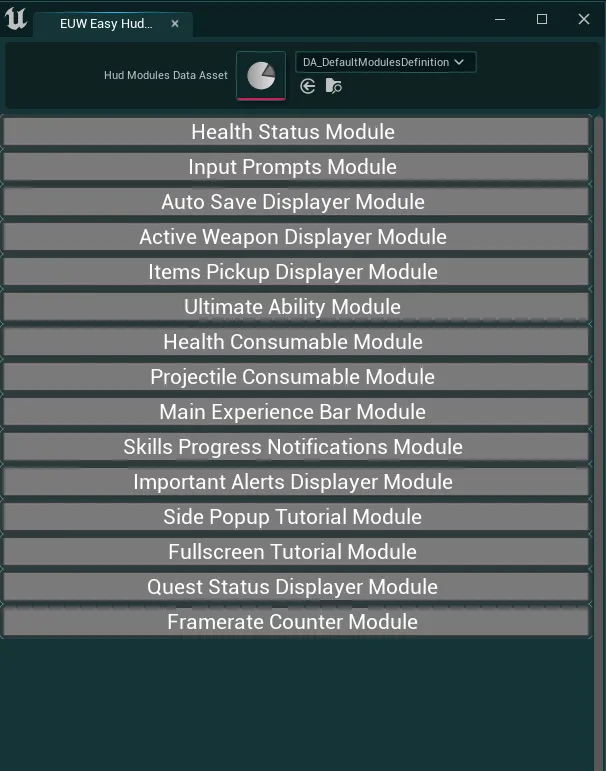
EUW_EasyHudModulesListing
Another editor utility widget that you can open by right clicking on it and selecting Run Editor Utility Widget
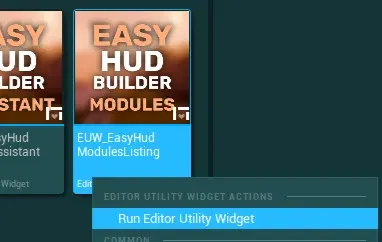
This utility widget will simply list every single module that is contained inside a given modules definition data asset. Each module name can be easily selected and copied to use anywhere needed
Main Hud Widget
To display the HUD and all its associated widgets defined from the assistant tool, the system uses a main panel widget. You can find that widget inside the EasyHudBuilder/Core folder

This widget contains the main canvas panel, the scale box to change the hud scale as well as the global fade animation. In case you need to add custom logic or hard-coded elements to the hud, you can do so inside this widget. However, make sure to not delete any of the existing elements