HUD Manager Setup
To get started with the HUD Manager, we first need to check if your project is already using a custom HUD class or not.
You can either check this inside the Project Settings > Map and Modes section or inside any gamemode that you may have created. Once you found your gamemode or went inside the project settings check the HUD Class variable.
Then, based on what you see, identify which of the following 2 situations applies to your project:
Situation A: Default Engine Game HUD
What you see: The HUD Class setting displays the default HUD class in the dropdown
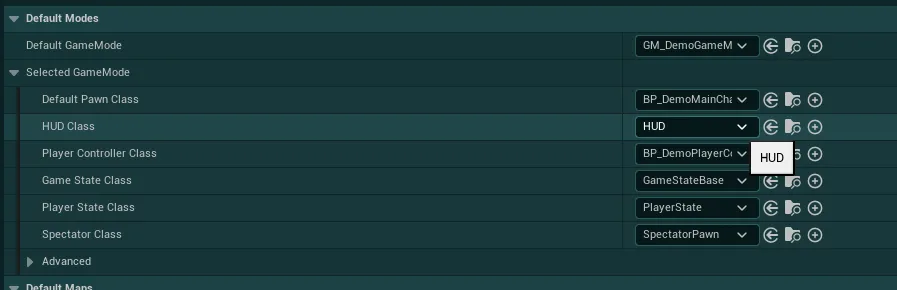
This means you do not have a custom Game HUD yet, follow Situation A instructions right below.
Situation A Instructions
Situation A
You don't have a custom Game HUD Class
To use the provided HUD Class you simply need to add the BP_EHB_GameHud class to your gamemode.
-
If you already have a gamemode either open it or go to the
Projects Settings > Map and Modessection and simply locate theHUD Classsetting underSelected GameMode. Then, replace this value with theBP_EHB_GameHudclass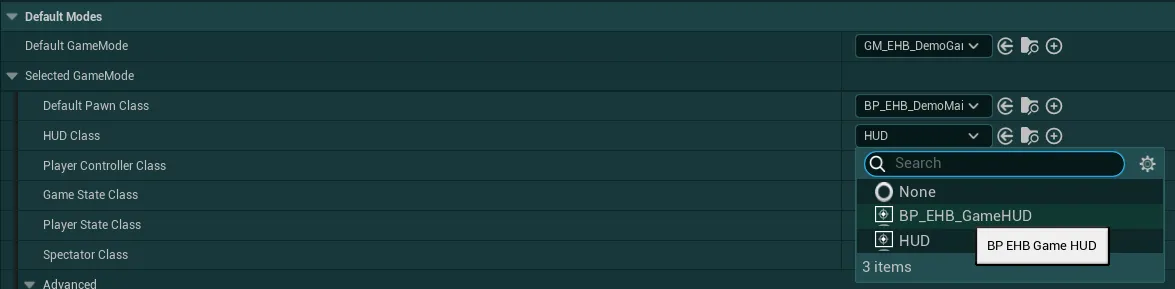
-
If you don't have a gamemode yet, I would recommend taking a look at the following Unreal Engine documentation to learn more about it and set up your own Gamemode Class. Once your Gamemode is set up, simply check back step 1.
Alternatively, you can use the provided demo gamemode (
GM_EHB_DemoGameMode) by selecting it in the Project Settings or in the gamemodes dropdown, this will use the demo player character alongside the correct HUD Class.
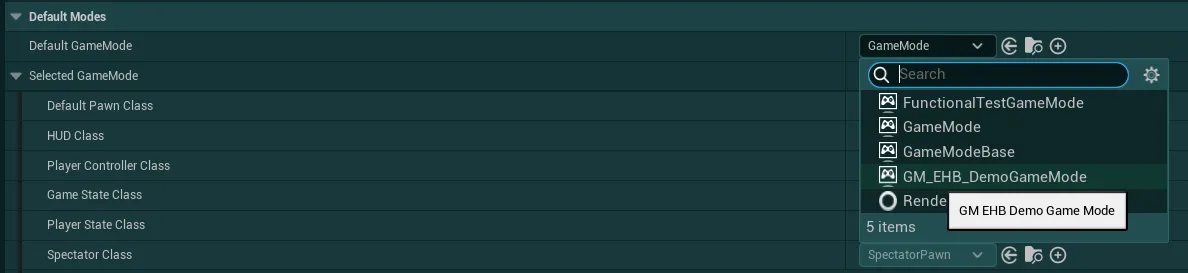
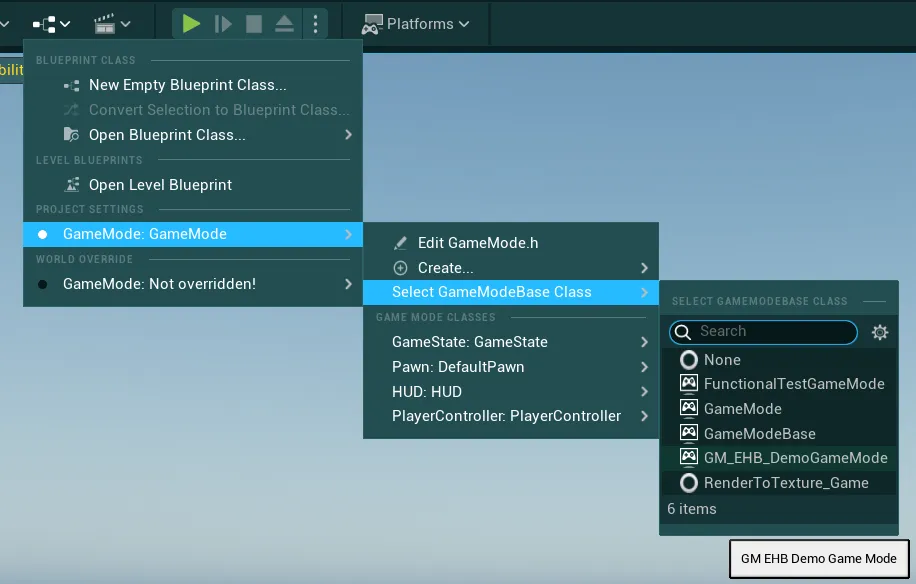
The provided demo gamemode and player character can be located under
EasyHudBuilder/DemoContent/
Warning
If you have multiple gamemodes or levels that override the default gamemode class, make sure to set the HUD Class inside these overrides as well!
Once this is done, you will be able to configure the config from the Global Hud Config Data Asset. To do so, check out the following section Using the Global Hud Config Data Asset
Situation B: Custom Blueprint Game HUD
What you see: The HUD Class setting displays a custom name (e.g., BP_MyGameHUD)
This means you already have a custom Game HUD. In this case, follow Situation B instructions right below.
Note on C++ Classes
If this custom game hud is a C++ class, you will first need to create a blueprint child of that class before doing the following instructions.
Situation B Instructions
Situation B
You have a custom blueprint Game HUD Class
-
First, open your custom HUD Class blueprint
-
Then, in the components tab, click on
Addand simply add theAC Easy Hud Builder Managercomponent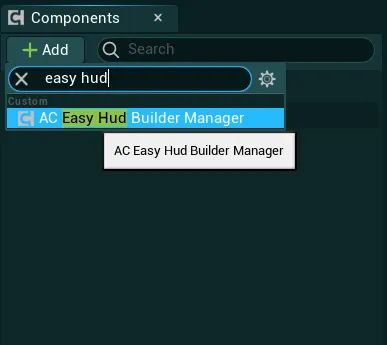
-
Once this is done, you will be able to configure the config from the Global Hud Config Data Asset. To do so, check out the following section Using the Global Hud Config Data Asset
Using the Global Hud Config Data Asset
The Global Hud Config system allows you to quickly change all the various settings required for the asset to work.
The default Config Data Asset used by the system (DA_EHB_DemoGlobalConfig) can be found in the folder EasyHudBuilder/Core/GlobalConfig
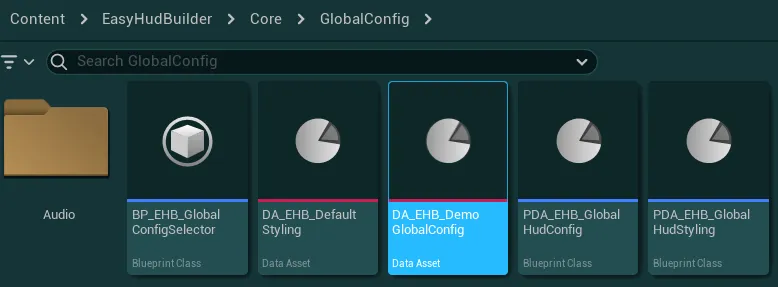
I strongly recommend you to create a new config data asset or duplicate the demo config to set up your own config, check out the following dropdowns for more details
How to create a new Config Data Asset
-
To create a new Config Data Asset, right Click anywhere inside the Content Browser window and search “Data Asset”
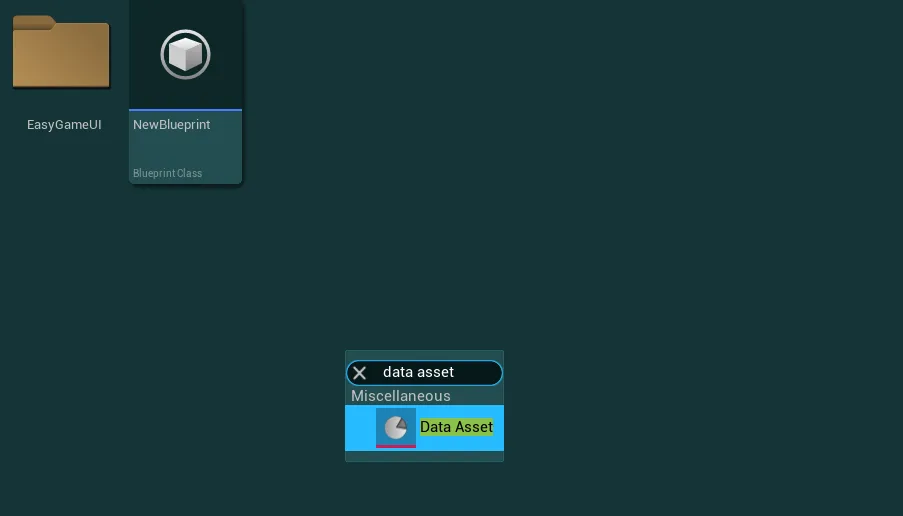
-
In the window that appeared, search for
GlobalConfigand selectPDA_EHB_GlobalHudConfig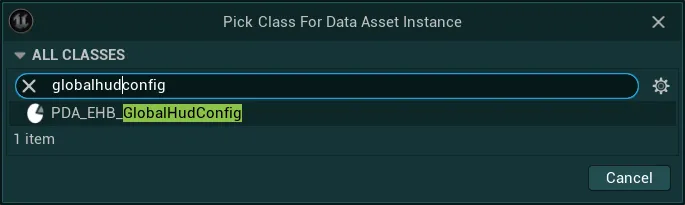
-
Give this new asset a name and you now simply have to select this data asset to be used by the system (instructions just below)
How to select the data asset used by the system
-
To change which data asset is used by the system, go into
EasyHudBuilder/Core/GlobalConfigand open the blueprintBP_EHB_GlobalConfigSelector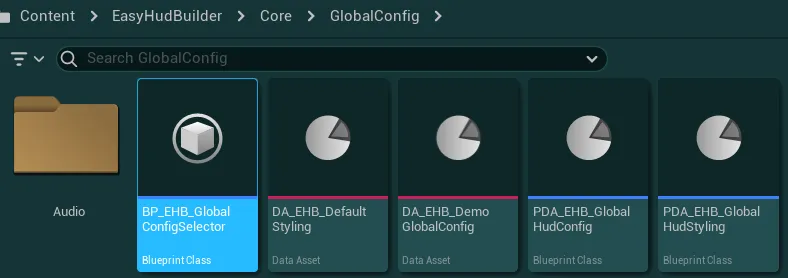
-
In this blueprint, simply change the value of the
Global Config Data Assetvariable to be your newly created data asset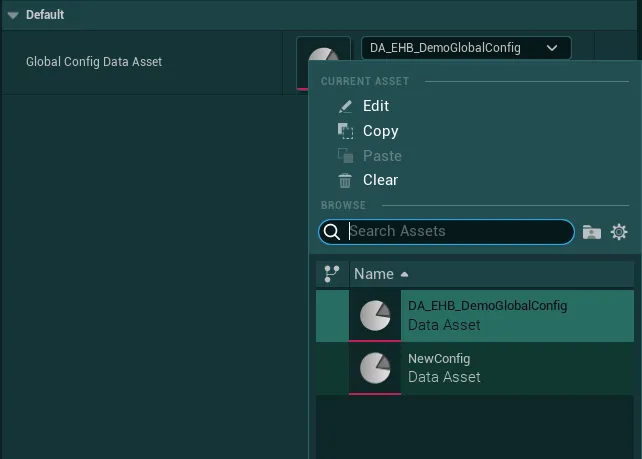
-
Your new data asset is now fully ready to be used!
How to retrieve Global Config variables in any blueprint
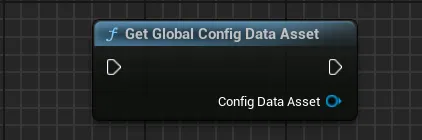
You can retrieve any variable from the Global Config using the Get Global Config Data Asset function. This will return the config data asset object used by the system and give you access to any variables.
Warning
This object is intended for Read-Only access, do not attempt to modify the variables during gameplay as it will likely lead to unexpected results.
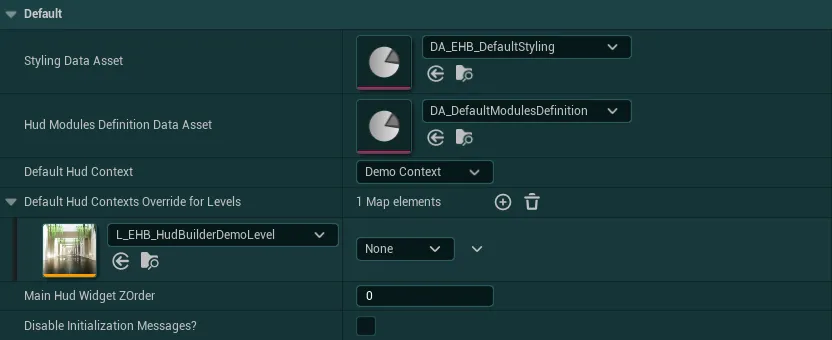
Then, open the data asset that you want to use for your config. Once opened, you will be presented with several variables that control the various systems of the asset
-
Styling Data AssetThe global styling data asset that will be applied to all the built in widgets of the pack, check out the Global Styling System section for more details
-
Hud Modules Definition Data AssetData Asset containing the definition of all the modules that can be activated by contexts or manually added to the hud. In the next sections you will be able to learn how to use the Assistant Tool to populate this Data Asset with ease
-
Default Hud ContextHud context to display by default when loading the game
-
Default Hud Contexts Override for LevelsWhen playing in any level defined in this map, the hud context will use this override instead of the default hud context. Can be useful for example to associate a Main Menu Level with a context “None”
-
Main Hud Widget ZOrderZOrder of the Main Hud Widget (panel widget containing all the modules)
-
Disable Initialization Messages?If True, all nominal initialization messages from the asset will be disabled (errors and warnings will still be displayed)