Removing Demo Content
If you wish to remove the demo content of the asset, you can do so with two methods:
- Soft-removal → ensuring it does not end up in your final packaged game but keeping it in the unreal project
- Hard-removal → removing it entirely from the unreal project
Soft-removal of the demo content
To soft-remove the demo content and making sure it doesn't end up in your final packaged game, we simply need to tweak the project settings to prevent that content from being packaged.
-
To do so, go to
Edit > Project Settings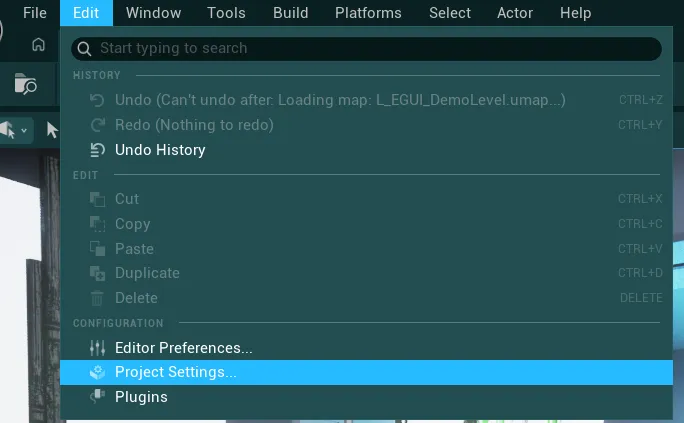
-
Then, click on the
Packagingsection, and expand theAdvanceddropdown under Packaging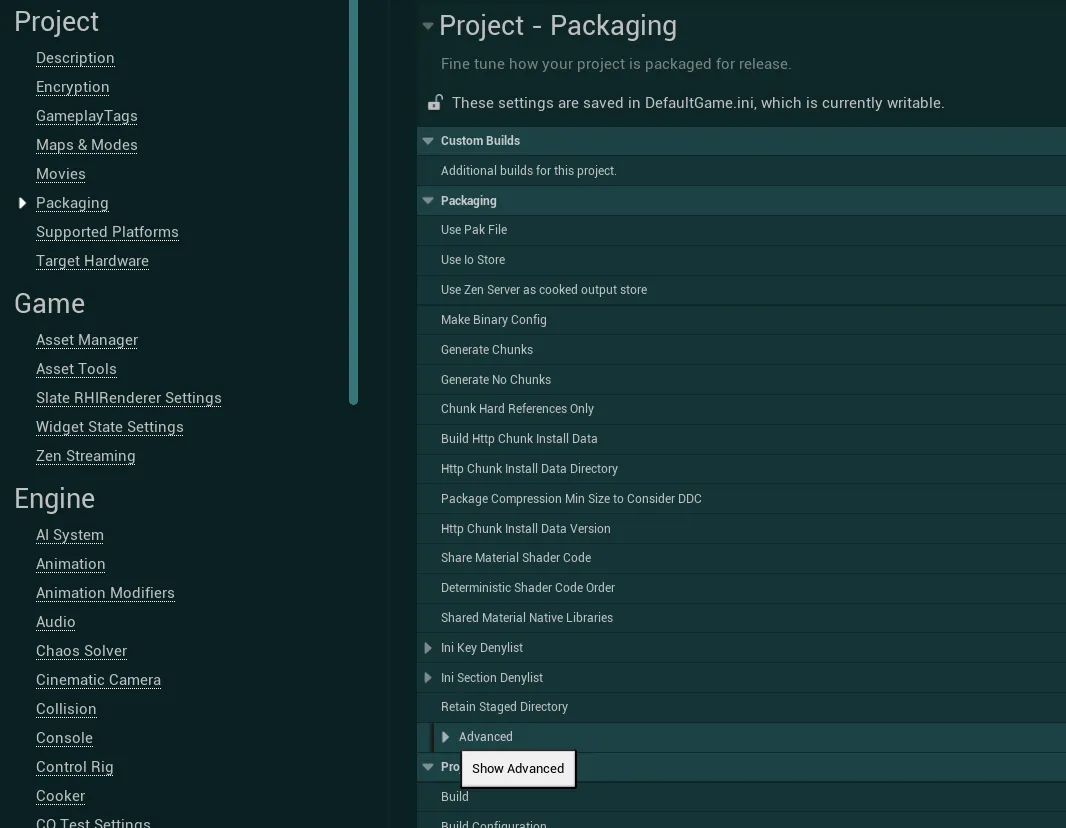
-
In this dropdown, locate the variable
Directories to never cook
-
Add a new entry to this variable then click on the three dots
...and select the folderEasyGameUI/Maps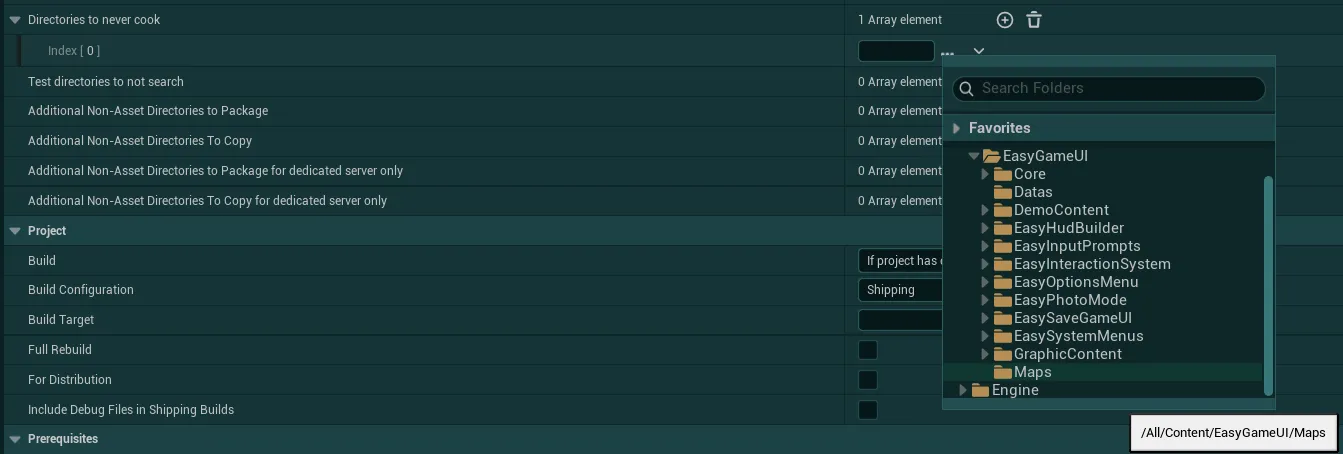

-
Once this is done, the demo content of the asset will no longer be packaged unless explicitely referenced in other parts of your project
Disclaimer
If you are using the Demo Global Config data asset, some level references may be invalid while in package (if they still use the demo levels), in which case some logic may lead to unwanted behavior due to the levels not being able to load.
You can check out the Global Config section of the documentation if you wish to use a new config data asset without those references.
Hard-removal of the demo content
Warning
Before attempting any hard-removal, make sure to backup your project! Deleting assets in Unreal can be unstable and could lead to data loss, make sure to create a backup before starting.
Please note also that hard-removing the demo content is not fully recommended as it can be useful to debug issues or see base implementations of features of the asset.
If you wish to hard-remove the demo content from your project, you will first need to make sure you aren't using any of that content in your game, including through the Global Config system.
-
To get started, you will first need to create a blank new Global Config in order to be able to safely delete the Demo Global Config data asset.
In order to do this, simply check out the sectionsHow to create a new Config Data AssetandHow to select the data asset used by the systemfrom the Global Config documentation -
Once you have created your new data asset and associated it to the config selector, you can start deleting the demo content. To do so, open your
Content Browserand locate theMapsfolder inside theEasyGameUIfolder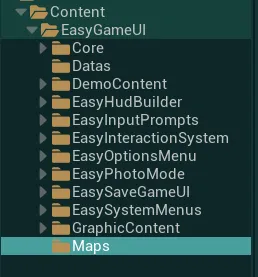
-
Select the folder and
Right Click > Delete. In the popup that appears select the two referencing assets andRight Click > Add to Pending Deletes
At this point no more assets should be referencing, if you still have assets referencing, it might mean that you still use the demo config or have referenced the content somewhere else. Once all the references are cleared, simply press delete in the popup.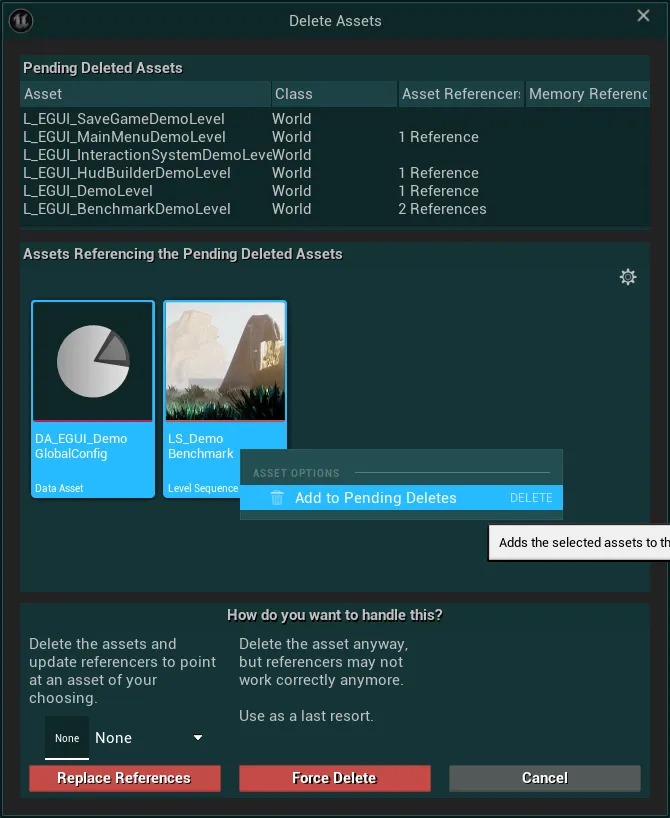
-
Then, in your content browser, search for all occurences of folders named
DemoContent(Do not delete all of them yet)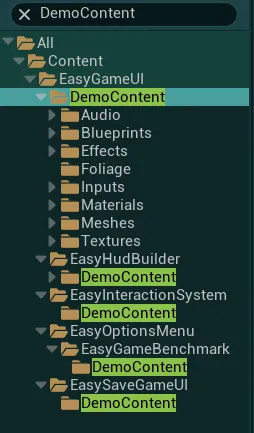
-
Start by deleting the
DemoContentfolders underEasyHudBuilder,EasyInteractionSystem,EasyGameBenchmarkandEasySaveGameUI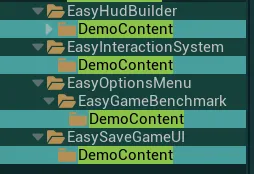
-
Finally, delete all the folders in
EasyGameUI/DemoContentexceptInputsandAudio/UI(UI Audio can be force deleted if you wish, but I would recommend keeping it)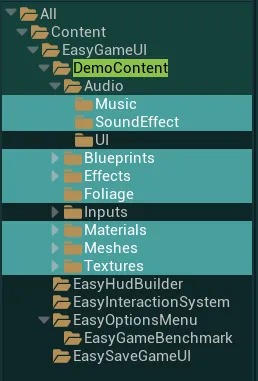
-
Once this is done the demo content of the asset will be fully removed from the project