Main Menu & Intro Screen
Main Menu Setup
For the main menu to work, some systems must be added to the level you wish to use as Main Menu. If you want an example setup check out the level L_EGUI_MainMenuDemoLevel inside the folder EasyGameUI/Maps
-
To start, you can either open the level you wish to use as Main Menu, or use a new fresh level by duplicating any level you already have/creating a new one
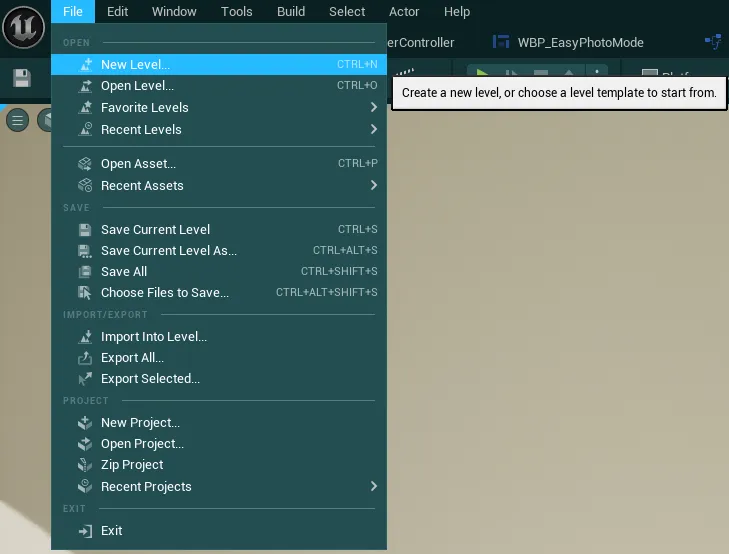
This level should be as light as possible in order for it to load quickly at game launch, if you don’t want a 3D world to be displayed in your main menu, then remove all objects from the level and leave it blank.
-
Then, in your Project Settings, make sure to set this level as the
Game Default Mapunder theMap & Modescategory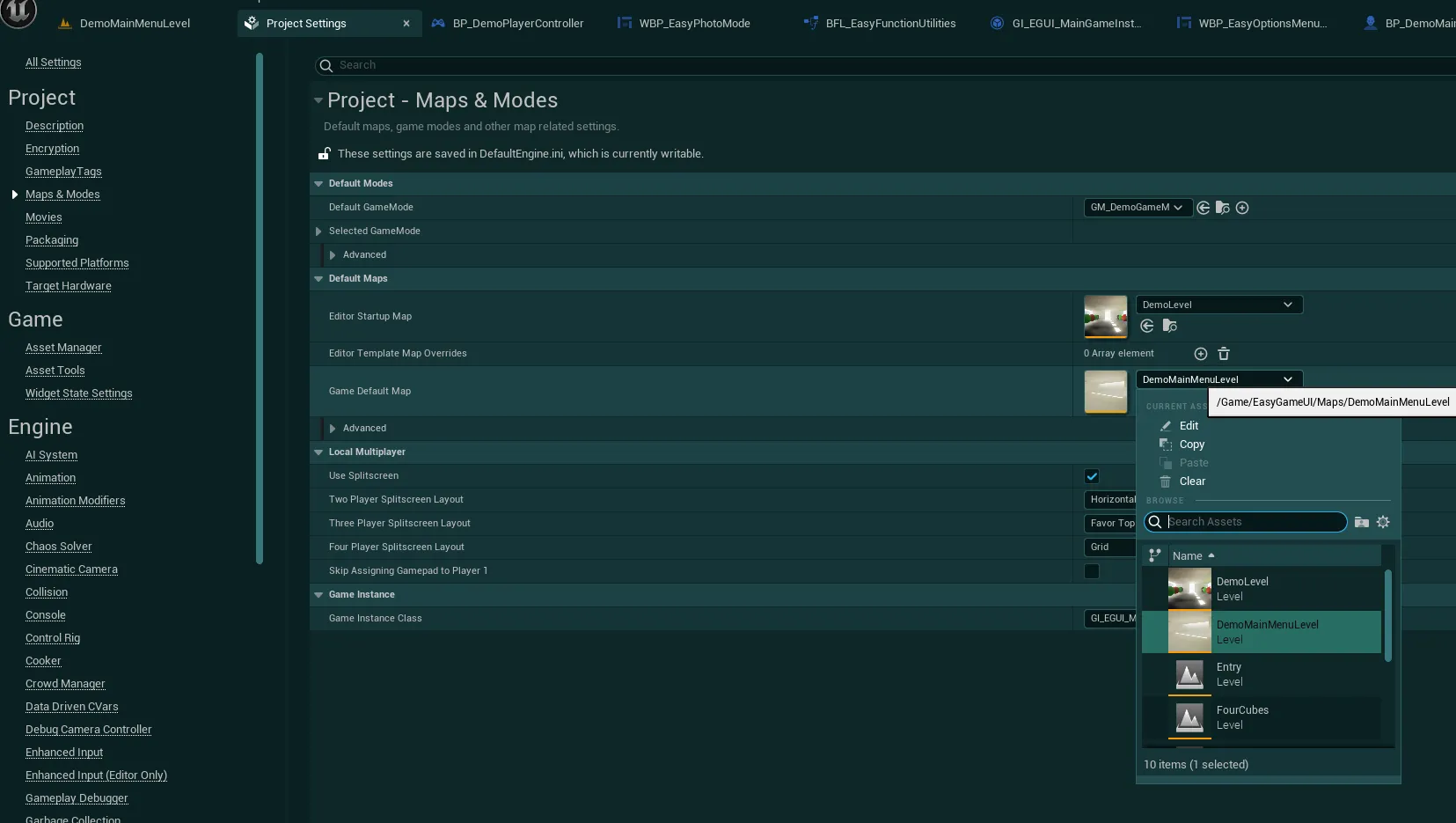
-
You also need to reference this level inside your Global Config Data Asset in the setting
Main Menu Level -
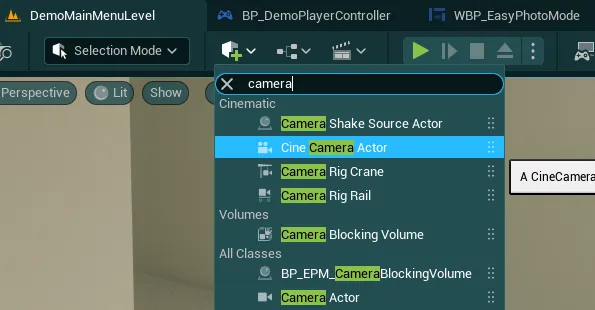
Then, if you wish to have a 3D view of your world, place down at least one camera in the world (either a CameraActor or CineCameraActor). You can place as many cameras as you need, there are further instructions on how to use them below.
-
Once your level is ready and referenced, go to the
EasyGameUI/EasySystemMenusfolder, look for theBP_EasyMainMenuControllerand place it anywhere in the level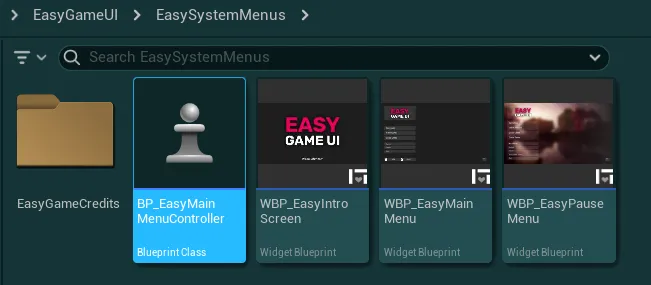
-
Then, if you have any camera to set up, select the
BP_EasyMainMenuControlleryou just placed and go in the Details Panel. Locate theTarget Camera Bindingsvariable and add as many entries as cameras you wish to have.
For each camera, you can then specify which buttons of the main menu will “trigger” the viewpoint to switch to the specified camera.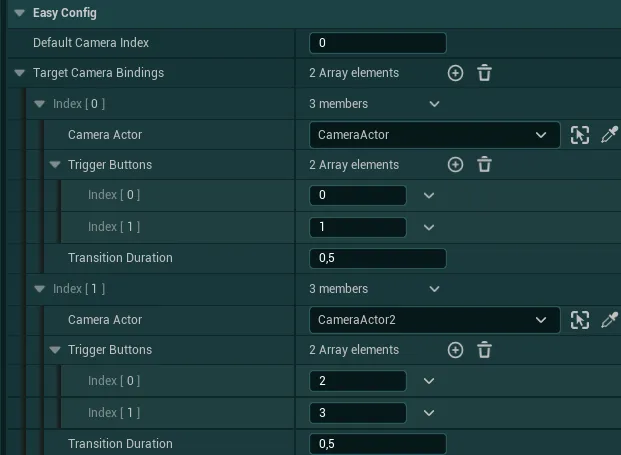
In this example, the first 2 buttons will trigger the first camera, buttons 2-3 will trigger camera 2, etc. You can also specify the duration of the transition when switching to the given camera. -
Finally, you can change the reference of the map that will be loaded by default when the player clicks on the ”New Game” button from the Global Config with the
New Game Levelvariable
You now have your base Main Menu set-up, if you wish to edit the Easy Main Menu widget, you can find it inside the EasyGameUI/EasySystemMenus folder. You can also change the displayed logo from the Global Styling system
Intro Screen Setup
The Intro Screen can be automatically spawned before displaying the Main Menu, it just requires a few conditions to work properly:
- You Main Menu level has to be set up as shown before
-
The Global Config variable
Intro Screen Widgethas to be defined with the desired widgetIf the widget reference is empty or invalid, the system will skip displaying the Intro Screen widget and proceed directly to the Main Menu (so if you don't want this Intro Screen, simply remove the widget reference from the Config)
-
If you are using a custom widget for the Intro Screen (not the default provided widget), this widget needs to be a child of
WBP_EasyMasterWidget(more details in the UI Navigation System section)
Finally, you can enable Game Credits on launch with the Global Config variable Play Intro Credits On Game Launch?
To configure the Intro Credits, you simply need a credits context Intro Credits defined in the Global Config, more instructions on how to set this up can be found in the Game Credits section
Additional Guides
Disable Main Menu buttons
- If you wish to disable buttons in your main menu, open the
Easy Main MenuWidget -
Then in the
Hierarchypanel/tab, select the button you wish to disable under theButtonsContainerpanel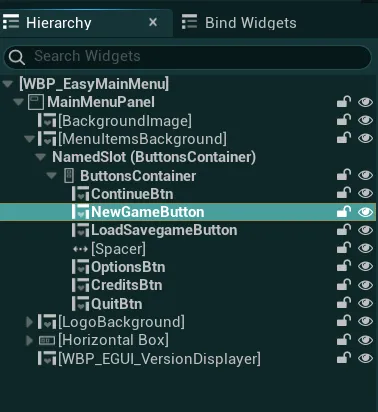
-
Then, inside the
Detailspanel, set theFully Disable Button?variable to True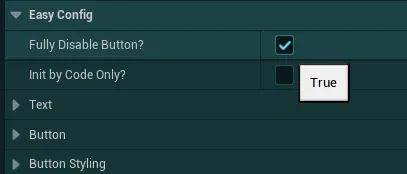
-
If you also wish to disable entire features of the asset, take a look at the Global Config variables, most systems can be disabled from there.
Display a static background image instead of 3D World
- If you wish to have a static background image instead of the 3D world as the background of your main menu, open the
Easy Main MenuWidget -
Then in the
Hierarchypanel/tab look for theBackgroundImagewidget and click on it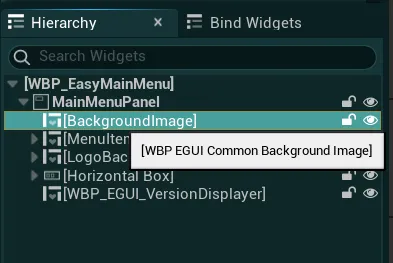
-
Then, inside the
Detailspanel, look for theEasy Configsection, in here you can add a Background Image and tweak any settings for your background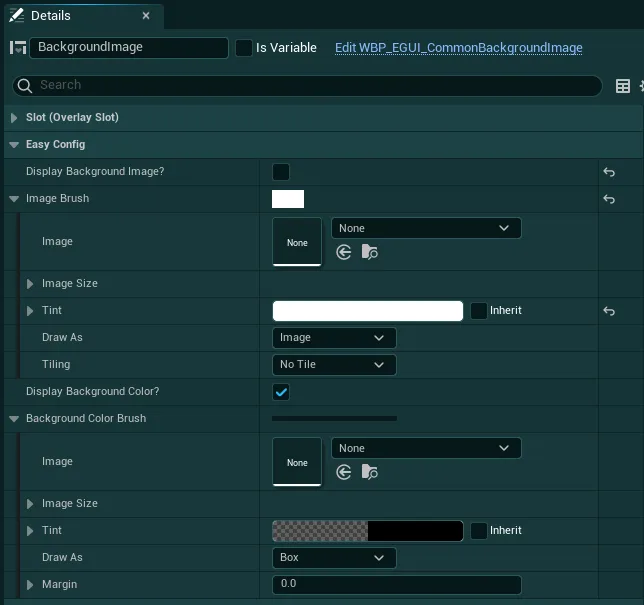
-
You can obviously combine this with a 3D World backdrop if you want to overlay an image in front of the 3D World